> ## Documentation Index
> Fetch the complete documentation index at: https://bilt.me/docs/llms.txt
> Use this file to discover all available pages before exploring further.
# Attaching images
> Add screenshots and mockups to guide the AI
Attaching a screenshot or design mockup is the fastest way to get the look you want — it tells Bilt far more than describing a layout in words.
## How to attach
Click the **+** button in the chat box, then choose **Attach**.
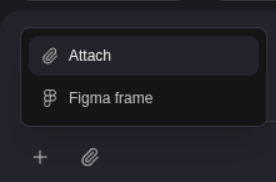 Choose a file from your device.
Send your message — for example, "Match this design for the home screen."
## What you can attach
* **Images** — PNG, JPG, GIF, WebP, or SVG, up to **3.75 MB** each
* **Links** — paste any web address
* **Figma frames**
Choose a file from your device.
Send your message — for example, "Match this design for the home screen."
## What you can attach
* **Images** — PNG, JPG, GIF, WebP, or SVG, up to **3.75 MB** each
* **Links** — paste any web address
* **Figma frames**
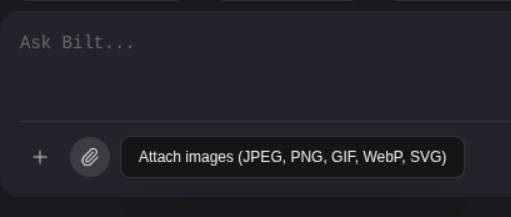 Only images are supported. PDFs, documents, and videos can't be attached. If an image is over the size limit, take a screenshot of it or export it at a smaller size.
If the file picker doesn't open on your first click, click once more — it takes a brief moment to get ready.
Only images are supported. PDFs, documents, and videos can't be attached. If an image is over the size limit, take a screenshot of it or export it at a smaller size.
If the file picker doesn't open on your first click, click once more — it takes a brief moment to get ready.