> ## Documentation Index
> Fetch the complete documentation index at: https://bilt.me/docs/llms.txt
> Use this file to discover all available pages before exploring further.
# Saving your settings
> How changes in Settings are saved, so nothing gets lost
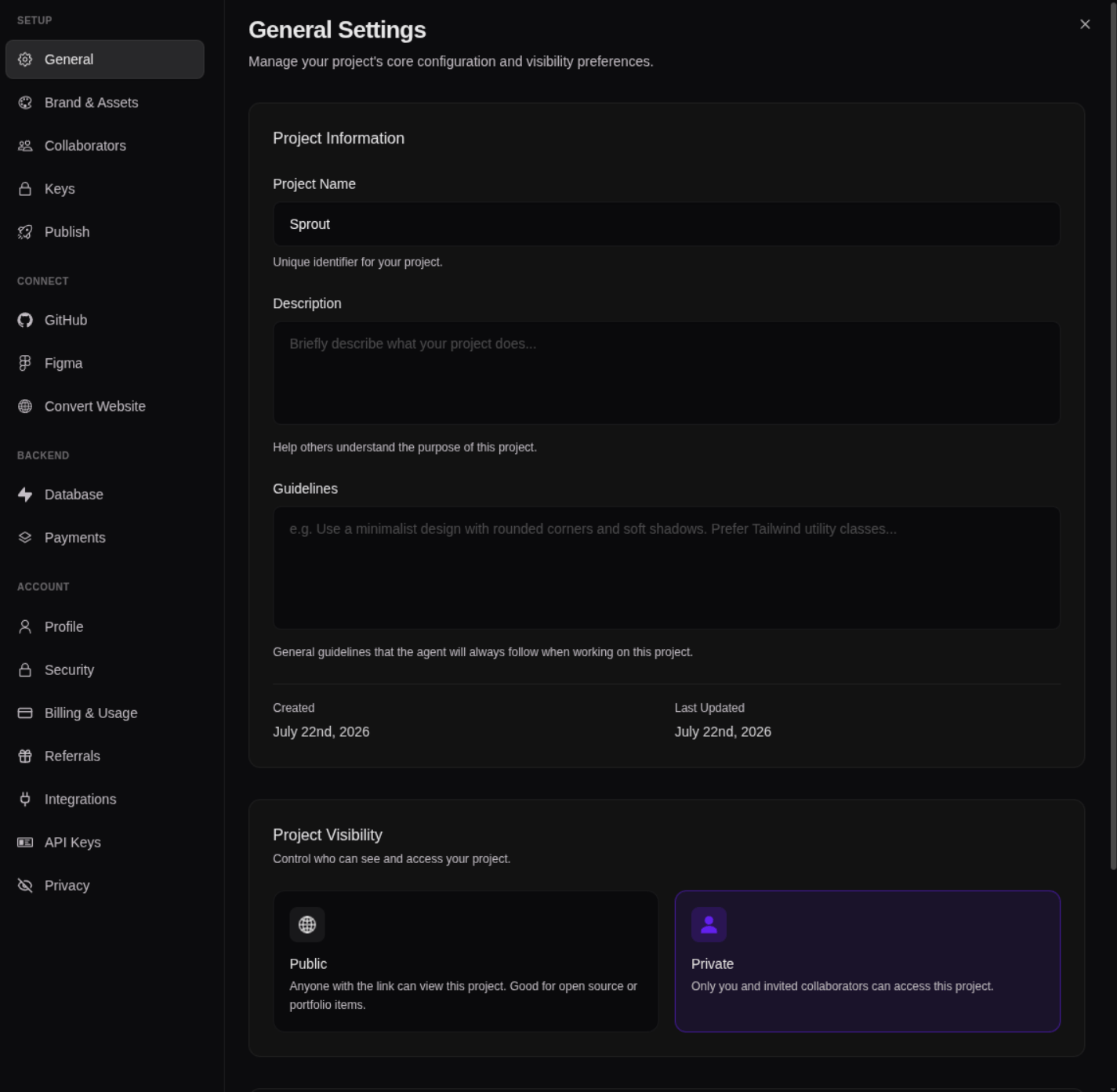
Changes in Settings are saved when you click **Save Changes** — they don't save automatically as you type or toggle.
Open Settings from the **gear icon** next to the project name:

 ## To save a change
Adjust whatever you need across the settings tabs.
Your changes are stored once you confirm.
Give the save a moment to complete.
If you try to close Settings with changes you haven't saved, Bilt shows an **"Unsaved changes"** prompt — so you can save them first or discard them on purpose. You won't lose a change by accident.
## Not sure if it saved?
Reopen Settings. It always shows your last saved values, so you can confirm at a glance.
## To save a change
Adjust whatever you need across the settings tabs.
Your changes are stored once you confirm.
Give the save a moment to complete.
If you try to close Settings with changes you haven't saved, Bilt shows an **"Unsaved changes"** prompt — so you can save them first or discard them on purpose. You won't lose a change by accident.
## Not sure if it saved?
Reopen Settings. It always shows your last saved values, so you can confirm at a glance.