> ## Documentation Index
> Fetch the complete documentation index at: https://bilt.me/docs/llms.txt
> Use this file to discover all available pages before exploring further.
# Connect GitHub
> Push your Bilt app code to a GitHub repository
This guide walks you through connecting your Bilt project to GitHub for version control. Bilt mirrors your project to a GitHub repository and keeps both sides in sync.
## Prerequisites
* A Bilt project
* A [GitHub](https://github.com) account
## Step 1: Open GitHub settings
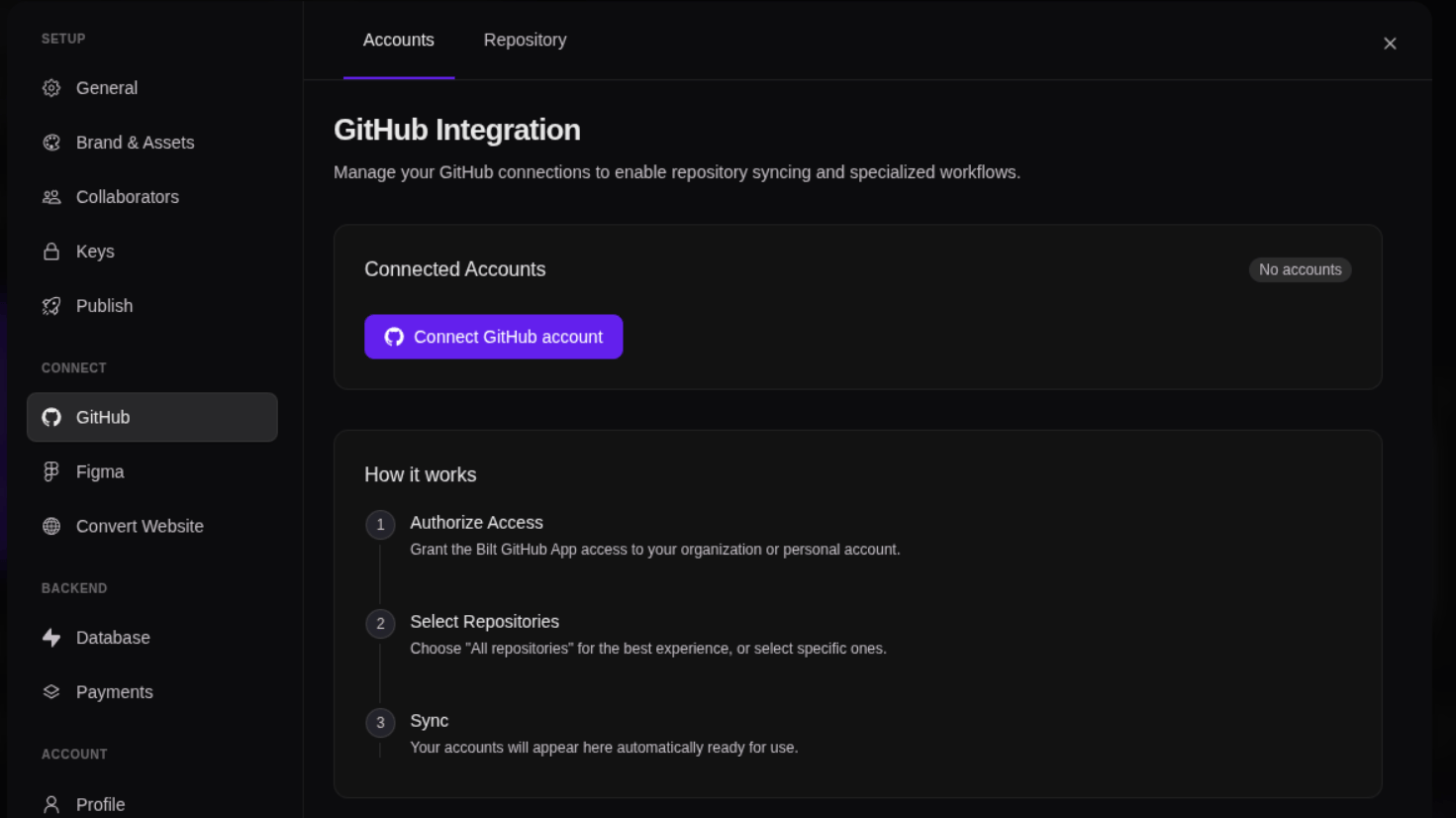
Go to your project → **Settings → GitHub**. You'll see two tabs: **Accounts** and **Repository**.
## Step 2: Connect a GitHub account
On the **Accounts** tab, click **Connect GitHub account**. A popup opens GitHub, where you authorize and install the Bilt GitHub App on your personal account or organization.
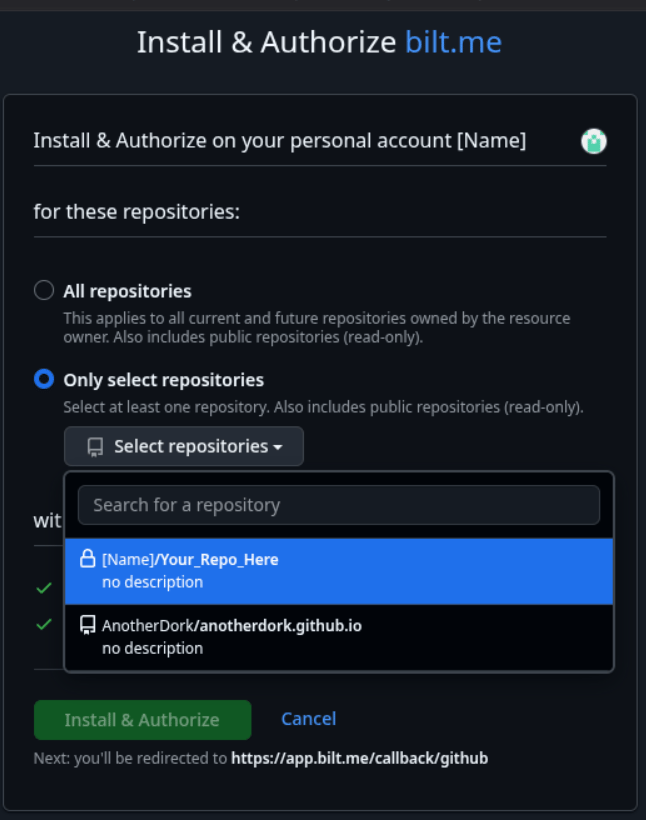
 When prompted to choose repository access:
* **All repositories** — recommended for the smoothest experience
* **Selected repositories** — limit Bilt to specific repos
When prompted to choose repository access:
* **All repositories** — recommended for the smoothest experience
* **Selected repositories** — limit Bilt to specific repos
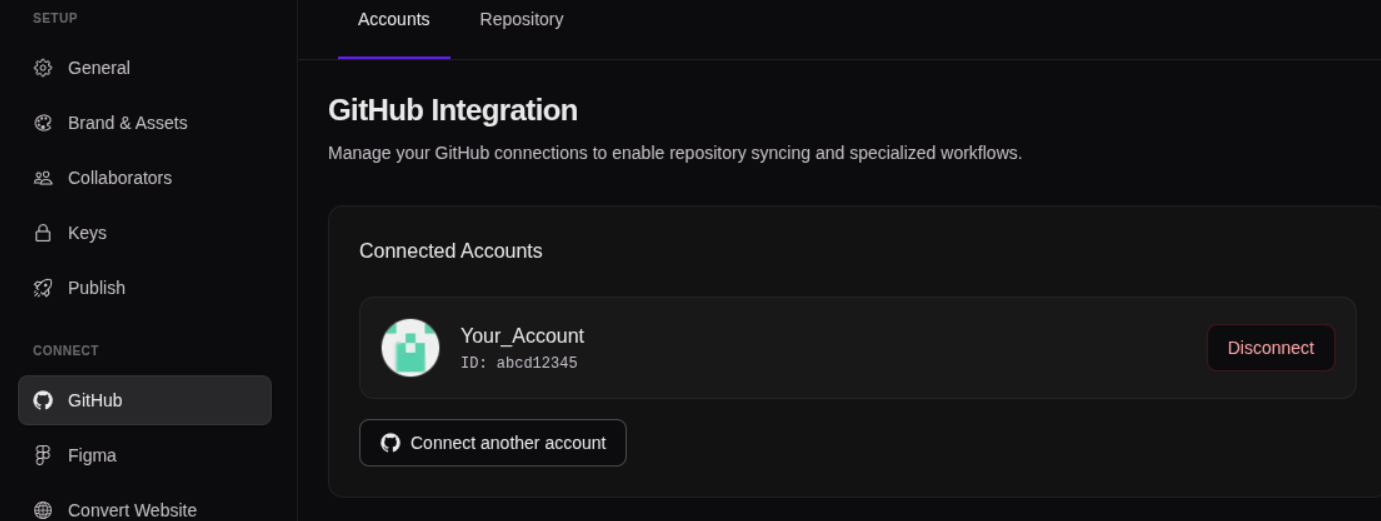
 Bilt uses a GitHub App for secure, scoped access. Connected accounts appear on the **Accounts** tab.
 ## Step 3: Sync your project to a repository
Switch to the **Repository** tab and click **Sync to GitHub**. Choose the GitHub account to use, then confirm. Bilt creates a new repository in that account and mirrors your project to it.
Once the sync finishes, the repository URL appears on the Repository tab. Open it on GitHub to confirm your code is there.
## Step 4: Keep it in sync
After the first sync:
* Changes in Bilt and changes on GitHub are kept in sync automatically
* Click **Resync to GitHub** on the Repository tab any time you want to push the latest changes manually
## Working with your code on GitHub
* **Clone locally** — `git clone` the repo and work in your editor
* **Create branches** — use feature branches for experiments
* **Set up CI/CD** — add GitHub Actions for testing or deployment
* **Add collaborators** — invite your team to the repo
## Further reading
* [GitHub Integration feature](/docs/features/github-integration) — Feature overview
* [Code Export](/docs/features/code-export) — Working with exported code
## Step 3: Sync your project to a repository
Switch to the **Repository** tab and click **Sync to GitHub**. Choose the GitHub account to use, then confirm. Bilt creates a new repository in that account and mirrors your project to it.
Once the sync finishes, the repository URL appears on the Repository tab. Open it on GitHub to confirm your code is there.
## Step 4: Keep it in sync
After the first sync:
* Changes in Bilt and changes on GitHub are kept in sync automatically
* Click **Resync to GitHub** on the Repository tab any time you want to push the latest changes manually
## Working with your code on GitHub
* **Clone locally** — `git clone` the repo and work in your editor
* **Create branches** — use feature branches for experiments
* **Set up CI/CD** — add GitHub Actions for testing or deployment
* **Add collaborators** — invite your team to the repo
## Further reading
* [GitHub Integration feature](/docs/features/github-integration) — Feature overview
* [Code Export](/docs/features/code-export) — Working with exported code