> ## Documentation Index
> Fetch the complete documentation index at: https://bilt.me/docs/llms.txt
> Use this file to discover all available pages before exploring further.
# Publish to Web as PWA
> Put your Bilt app online and make it installable from a phone's browser
This guide shows you how to publish the current version of your Bilt app as a [Progressive Web App (PWA)](https://en.wikipedia.org/wiki/Progressive_web_app).
A PWA opens from a web URL and can be added to a phone's home screen. You do not need a hosting account, domain, Apple Developer account, or Google Play account.
## Before you start
You need:
* A working Bilt app
* Workspace-owner access to the project
Collaborators can work on the app, but only the workspace owner can publish, cancel, republish, or unpublish it.
## Step 1: Check the current app
Publishing uses the version running in the active preview.
1. Open the Bilt project
2. Click through the important screens
3. Ask Bilt to fix anything unfinished or broken
## Step 2: Choose public or private access
Open **Settings → General → Project Visibility**.
* Choose **Public** if anyone with the URL should be able to open the PWA
* Choose **Private** if it should remain available only to you
Making the project public also makes it public inside Bilt. It may appear in browse, search, and your public profile.
The published PWA keeps the visibility used when it was built. If you change visibility later, republish the app.
## Step 3: Open web publishing
1. Return to the project
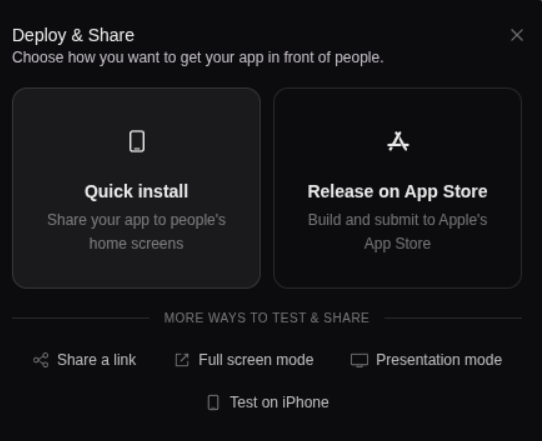
2. Click **Deploy & Share**
3. Choose **Quick install**
4. The **Publish to web** dialog opens
 ## Step 4: Start the publish
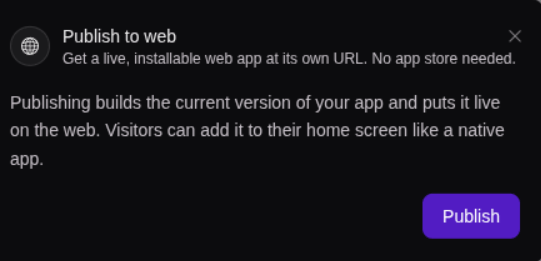
1. Read the information in the **Publish to web** dialog
2. If the app uses payments, note the banner — in-app purchases don't work in a PWA
3. Click **Publish**
## Step 4: Start the publish
1. Read the information in the **Publish to web** dialog
2. If the app uses payments, note the banner — in-app purchases don't work in a PWA
3. Click **Publish**
 Bilt shows the current stage:
1. **Starting build**
2. **Building your app**
3. **Uploading**
4. **Ready**
Publishing usually takes about a minute.
Bilt shows the current stage:
1. **Starting build**
2. **Building your app**
3. **Uploading**
4. **Ready**
Publishing usually takes about a minute.
 Behind the scenes, Bilt:
* Adds the standard PWA setup if the project does not already have it
* Builds the current app for the web
* Creates the install information, icons, and service worker
* Uploads the app
* Serves it over HTTPS at its own `web.bilt.me` address
## Step 5: Open the PWA
When the status reaches **Ready**:
1. Click **Open app**
2. Test the important screens again
3. Copy the web address if you want to save or share it
The address stays the same when you republish, so people do not need a new URL after each update.
## Share a public PWA
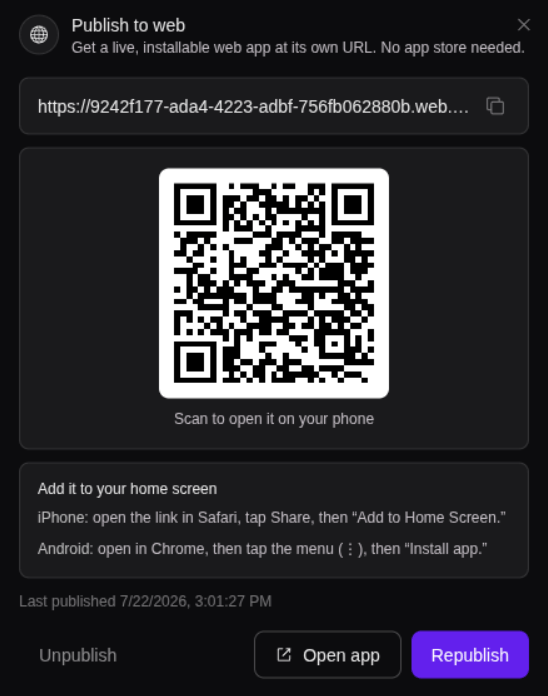
For a public project, the publish dialog shows:
* The permanent web address
* A copy button
* A QR code for phones
* Instructions for adding the app to a home screen
Anyone with the URL can open the app.
## Open a private PWA on another device
Private PWAs do not have a reusable public link.
1. Open the publish dialog
2. Click **Get a link & QR to open it elsewhere**
3. Scan the QR code or copy the generated link
4. Open it directly on the other device
The access link works once and then expires. Click **get a fresh one** if you need another.
Do not paste a private access link into chat or email before opening it. Some services inspect links automatically and can use the single visit.
To give other people ongoing access, make the project public and republish it.
## Add the PWA to an iPhone
1. Open the public PWA address in **Safari**
2. Tap the **Share** button
3. Scroll down
4. Tap **Add to Home Screen**
5. Confirm the name
6. Tap **Add**
The PWA appears on the home screen and opens without the normal Safari controls.
## Install the PWA on Android
1. Open the public PWA address in **Chrome**
2. Tap the menu button **⋮**
3. Tap **Install app**
4. Confirm the installation
The PWA appears with the other apps on the device.
## Publish an update
1. Make the changes in Bilt
2. Wait until the preview shows the finished result
3. Open **Deploy & Share → Quick install**
4. Click **Republish**
5. Wait for **Ready**
If the new build fails, the previous working version stays online.
## Take the PWA offline
1. Open **Deploy & Share → Quick install**
2. Click **Unpublish**
3. Confirm by clicking **Unpublish** again
The address stops serving the app until you publish again.
## Important limitations
* In-app purchases do not work in PWAs.
* PWAs can't be published to the App Store or Google Play.
* Some device-specific native features may behave differently or be unavailable in a PWA.
## Troubleshooting
Ask the Bilt workspace owner to publish the app. Collaborator access does not include publishing, cancelling, republishing, or unpublishing.
Return to the project and start or reload the preview. Wait until the app appears, then open the publish dialog and try again.
Read the reason shown in the dialog, return to the project, and ask Bilt to fix the build problem. Then click **Republish**. The previous working version remains online.
Private access links are single-use. Return to the publish dialog and click **get a fresh one**.
Changing project visibility does not change an existing deployment. Open the publish dialog and click **Republish**.
Make sure you opened the published HTTPS address in Chrome. Browser and Android versions may show **Add to Home screen** instead of **Install app**.
## Further reading
* [Progressive Web App (PWA)](https://en.wikipedia.org/wiki/Progressive_web_app) — Wikipedia article
* [Publish your app](/docs/features/publish-your-app) — Compare web, App Store, and Google Play publishing
* [Get & Share Your App](/docs/guides/get-and-share-your-app) — Preview and device-testing options
Behind the scenes, Bilt:
* Adds the standard PWA setup if the project does not already have it
* Builds the current app for the web
* Creates the install information, icons, and service worker
* Uploads the app
* Serves it over HTTPS at its own `web.bilt.me` address
## Step 5: Open the PWA
When the status reaches **Ready**:
1. Click **Open app**
2. Test the important screens again
3. Copy the web address if you want to save or share it
The address stays the same when you republish, so people do not need a new URL after each update.
## Share a public PWA
For a public project, the publish dialog shows:
* The permanent web address
* A copy button
* A QR code for phones
* Instructions for adding the app to a home screen
Anyone with the URL can open the app.
## Open a private PWA on another device
Private PWAs do not have a reusable public link.
1. Open the publish dialog
2. Click **Get a link & QR to open it elsewhere**
3. Scan the QR code or copy the generated link
4. Open it directly on the other device
The access link works once and then expires. Click **get a fresh one** if you need another.
Do not paste a private access link into chat or email before opening it. Some services inspect links automatically and can use the single visit.
To give other people ongoing access, make the project public and republish it.
## Add the PWA to an iPhone
1. Open the public PWA address in **Safari**
2. Tap the **Share** button
3. Scroll down
4. Tap **Add to Home Screen**
5. Confirm the name
6. Tap **Add**
The PWA appears on the home screen and opens without the normal Safari controls.
## Install the PWA on Android
1. Open the public PWA address in **Chrome**
2. Tap the menu button **⋮**
3. Tap **Install app**
4. Confirm the installation
The PWA appears with the other apps on the device.
## Publish an update
1. Make the changes in Bilt
2. Wait until the preview shows the finished result
3. Open **Deploy & Share → Quick install**
4. Click **Republish**
5. Wait for **Ready**
If the new build fails, the previous working version stays online.
## Take the PWA offline
1. Open **Deploy & Share → Quick install**
2. Click **Unpublish**
3. Confirm by clicking **Unpublish** again
The address stops serving the app until you publish again.
## Important limitations
* In-app purchases do not work in PWAs.
* PWAs can't be published to the App Store or Google Play.
* Some device-specific native features may behave differently or be unavailable in a PWA.
## Troubleshooting
Ask the Bilt workspace owner to publish the app. Collaborator access does not include publishing, cancelling, republishing, or unpublishing.
Return to the project and start or reload the preview. Wait until the app appears, then open the publish dialog and try again.
Read the reason shown in the dialog, return to the project, and ask Bilt to fix the build problem. Then click **Republish**. The previous working version remains online.
Private access links are single-use. Return to the publish dialog and click **get a fresh one**.
Changing project visibility does not change an existing deployment. Open the publish dialog and click **Republish**.
Make sure you opened the published HTTPS address in Chrome. Browser and Android versions may show **Add to Home screen** instead of **Install app**.
## Further reading
* [Progressive Web App (PWA)](https://en.wikipedia.org/wiki/Progressive_web_app) — Wikipedia article
* [Publish your app](/docs/features/publish-your-app) — Compare web, App Store, and Google Play publishing
* [Get & Share Your App](/docs/guides/get-and-share-your-app) — Preview and device-testing options