> ## Documentation Index
> Fetch the complete documentation index at: https://bilt.me/docs/llms.txt
> Use this file to discover all available pages before exploring further.
# Preview won't load
> What to do when the preview is blank or stuck loading
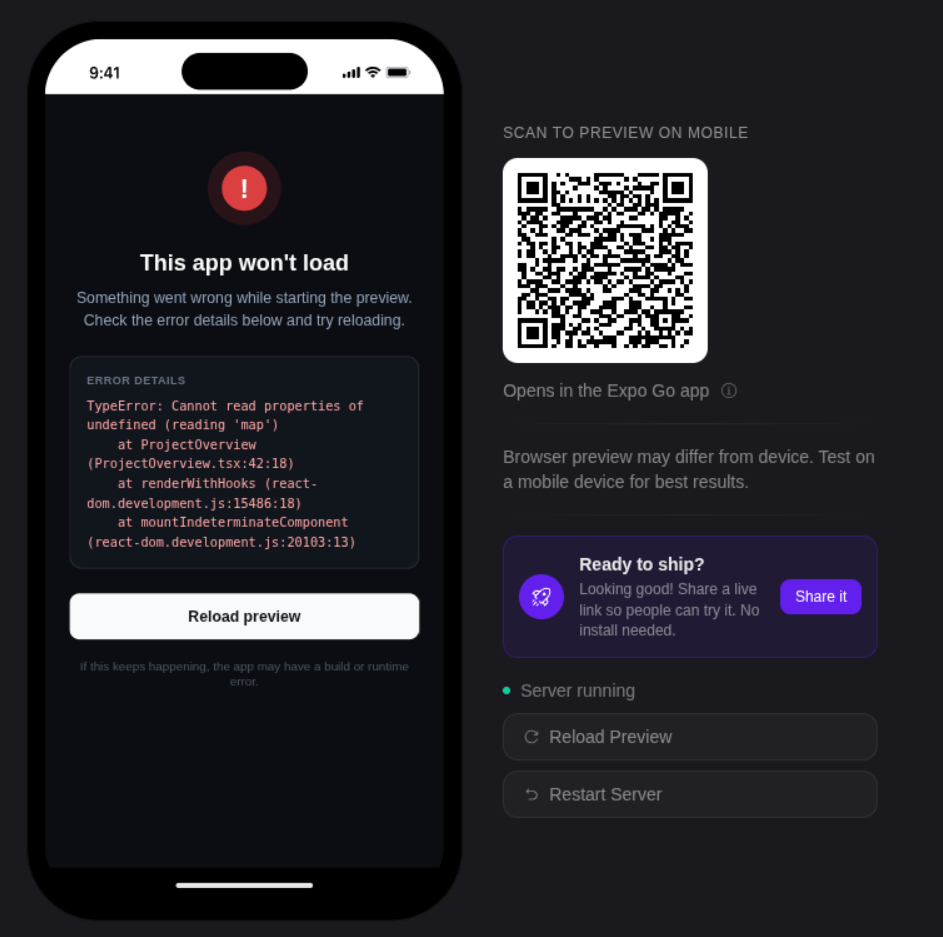
The preview shows your app running right in your browser. If it's blank or stuck on "Preview loading…", work through these in order.
 ## What to do
Click **Restart Server** and wait about 20 seconds for it to come back.
Still blank? Refresh your browser (Cmd/Ctrl + R). Your work is saved, so nothing is lost.
Some browser extensions — ad blockers and script blockers — stop the preview from loading. Open it in full screen (a new tab) to get around that.
If it still won't load, open Bilt in a private or incognito window.
## Good to know
* The preview can take **two to three minutes** to start the first time after a build. That's normal.
* It **pauses after about 30 minutes** of no activity. Interact with it or click **Restart Server** to wake it back up.
* To try your app on a real phone, scan the **Expo Go** QR code in the preview panel — see [Get & Share Your App](/docs/guides/get-and-share-your-app).
## What to do
Click **Restart Server** and wait about 20 seconds for it to come back.
Still blank? Refresh your browser (Cmd/Ctrl + R). Your work is saved, so nothing is lost.
Some browser extensions — ad blockers and script blockers — stop the preview from loading. Open it in full screen (a new tab) to get around that.
If it still won't load, open Bilt in a private or incognito window.
## Good to know
* The preview can take **two to three minutes** to start the first time after a build. That's normal.
* It **pauses after about 30 minutes** of no activity. Interact with it or click **Restart Server** to wake it back up.
* To try your app on a real phone, scan the **Expo Go** QR code in the preview panel — see [Get & Share Your App](/docs/guides/get-and-share-your-app).