
On Hacker News and DEV Community, non-technical builders tell a similar story. The first version comes together in days, sometimes just by describing it to an AI. Then Google Play asks for ID and bank documents, a signed release bundle and a data safety form, and new personal accounts must run a 14-day closed test with 12 testers.
People with no audience, or whose friends mostly use iPhones, spend days or weeks finding those testers. Others watch an AI tool insist a bug is fixed when it isn't, and pay for it in time and credits.
None of that has to come as a surprise. Here's the path from a plain-language brief to a Google Play release, with the checks done before the paperwork lands.
Three ways to build an Android app
Your choice comes down to how you prefer to work: writing code, arranging screens, or describing what you want and asking for changes.
| Route | What you do | Skills you need | What you get |
|---|---|---|---|
| Android Studio with Kotlin | Write and maintain the app’s code | Writing and debugging code yourself | A native Android app |
| Visual builder | Arrange screens on a canvas | Placing elements and setting what each button does | Native app or website in an app shell |
| Conversational AI builder | Describe the app and request revisions | Explaining requirements and checking the result | Native-code builders: one app for Android and iOS |
Android Studio is the most flexible route and costs nothing to start. I’d recommend it if you want to learn to code. A visual builder suits you if you’d rather arrange each screen yourself.
If you can explain your app but don’t want to learn Kotlin, I’d choose a conversational AI builder that generates native code.
A native app uses the phone’s own buttons, lists and screen behaviour, rather than loading a web page inside an app. The editing method alone doesn’t tell you which kind you’ll get.
Ask whether the builder generates native code or wraps a website. Then open its preview on a real phone and check how the screens scroll and respond.
If you already built a web version, look for a builder that can convert it into a mobile app, so you start from your product instead of a blank screen. Murat built a web app in Lovable, then converted it to native iOS and Android in one click with Bilt’s Web-to-App feature, without a mobile developer or a second codebase.
1. Write a brief and gather what you need
A useful brief starts with what someone should be able to do in your app. Keeping the first build focused on that job gives you less to build and a clear way to check whether it works.
View Finder: Photo Spots, which Murat Yigen built with Bilt, lets people capture local photo-taking spots and share them with others, gradually building a community of hobby photographers. That community grows out of one job the first build has to get right: capturing a spot and sharing it.
Write your brief in plain language. Using View Finder’s main job as the example, it could answer:
- Who opens the app and why? Hobby photographers who want to share the local spots they know and find new ones.
- What should they accomplish? Capture a local photo spot and share it.
- How do they get there? Open the app, add a spot, share it, and let someone else find it.
- What does the app have to remember? The spot and its photo.
- How will you know it works? “In View Finder, a hobby photographer can capture and share a local photo spot, and another user can view it.”
If that path depends on a service you already use, such as a booking system or a stock list, name it in the brief and say what the app needs from it.
All you need right now is the brief. The Google Play developer account only matters once you publish. Gather any brand assets you want to use in the next step.
2. Add your starting material
You can start with your written brief without waiting for finished designs. Describe how you want the screens to look, then refine them as the app takes shape.
If the app accompanies your business, existing brand assets make “match my brand” more specific. Hand over what you already have:
- Logos and icons: attach the files you want to use in the app.
- Colours and fonts: name your exact colours and font rather than asking for “brand colours.”
- Screen designs: include existing layouts to show where you want buttons, images and text.
Having screens in Figma doesn’t mean every builder can import them. Before attaching designs, check whether your builder accepts a Figma file or link directly, or whether you can provide a screenshot as a visual reference instead. Use the format it supports.
3. Generate the app and watch the preview
Give the builder your brief and any supporting material, then open the browser preview when the first version appears. This is your first chance to compare what you asked for with what the app actually does.
Polished screens can make a build feel further along than it is. Start with the completion check from your brief: try to finish the core job from beginning to end. Then check the remaining requirements:
- Screens: confirm that every screen in your brief exists.
- Navigation: click through the core task and check that each button takes you to the intended screen.
- Behaviour: if a feature saves information, enter something, save it, then leave the screen and return to check it’s still there.
- Content: check that photos and explanations are accurate, not just present. In a fitness coach app’s first preview, that meant checking each exercise guide’s photo and explanation against the exercise it shows.
When something doesn’t match, describe what you clicked, what happened and what should happen instead. After the builder makes the change, repeat that action in the preview to check the result.
4. Add sign-in, data and files
People should be able to come back to your app and find their account, what they saved and what they uploaded. Add these pieces one at a time. If several things change at once, it’s harder to tell which change caused a failure.
Should someone who switches phones still see their information? If yes, ask for it to be saved online so it follows their account to another phone. Otherwise, saving it only on the current phone may suit your app.
A success message isn’t enough to check that these connections work. Test whether you can get back to the account, information or file:
- Sign-in: ask for the account flow your app needs, then sign out and sign back in to confirm you can return to the account.
- Saved data: name what to remember using your chosen storage option, then close the app, reopen it and find the saved item.
- Online storage: if information should follow an account, sign in on another phone and confirm it’s there.
- File uploads: describe what users can upload, then retrieve an uploaded file and check that it opens correctly.
For private uploads, ask that only the person who uploaded a file can see it, then sign in with another test account and confirm the file isn’t visible.
5. Add device features and permissions
Camera, location and push notifications should each support something the user came to do. Asking for all of them at startup leaves people deciding about access before they’ve seen why it matters.
Ask the builder to request each permission at the moment someone uses the feature. For an app like View Finder: Photo Spots, your prompts could say:
- Camera: “Ask for camera access when someone taps to photograph a spot. Explain: ‘Use your camera to capture this photo spot.’”
- Location: “Ask for location access when someone adds a spot using their current position. Explain: ‘Use your location to mark where this photo spot is.’”
- Notifications: “Ask for notification permission when someone enables reminders. Explain: ‘Allow notifications to receive the reminders you choose.’”
Open the app fresh and confirm no permission prompt appears until you tap the feature that needs it.
If your app needs to keep tracking location during an activity, tell the builder whether tracking should continue after someone switches apps, because access granted “while in use” doesn’t cover that. Then test it with the app open and after switching away.
6. Refine screens and branding
“Make it look better” leaves the builder guessing which part bothers you. “On the sign-in screen, increase the space between the logo and the email field” names the screen, the element and the change you want.
Each of these requests gives the builder one specific edit:
- “On the home screen, move the main action button above the list.”
- “On the profile screen, make the profile photo smaller.”
- “On the sign-in screen, change the button text from ‘Continue’ to ‘Sign in.’”
If you move a button, click it as well: the layout should change while its action still works.
Pick a screen you’re happy with as your branding reference.
Name its exact colours and font in later prompts, then check that the logo sits in the same place on every screen that shows it. That gives new screens a consistent starting point instead of leaving the builder to choose a different style each time.
7. Test on an emulator and a real phone
The browser preview helps you check the flow, but you still need an Android phone to check taps, the keyboard, the camera and animations. One builder only spotted a problem with a camera animation when testing on a phone, because the browser preview hadn’t shown it.
Start with an Android emulator, a virtual phone that runs on your computer, or in the cloud if your builder provides one. Try a small phone and a large one, looking for cut-off text, overlapping elements and buttons that disappear.
Then open the app on your phone through the builder’s QR-code preview or an installed test build. With a QR-code preview, your app runs inside a testing app on your phone. Nobody else can find or download it on Google Play yet.
On the physical phone, check:
- The core journey: complete the main task using taps and swipes, including typing into fields with the phone’s keyboard open.
- Unexpected inputs: submit empty fields and unusually long text, then check whether the app explains what to fix.
- Device features: take a photo if your app uses the camera and confirm it appears where it should.
- Touch and movement: scroll through screens and watch whether animations and transitions feel right.
Feedback from a shared browser preview doesn’t replace your own phone test. Give someone from your intended audience a task to complete on the phone and watch where they hesitate without telling them which button to tap.
8. Check privacy and security
Features working on your phone don’t show who else can open a customer’s records. Before launch, you still need to check that private information stays private.
Four decisions remain yours:
- Access: sign-in proves identity. Separate rules must limit which records someone can open or change, or a signed-in user could access another account’s data. In our work with enterprise teams, most developers could reach the whole codebase, but importing and exporting client data was reserved for admins. Set that kind of rule for each role before launch.
- Data flow: check how information moves through the app, including what stays on the phone for privacy and speed and what reaches a server for access from another device.
- Unexpected input: beyond the phone checks in step 7, confirm that text the app shouldn’t accept is rejected before it’s saved.
- Upkeep: name the person responsible when something breaks after launch, including fixing anything that leaks data.
A service your app uses, such as one that takes payments, can expose data if its connection is set up incorrectly. Limit which requests it accepts and which records it can access.
Generated code still needs a security check before public release: no passwords saved in the code, no outdated libraries and no logic that could expose user data. Secret payment-processing keys must stay out of the app installed on someone’s phone. If you can’t check these yourself, ask a developer to review the exported code.
If your app stores personal data about people in the EU or California, GDPR or CCPA applies to that data, so collect only what the app needs and know why you collect it.
9. Set up Google Play listing and policy answers
Your Google Play listing tells people what they can download. The policy answers tell Google what happens when they use it, so both need to describe the app you’ve actually built.
All of this is filled in inside Google Play Console, under your own developer account:
- Store listing: add the app name, icon, category and description, with screenshots from the phone you tested on showing the screens a new user sees first.
- Pricing and availability: set what the app costs and where it will be available.
- Privacy and support: have a privacy-policy web page ready describing what the app collects, plus an email address or page where users can reach you.
- Content rating: complete the rating questions based on the content in your app.
- Reviewer access: if the app requires sign-in, provide a demo account so reviewers can open it and try its features.
Data safety is the form in Play Console where you declare the app’s data collection. It needs a closer check than the screenshots because account data and location are visible features, while analytics and crash reporting can be less obvious.
Go through the form alongside the sign-in, storage and device features you added in steps 4 and 5. Check account data, location, analytics, payments and crash reporting against what the app and its services actually collect.
If using the app sends location to a server while your answers say it doesn’t collect location, correct the app or the disclosure before uploading.
10. Build the app bundle and upload it
Google Play takes a signed Android App Bundle, with the file extension .aab. This is the packaged version of your app that Google Play uses to create the download people install.
The signature marks the app as yours. Updates need a matching signature so Android accepts them as updates to the same app.
Some app-building tools can build, sign and upload for you once you connect your own Google Play developer account and configure its publishing credentials. Whether the tool handles it or you do, start with a test release:
- Build the Android App Bundle from the version you’ve tested.
- Sign the bundle so Android can identify it as your app.
- Upload the signed
.aabto your app’s internal testing track in Google Play Console for testing, without making it publicly available.
Install that release on your phone from the internal testing track, then run the core task from your brief again. That checks the same build Google Play will deliver once you go public.
If you registered a new personal developer account, Google keeps public release locked until the app has run a closed test with at least 12 testers who stay opted in for 14 days in a row. Plan those two weeks before your launch date, and invite friends or early customers to join the test.
11. Release, handle review and update
Once you submit, Google checks the app against its rules and for technical problems. Google decides when the app goes live, so wait for approval before you tell customers they can download it.
If Google rejects the app, fix only what it flagged so you can tell whether the correction worked:
- Read the rejection reason and identify the feature, disclosure or behaviour involved. For a data disclosure, check the Data safety answers from step 9.
- Correct the issue and test the affected part of the app.
- Resubmit the corrected version, with any evidence Google asked for.
An appeal makes sense if the reviewer misunderstood your app or judged it against a rule that doesn’t fit what it does. Name the screen or behaviour they got wrong and explain what it actually does.
After publication, whoever you named to look after the app in step 8 should monitor crashes, user reviews and repeated complaints about tasks that don’t work.
If several users report getting stuck while saving an item, that path comes first, and a tested correction is what goes out in the next update.
How much it costs to build an Android app
With free coding tools and a phone you already own for testing, your only publishing expense could be Google Play’s $25 registration, paid once. Paid services and hired help add to that starting cost.
A developer quoted us €200/hour to turn finished Figma files into a native app. Ask how many hours a quote assumes before comparing it with another way to build.
For example, an eight-hour day at that rate costs €1,600. Bilt has a permanent Free tier, with Professional at €25/mo billed monthly or €19/mo billed annually. At the regular monthly price, a year costs €300.
Other costs depend on what your app needs:
- Testing: devices you own may be enough. Optional cloud testing starts around $29/mo with BrowserStack, or around $250/mo for AWS Device Farm’s unmetered testing.
- Running costs: check usage and stored-record charges for backend services and integrations before launch. A busy month can raise the bill, and maintenance needs its own budget.
- An iOS release: Apple Developer Program membership adds $99/year if you also want to publish for iPhone.
Google Play also takes a cut of in-app sales, which depends on the market and the purchase type. For auto-renewing subscriptions under Google Play Billing, it’s a 10% service fee plus a 5% billing fee in the EEA, UK and US, or 15% in markets where that split hasn’t rolled out yet. Include that cut when budgeting subscription income.
If you take payments through Bilt, that store cut is the only one. Bilt takes no additional revenue share.
When to bring in a developer
I’d stop prompting for the same fix once I could no longer tell whether it worked, because a change you can’t check is a change you can’t safely release.
Bring in help when you can’t fix the problem or check the result yourself and one of these situations comes up:
- A persistent bug: the same failure returns after requests to fix it.
- Complex backend logic: rules such as bookings that must never overlap aren’t working reliably.
- A custom integration: the app can’t reliably pull information from an existing booking system or stock list.
- Performance problems: the app becomes slow or unreliable as usage grows.
A custom feature or growing audience doesn’t automatically mean you need to hire.
You may be able to keep the app you’ve built. Exportable React Native source code lets a developer continue working on it, though exporting doesn’t transfer every connected service or dependency. Have the developer assess what can stay and what needs changing before agreeing to a rebuild.
Give them enough to investigate the specific problem:
- Source code: provide the app’s exported code.
- Connected services: list the services the app relies on so the developer can identify what access they need separately.
- Problem description: use your phone-test results to show what you tapped, what happened and what should have happened.
That description gives the developer a failure to reproduce and a clear result to check after the fix.
Build your Android app by describing it
Most of the steps above run on one loop when you build by describing your app. You say what should change, then check the result in the preview and on your phone.
Bilt turns that description into a native app for Android and iOS, with React Native code you can hand to a developer later. It also takes care of the build, signing and Google Play submission through your own developer account, and Google still reviews every app.
You don't have to install Android Studio to see the result. Bilt opens your app on a virtual Android phone in the cloud, and scanning a QR code puts it on your own phone.
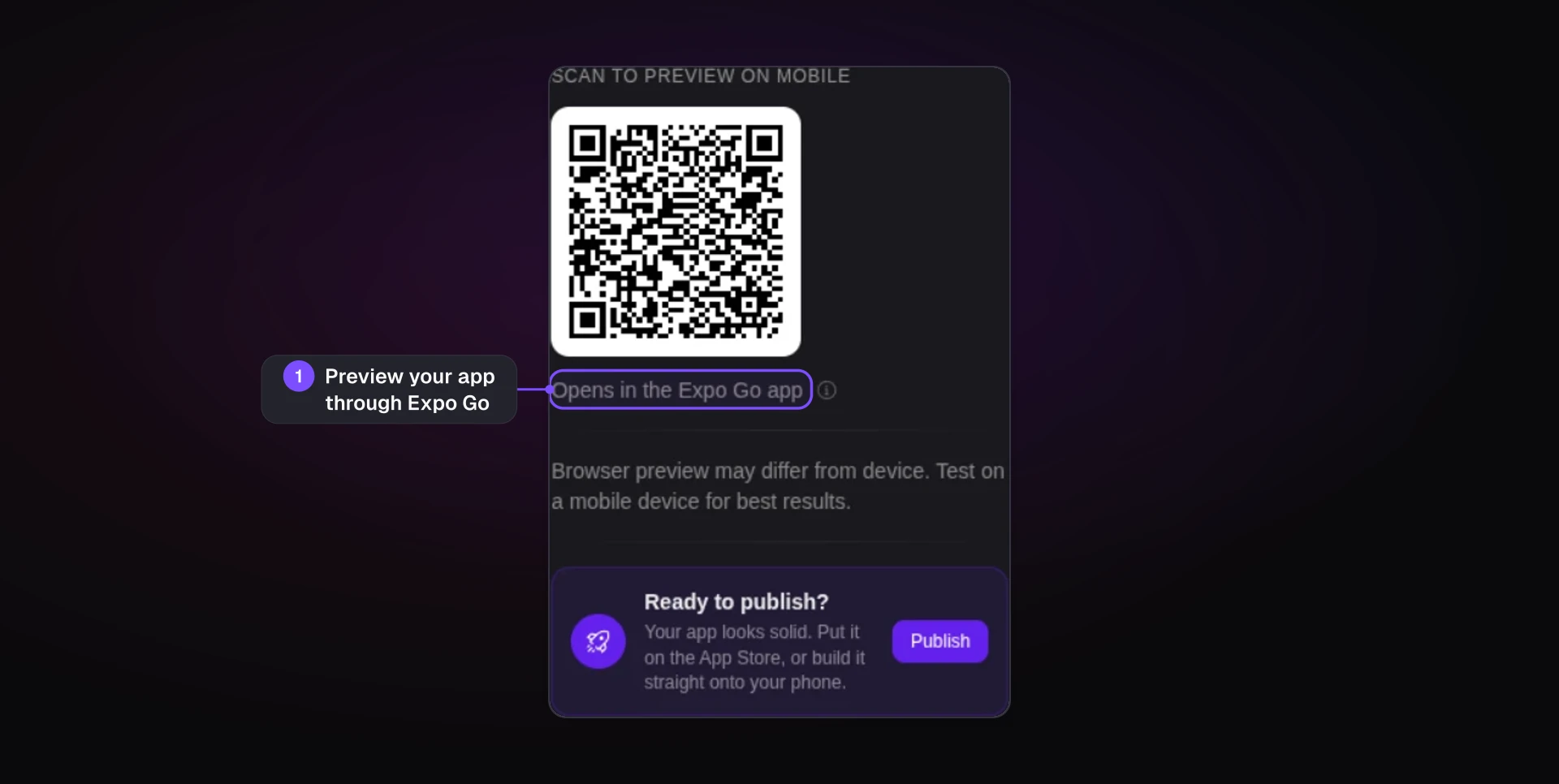
Bilt's Free tier is permanent and needs no credit card, so you can start building free and see your Android app running on your own phone before you spend anything.
FAQs
Can I build an Android app for free?
You can build and test one for free. Android Studio costs nothing, and Bilt has a permanent Free tier that includes previews on your own phone. Publishing on Google Play takes Google’s $25 developer registration fee, paid once.
Which language is best for Android apps?
Choose Kotlin if you’ll write the app yourself in Android Studio, or the React Native framework if you want one codebase for Android and iOS. If you don’t code, check that your tool provides native code you can export to a developer who can keep working on the app.
How do I build an APK file?
Use Android Studio’s Build menu to generate an APK, an Android file you can install directly on your phone or a tester’s. For store submission, Google Play needs a signed Android App Bundle (.aab) instead of an APK.