
Figma is worth using for collaborative interface design and clickable prototypes. For non-technical founders and vibecoders, it offers a clear way to test a mobile app idea before building it.
Screens, states, and interactions give everyone a shared reference before code changes pile up.
Figma Make, Sites, and AI extend that workflow into functional web experiences. This review looks at where Figma helps, what takes time to learn, and what still sits outside its native-app workflow.
Figma review: the short version
Figma is a browser-first suite for interface design, prototyping, collaboration, and developer handoff. Its shared files work especially well for teams that need feedback and implementation details in one place.
The tradeoff is complexity. Auto Layout, components, permissions, seat types, and AI credits take time to understand, while Make and Sites publish web experiences rather than native mobile apps.
- Worth it if: Your team needs one shared space for interface decisions, feedback, prototype testing, and handoff.
- What works: Live files keep comments, current screens, prototype flows, and inspection details together for teammates, clients, and developers.
- What needs patience: Auto Layout, components, variants, libraries, permissions, and limited offline continuity all require adjustment.
- Skip it as an all-in-one builder if: You expect generated output to become a store-ready mobile app without a separate build and publishing workflow.
Figma pros and cons
Figma makes shared design work fast, but the system becomes demanding once files, libraries, permissions, and generated output need careful management.
Pros
- Live editing, comments, and browser access keep product feedback in the current file.
- Clickable prototypes test navigation and screen flows before implementation.
- Components, libraries, and Dev Mode create a shared system for designers and developers.
- Starter provides unlimited drafts, templates, and a limited monthly AI-credit allowance.
Cons
- Auto Layout, variants, libraries, and seat permissions take time to learn.
- Offline continuity depends on previously loaded files and remains limited.
- Print work needs another tool for CMYK output.
- AI results can alter layout, copy, and interaction behavior, so each output needs review.
What does Figma include?
Figma covers interface design, whiteboarding, presentations, web publishing, and developer handoff. Its AI and media tools extend that core workflow, but not every product matters equally for app design.
At the center is Figma Design. Components, variables, Auto Layout, shared libraries, and interactive prototypes carry interface work from rough screen to approved specification.
The rest of the suite covers more specialized jobs:
- FigJam and Figma Slides: Plan flows, run workshops, and present work without moving material into separate files.
- Figma Draw and Figma Motion (Beta): Create detailed vector artwork and timeline-based animation. Motion can hand animation details to developers through Dev Mode.
- Figma Make and Figma Sites (Beta): Generate functional prototypes or web apps, then publish responsive websites with breakpoints, CMS content, code layers, and custom domains.
Dev Mode adds advanced implementation tools, including change comparison and editor integrations. Free viewers can inspect measurements, properties, code snippets, and assets without a paid Dev seat.
Figma Buzz (Beta) produces on-brand assets from controlled templates. Figma Weave supports AI workflows for images, video, and audio; both sit outside the core interface-design and mobile-handoff workflow.
- Files open from a URL and support live multiplayer editing.
- Permissions and comments stay attached to the file.
- Prototypes and basic animation remain beside the source frames.
- Previously loaded files may remain available for limited offline continuity, but Figma is not a conventional offline desktop workflow.
What it's like to use Figma day to day
Day to day, Figma works best as one shared source of truth. Screen design, feedback, prototype testing, and developer inspection stay connected instead of moving through exported files.
Wireframing becomes quick once Auto Layout clicks. Large files, tangled component libraries, and weak connections can slow both navigation and decision-making.
Collaboration, comments, and version history
Figma saves edits continuously while teams work in the same cloud file. Version history creates checkpoints every 30 minutes, and users can also name important versions.
Live cursors identify active teammates, and comments stay on the relevant frame. Sharing remains simple, but teams still need clear view, edit, and seat rules as more clients and departments join a file.
Feedback stays attached to its context:
- Comments sit on specific frames and prototype screens.
- View and edit permissions are managed around the shared file.
Stakeholders can review feedback beside the design. The file becomes harder to manage when comments, permissions, and approval decisions lack a clear owner.
Starter users can access 30 days of version history, while paid plans retain full history. Named checkpoints make it easier to restore a stable state after an experiment or bulk edit goes wrong.
Components, design systems, and Auto Layout
Figma's design-system tools keep repeated interface patterns consistent, but they add more setup than a one-off mockup needs.
The system has two working layers:
- Components: A main component controls structure and styling; its instances inherit published changes while allowing defined overrides.
- Team libraries: Published components, colors, and text styles can be reused across files instead of recreated locally.
Auto Layout controls direction, spacing, padding, and hug-or-fill behavior. Once configured well, buttons and responsive frames adapt cleanly; configured poorly, nested frames become difficult to diagnose.
Interactive prototyping
Figma keeps early testing close to the design file by turning linked screens into clickable walkthroughs.
Designers connect frames with hotspots, transitions, variables, and conditional logic, then share the flow by URL. Stakeholders can test the intended journey and comment where confusion appears.
Prototypes handle navigation, overlays, state changes, and conditional flows. Figma Motion adds timeline animation, but neither layer supplies backend logic, device APIs, accessibility behavior, or production edge cases.
Developer handoff with Dev Mode
Basic inspection is available to free viewers. A Dev seat becomes useful when engineers need advanced inspection, change comparison, implementation status, plugins, Code Connect, or editor integrations.
From approved frames, developers can pull:
- Measurements, spacing, and style values
- Exportable image and vector assets
- Comments tied to the relevant screen
- Prototype links that show the intended sequence
Dev Mode reduces clarification work, but engineers still implement the interface in the product codebase. A clean handoff communicates intent; it does not define every native behavior, edge case, or accessibility requirement.
Publishing with Figma Sites
Figma Sites (Beta) turns design files into responsive websites with a live URL.
- Breakpoints adapt layouts for different screen sizes, while CMS collections manage repeatable content.
- Code layers add custom behavior, and publishing supports a Figma subdomain or a custom domain.
Sites is a capable web-publishing product, not an iOS or Android packaging service. A mobile-store release still needs native build output, signing, and submission elsewhere.
Figma Make and yFigma's AI features
Figma Make turns prompts, screenshots, and existing designs into functional prototypes or web apps that run on the web.
Figma Make can start from three kinds of input:
- A natural-language prompt
- A screenshot
- An existing Figma frame or screen
That output can test richer behavior than a static mockup and can connect to backend services such as Supabase. Review the generated layout, copy, interactions, data handling, and responsive behavior before relying on it.
AI appears across the suite. Design can generate or edit interface content, FigJam can summarize and sort ideas, and Slides can draft presentation material. The Figma agent is free during beta and does not consume AI credits.
AI credits are shared across Figma's credit-based AI features, and the cost of a request varies by action. The allowance matters when a team expects frequent generation or refinement.
- Best use: Explore a functional flow quickly, especially when an existing design already provides visual context.
- Review closely: Responsive layout, state changes, data connections, generated copy, and any behavior users can trigger.
Can Figma build and publish an app?
Figma can create a clickable prototype or publish a website, but it does not produce a store-ready native iOS or Android app.
Figma AI can create editable screens, components, content, and richer prototype behavior. Those assets remain useful inputs for a separate native build.
Figma Sites and Make can publish work to a dedicated web URL. That output runs as a website or web app, not as an application package for App Store Connect or Google Play Console.
A store-ready native app still needs work outside Figma:
- Build output: Compile the project into the package required by iOS or Android.
- Signing: Configure certificates, provisioning profiles, and code signing for the target platform.
- Store listing: Supply app metadata and the required review information.
- Compliance: Complete the platform's privacy and policy checks before release.
The approved screens still save time: they give a native builder or engineering team a clear reference for layout, states, assets, and interaction intent.
Where Figma falls short
Figma's recurring costs are large-file performance, cloud dependence, library governance, print limitations, and the learning curve behind its strongest systems.
The limits that matter most are:
- Performance and offline work: Larger files can load slowly, especially on a poor connection, and Figma's offline functionality is limited.
- Print production: Figma lacks native CMYK support, so screen designs need another workflow before press-ready output.
- File and library governance: Components and shared libraries scale well only when teams agree on naming, ownership, publishing, and deprecation. Without that discipline, duplicate assets and outdated instances spread quickly.
- Original-asset access and native-resolution data
- SVG generation and text handling
- Onscreen measurement and multipage layouts
- Plugin support and useful responsive CSS output
- AI reliability and credits: Generated output needs review for layout, interactions, copy, and data behavior. Repeated refinement also consumes the AI-credit allowance attached to each seat.
Figma pricing: what to know before you pick a plan
Starter is enough for learning and personal drafts. Professional is the practical comparison for most working teams, while Organization and Enterprise mainly add centralized administration, security, and design-system governance. See Figma pricing for the current plan details.
- Move to Professional for unlimited team files, shared libraries, advanced prototyping, or advanced Dev Mode workflows.
- Choose Organization or Enterprise when cross-team libraries, centralized controls, security, or multi-brand governance justify the higher seat price.
| Plan | Best fit | Annual seat pricing | Monthly seat pricing |
|---|---|---|---|
| Starter | Learning, evaluation, or a small personal project | Free | Free |
| Professional | Teams that need a mix of design, handoff, and collaboration access | Full: $16/month; Dev: $12/month; Collab: $3/month | Full: $20/month; Dev: $15/month; Collab: $5/month |
| Organization | Companies that need organization-level controls | Full: $55/month; Dev: $25/month; Collab: $5/month | Annual billing only |
| Enterprise | Large companies with enterprise administration requirements | Full: $90/month; Dev: $35/month; Collab: $5/month | Annual billing only |
Choose seats by the work each person performs, not by job title:
- Full: Creates and edits designs and includes full access to Figma's product suite.
- Dev: Adds the complete Dev Mode workflow for implementation and handoff.
- Collab: Includes full access to FigJam, Slides, and Buzz, plus view-and-comment access in Figma Design and basic Dev Mode inspection.
- Free viewer: Can view, comment, inspect basic properties and code, and export assets on a paid team's files without another paid seat.
Starter provides unlimited personal drafts, UI kits, templates, and limited shared-team resources. Its 30-day version history and monthly AI-credit ceiling matter more than the lack of a subscription fee.
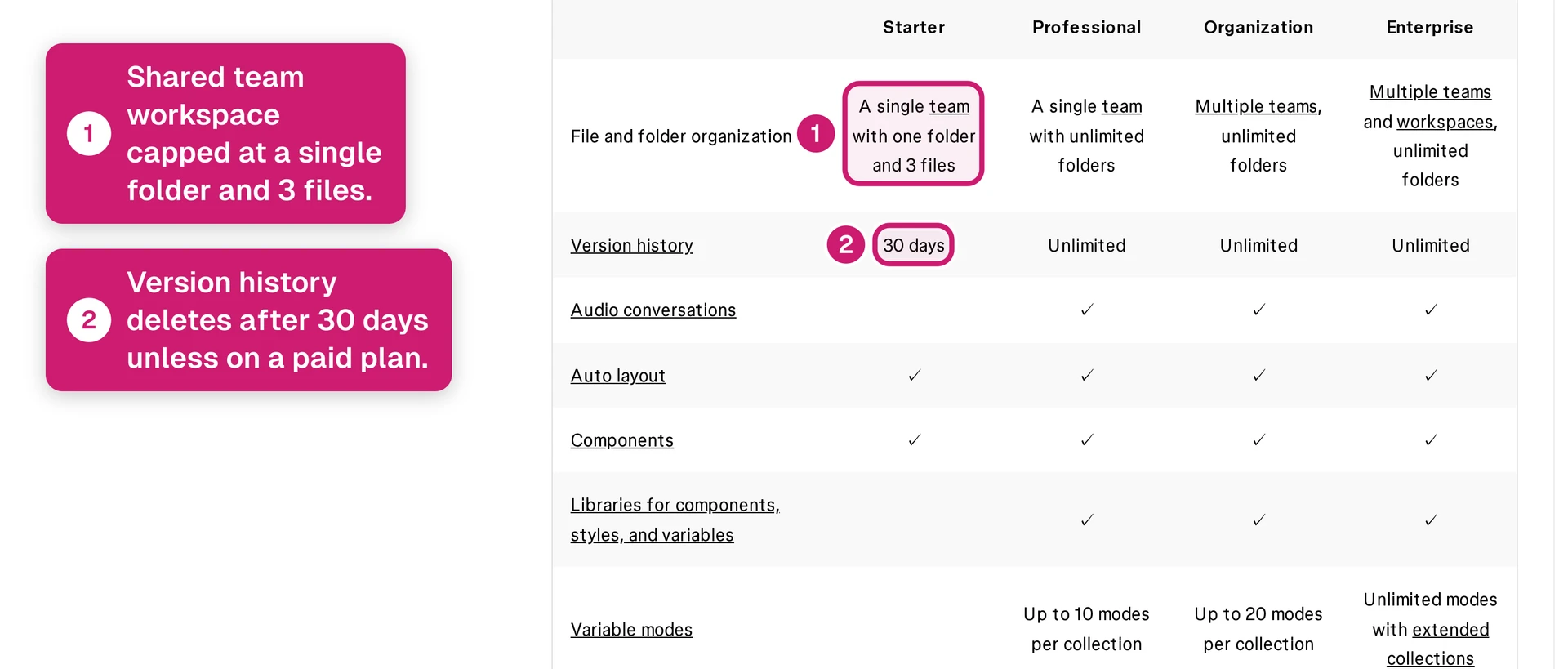
- Unlimited personal drafts
- UI kits and Community templates
- 30 days of version history
- 150 AI credits per day, up to 500 per month
Dev, Collab, View, and Starter users receive up to 500 AI credits per month. Paid Full seats receive 3,000 credits on Professional, 3,500 on Organization, and 4,250 on Enterprise. Figma Help explains the credit caps.
Who Figma is built for
Figma fits teams that need an approved interface, interactive prototype, and structured developer handoff. It is not enough on its own for people expecting backend logic, native device integrations, or app-store submission.
Figma is a good fit for:
- UI and product design teams maintaining shared interfaces and design systems.
- Distributed teams reviewing files, prototypes, and comments through one URL.
- Developers receiving current specifications, assets, component context, and implementation status.
- Founders validating a flow before committing to implementation.
Figma needs a separate production workflow when:
- The product needs backend logic, authentication, payments, or native device integrations.
- The same workflow must cover device testing, code signing, store compliance, deployment, and maintenance.
- A non-technical owner wants to turn approved screens into a published iOS and Android app.
Figma alternatives by job
These tools replace different parts of Figma's job. Compare them by the output you need, not by the length of their feature lists.
- Miro for research planning: Kanban boards, journey maps, and workshop canvases support planning and facilitation. It is not a direct replacement for detailed interface design and developer handoff.
- v0 for website generation: Prompt-based generation produces web interfaces and websites. Consider it when the desired output is a web experience rather than a design-system workspace.
- Penpot for open-source design: CSS Grid, Flexbox, SVG, and self-hosting suit teams that prioritize open tooling. Its value is design and handoff, not end-to-end mobile-store publishing.
- UXPin Merge for code-connected systems: React components from Git, npm, or Storybook can appear directly on the design canvas. This is most relevant when an established component library should constrain design work.
- Sketch for macOS interface design: A native macOS editor with symbols, libraries, and prototyping for interface work.
- Framer for interactive websites: A design and publishing tool for responsive websites and web prototypes.
- Adobe XD for existing Adobe workflows: Adobe’s interface-design tool remains relevant to teams with XD files or established Creative Cloud processes.
- Bilt for native mobile apps: Prompts, Figma screens, or reference images become React Native apps with iOS and Android previews, exportable code, and a path to store publishing.
Figma review verdict: design in Figma, ship with Bilt
Figma is worth using when your job is to design an interface, test a flow, and hand clear specifications to a developer. It stops short of native builds, signing, and app-store submission.
If you want to turn approved Figma screens into a native mobile app without writing code, Bilt builds React Native apps for iOS and Android from screens, reference images, or a plain-English description.
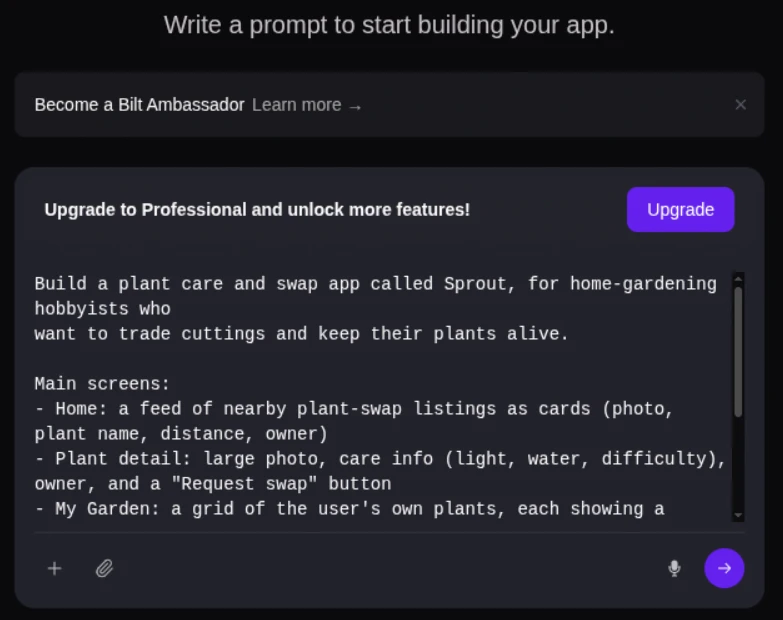
The workflow keeps design decisions connected to production:
- Import or reference the approved Figma screens.
- Let Bilt build the screens, navigation, backend connections, and native project structure.
- Review the app in live iOS and Android previews, then refine it through conversation.
- Export code you own and prepare the project for App Store and Google Play release.
The live previews let you check both mobile versions before release work begins.
Start building free to turn your Figma screens into a native app, refine it through conversation, and keep the React Native source for future development.
FAQs
Is Figma free to use?
Yes. Starter includes unlimited personal drafts, UI kits, templates, 30 days of version history, and up to 150 AI credits per day, capped at 500 per month. Shared-team resources remain limited.
Is Figma worth switching to?
Figma is worth switching to when scattered mockups, feedback, prototypes, and handoff files are slowing the team down. It is less compelling for a one-off visual or a workflow already centered on code components.
Who owns Figma?
Figma is an independent public company listed on the NYSE under FIG. Adobe’s proposed acquisition ended in December 2023, so Adobe does not own Figma.
Does Figma have a template community?
Yes. Figma Community has public files, UI kits, templates, plugins, and widgets that users can copy into Drafts.