Restaurant owners talk openly about what delivery apps cost them. Marketplace commissions run roughly 15 to 30 percent an order. One owner of five restaurants in Omaha told Entrepreneur they paid about $188,000 in a year before dropping the apps.
Plenty of owners say they want their own ordering app instead. The help runs out at how. On the Bubble forum, a request for a restaurant ordering app mostly draws freelancers offering to build it.
Going it alone has its own traps: an order that reaches nobody in the kitchen, a charge that never lands in your bank, food sitting while it waits for a driver. You can build the app by describing it, then test each of those handoffs before a real customer pays.
What a food-delivery product includes
A food-delivery product is one order passing through four sets of hands. The customer places it, the kitchen prepares it, a driver carries it, and someone at the business keeps track of the money and any problems.
Each of those people needs a way to see the order and do their part:
- Customer: browses the menu, places an order and checks its status.
- Kitchen staff: receive the order and prepare it.
- Driver: sees assigned deliveries and records progress to the door.
- Owner or administrator: oversees orders, payments and support.
For a single food business, that usually means one app people download and lighter views for everyone else. Separate apps for each role start to pay off in a marketplace connecting many restaurants and couriers.
Kitchen staff, drivers and the owner can use a web page on a tablet or phone, or a system you already use, as long as every view shows the same order and status.
1. Write the delivery-app brief
Your brief describes one order from menu selection to delivery in plain language. You don’t need technical specifications to explain what should happen.
Start with who will order, which menu they’ll see and the problem you’re solving. “Customers should order from my menu without calling the kitchen” gives you a clear purpose.
Then trace the order:
- Delivery area: which addresses you’ll accept.
- Kitchen acceptance: how the order reaches staff and who accepts it.
- Payment: who receives the money and handles refunds.
- Delivery: who carries the order and how they receive the assignment.
An unwritten choice can become a rule hidden in the app. Record an open question or a reversible assumption: “Open: who delivers?” or “Assume: my own driver for the pilot, then revisit.”
Close with the first version’s boundaries and required connections. For example: “Delivery within my local area, card payment only, no scheduled orders. Connect card payments, the kitchen’s order view and the driver’s delivery view. Before testing with customers, a test order must reach the kitchen and be marked delivered.”
2. Build the customer, kitchen and driver screens
If you’re building for one food business, focus first on the customer’s ordering screens.
Give customers a clear path through the order:
- Menu: choose the food they want.
- Cart: check the items before placing the order.
- Checkout: enter the delivery address and pay.
- Order progress: see whether the kitchen has accepted the order or it’s out for delivery.
Kitchen staff can start with an order list. Opening an order should show what the customer requested and let staff accept it.
The driver’s view needs the assigned order, delivery address and buttons to mark it “picked up” and “delivered.”
Describe the connection explicitly: “Show the customer’s submitted order in the kitchen list, then show that same order in the assigned driver’s view.”
Include the return path too: “When the driver taps ‘delivered,’ update the customer’s order progress screen.” That makes the screens work together around the order.
3. Connect shared data and permissions
Authentication checks who’s signing in. Authorization controls what they can see or change. An order records its customer, ordered items and assigned driver, so when a driver opens it, the app can check whether it’s assigned to them.
Set permissions for each role:
- Customers can see only their own orders and addresses.
- Kitchen staff can see incoming orders and mark them accepted or ready.
- Drivers can see and update only their assigned deliveries.
- The owner or administrator can oversee all orders, payments and support.
Enforce these rules on the server, where orders are stored and processed. Hiding screens or buttons isn’t enough. Describe a concrete check: “Only let drivers open orders assigned to them, even if they request another order’s details directly.”
In our two months with enterprise teams, developers could work on the whole codebase, but only admins could import or export client data.
Customer addresses deserve the same rule: only the administrators you name can export them. Even with a generated first version, you still decide who can access what, check how data moves and test unexpected inputs.
4. Implement order states and recovery
An order can start as “placed” when the customer submits it. Kitchen staff tap “accept,” then mark it “preparing” and “ready.” The driver marks it “picked up,” moving it to “out for delivery,” then taps “delivered” at the destination.
Your rules for cancellations, substitutions and failed deliveries determine recovery. For example, you could define these actions and customer messages:
- Kitchen rejection: cancel and show “The kitchen can’t prepare your order.”
- Sold-out item: request approval for a replacement and show “Please approve this substitution or cancel.”
- Unavailable driver: offer cancellation and show “No driver is available. You can cancel your order.”
- Unreachable customer: try contact, then cancel if your delivery policy requires it and show “Delivery couldn’t be completed.”
Ask for a state diagram, a map of allowed status changes: “Include each trigger and responsible role, plus kitchen rejection, sold-out items, unavailable drivers, unreachable customers, cancelled, refund pending and refunded.”
Stopping food preparation doesn’t reverse a payment. Show “cancelled” for the order and “refund pending” for its payment until the refund succeeds, then “refunded.”
5. Implement dispatch and delivery tracking
Dispatch means assigning deliveries. For a small local service, I’d start with one of these options:
- Your drivers: assign manually based on availability, delivery area and kitchen readiness.
- Third-party courier: keep the order’s status in your app and name someone at your business to resolve failed deliveries.
- Pickup: let customers collect orders while you’re sorting out drivers.
Automated matching across many couriers usually needs developers to handle competing assignments and failed handoffs.
When you move an order to another driver, the first driver must lose the ability to tap “picked up” or “delivered.”
Live tracking needs location permission and an explanation, such as “Share your location so the customer can follow their delivery.”
Android limits location updates when the app is in the background to save battery, so the map can fall behind even if you request frequent updates. Show the last update time and “Location unavailable” when fresh data is missing.
Arrival estimates should combine kitchen readiness and delivery progress. For example: “Your food is still being prepared. The delivery estimate will update when it’s ready.”
6. Implement food payments and settlement
Customers eat the meal outside your app, so app-store in-app purchase isn’t the payment route for food. Use a payment processor: a service that charges the customer’s card, with the money reaching your business bank account separately.
Connect each charge to its order, so you can follow the payment if something goes wrong. Before accepting real orders, test these outcomes:
- Successful payment: check that the order’s payment record shows the amount charged.
- Tip: for an illustrative €20 order with a €3 tip, check that the same order shows a €23 charge.
- Declined payment: confirm checkout explains the failure and the order isn’t marked paid.
- Refund: check that it appears against the same order’s payment, and that step 4’s “refunded” status appears only once the payment service confirms it.
A “paid” screen means the charge went through. The money may not be in your account yet. To check settlement, place a few real orders on your own card, find them on the payment service’s payout record, then compare that payout total with the deposit in your business bank account.
7. Connect menus and kitchen workflows
Nothing stops a customer ordering a dish the kitchen has already sold out of unless the menu knows. Your menu needs availability controls alongside items, prices, service hours, preparation times and modifiers: choices such as extra cheese.
You could keep prices in your point-of-sale (POS) system and let kitchen staff update sold-out availability. If you raise a price at the till but the app keeps the old price, customers can be charged the wrong amount.
Name who updates each menu field and which system supplies its value to the app.
Choose the kitchen handoff before building its connection:
- Order screen: use the kitchen list from step 2.
- Printer: send orders as kitchen tickets.
- Existing POS: depending on your system, check company approval, restaurant-account authorization and access to live orders beyond testing.
The app might show “sent” while nothing prints. Test on the screen or printer your cooks actually work from: order two burgers, one with “no onions” and one unchanged.
Check that both burgers arrive with the right selections, and that the customer app and kitchen show the same item and price.
8. Refine the order flow
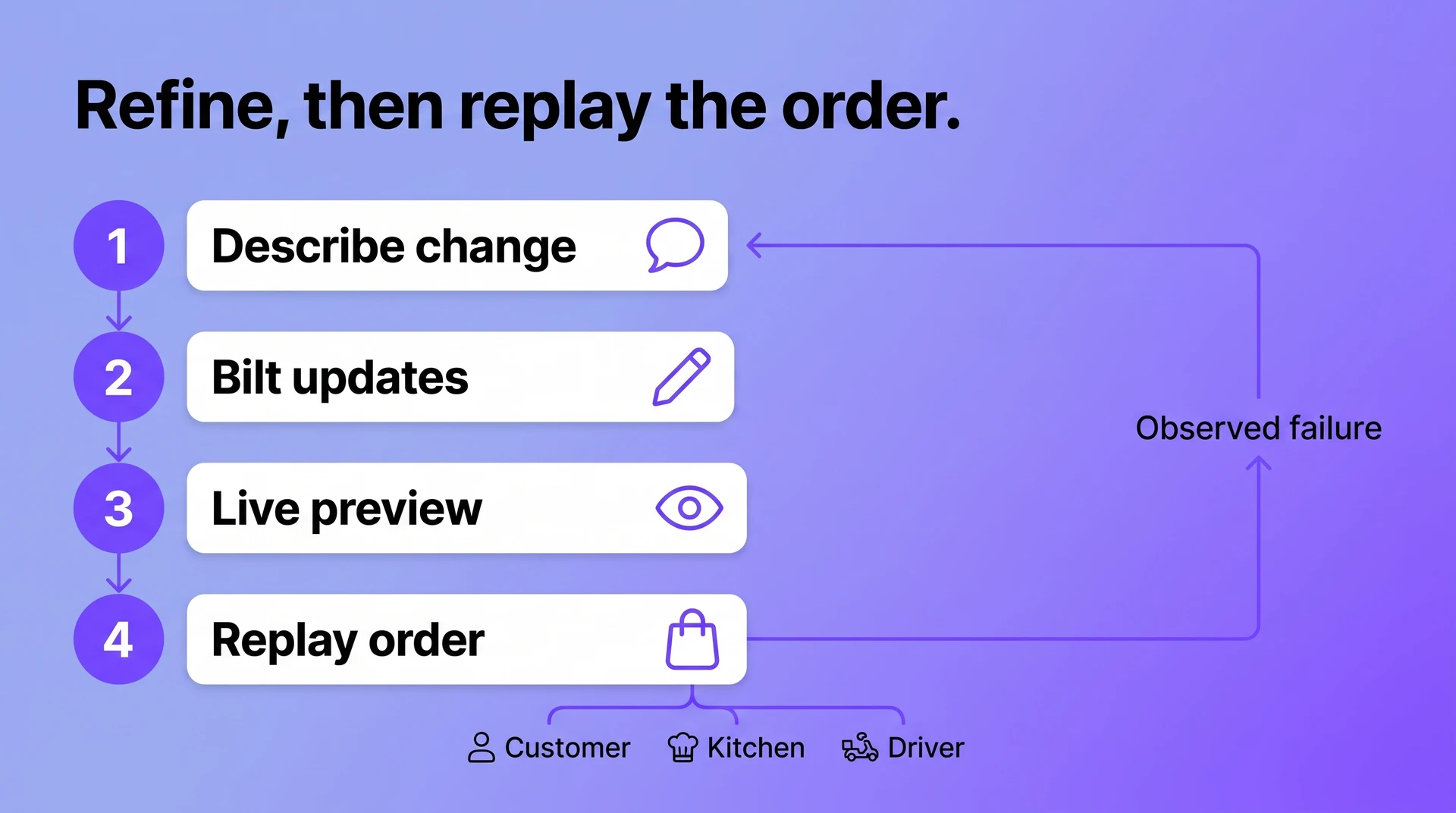
Follow an order as the customer places it, kitchen staff accept it and the driver completes delivery. Note where someone pauses or guesses, then fix one of those places at a time. A change to the kitchen screen can quietly break what the driver sees.
If modifier choices are hard to find, describe the change in one message:
“Right now, modifier choices are buried below the order details. Show each choice directly beneath its item.”
Keep the driver’s view and the customer’s order summary showing the same choices.
Show a loading message while kitchen orders load and “No new orders” when the list is empty. If details fail to load, show an error and a retry option. Staff who aren’t signed in should see the sign-in screen.
Place the same test order again and watch it arrive on the kitchen screen and then the driver’s phone. Check that the cook can find “no onions” without scrolling, the driver gets the correct order and the customer’s status screen still updates through delivery.
9. Inspect backend flows and events
Checkout can show success even if the order wasn’t saved or never reached the kitchen. The backend, where your app stores orders and runs actions, should hold matching records for the same test order.
Place an order and follow its reference through these checks:
- Saved order: check the items, modifiers and delivery address.
- Kitchen queue: find the matching order and confirm when it arrived.
- Status history: check that each staff or driver action produced the expected change.
- Notifications: check that each message reached the intended person at the right stage.
- Payment record: check the charge and test refund separately, because an order’s screen status doesn’t prove money moved or came back.
For a failed kitchen handoff, check whether the step that sends the order to the kitchen ran at all. The logs record what the app did and when, so compare their timestamps with the time the order was placed.
Describe the smallest failure in your build chat or to whoever maintains the app, stating what happened and what should happen: “Checkout saves the order, but it never appears in the kitchen queue. It should appear after submission.”
Then paste the complete error underneath, so the fix starts from what actually broke.
10. Test devices and failure paths
A browser preview doesn’t reproduce everything that happens on a phone. Run an order from menu selection to delivery on a small and a large phone for both iOS and Android.
Then interrupt the flow deliberately:
- Weak signal: interrupt checkout, reconnect and retry. Check that the customer knows whether it succeeded and that no duplicate order or charge appears.
- Outside delivery area: enter an ineligible address and check that checkout explains the restriction.
- Closed kitchen: try ordering outside service hours and check that the app explains when ordering is available.
- Order changed during processing: edit an order and compare the kitchen’s version with the payment record.
- Location permission denied: refuse access and check that the customer can still type an address and finish ordering.
I’d pass each test only when the customer sees what happened and the kitchen, driver and payment records match that result, including when checkout creates no order.
Start with phones your staff and customers carry. Consider cloud device testing if you can’t cover both platforms. BrowserStack starts at about $29 a month, and AWS Device Farm costs about $0.17 per device-minute or about $250 a month unmetered.
11. Collect task-based user feedback
“Looks nice” won’t tell you whether a customer can place an order without help. Hand testers the phone with a task, without walking them through the screens first.
Start with a few real customers and the kitchen staff and drivers who will handle orders. Even a handful of testers can reveal where an order gets stuck.
Give each person a task that matches their role:
- Customer: order two items, change one item’s options and choose delivery to your home.
- Kitchen staff: find the incoming order, check the requested change and accept it.
- Driver: find your assigned delivery and its destination.
Watch for the screen where someone stops, the question they ask you or the point where they hand the phone back. Check separately whether they finished.
Turn those observations into specific problems. If a customer asks how to remove onions, record “Customer couldn’t find the item’s options” rather than “Menu needs improvement.”
Fix problems that prevent completion before adjusting colors or spacing. Then ask testers to repeat the affected task without help.
12. Run a local delivery pilot
A late or wrong order can damage a customer’s first impression. It’s easier to put right with a regular you can call than with a stranger trying your service for the first time.
Keep the pilot close to the kitchen: a few surrounding streets, one lunch or dinner window and regulars you can reach directly if something goes wrong.
Give pilot customers, kitchen staff and drivers the app through TestFlight on iPhone and Google Play internal testing on Android. Neither makes your app public, and both need the developer accounts from step 14, so open those first.
Once the delivery compliance checklist near the end of this guide is clear, charge real cards, then cook and deliver as you will after launch. Test orders alone can’t show whether real charges, refunds and handoffs to the driver hold up during service.
Keep a record of what goes wrong:
- Missed orders: where the order stopped and who noticed.
- Late deliveries: whether the delay happened in the kitchen or during delivery.
- Refunds: why the customer needed one and whether it was completed.
- Support questions: what the customer couldn’t understand or resolve in the app.
If food regularly waits for a driver, changing the status screen won’t fix the delay. Fix the recurring problem, then run another batch of orders. The zone and hours grow once recurring problems stop appearing in your notes.
13. Prepare store records and disclosures
Create the app record in App Store Connect with its name, bundle ID (its unique identifier) and SKU (your reference code).
Write listing copy and choose screenshots showing customers how to order. Apple’s Product Page Optimization lets you compare store-page versions. On our own apps, simpler pages turned more visitors into downloads. Keep screenshot captions focused: “Choose your meal.”
Check the disclosures against the working app:
- Privacy forms: Apple App Privacy and Google Play’s data-safety answers must match actual collection, including payment and map tools, consent requests and encryption.
- Trader status: complete the applicable business-seller declaration.
- Account deletion: make it work inside the app for each supported account type.
- Background location: if your Android courier app uses it, complete Google Play’s background-location declarations explaining why it needs location when off screen. Every other permission needs a correct, explained request too: DailyHorse and View Finder were sent back over a missing permission request, and adding the correct request so the app followed Apple's guidelines fixed it.
For Mo-Haven, a social app built solo with Bilt and live on the App Store, Apple’s App Review asked for screenshots, a demo video and an explanation of the app’s structure and main features. Have yours ready, including a few lines on placing an order. Give reviewers a test login for each role and keep the server running during review.
14. Build and submit native releases
Open your developer accounts before preparing release builds: Apple Developer Program membership costs $99 a year, and Google Play registration costs $25 once. You’ll need them to sign and upload your releases.
Prepare the signed builds:
- iOS: signing certificates prove the build comes from you, while provisioning profiles tie the app to your Apple account. Upload the signed build to App Store Connect.
- Android: upload a signed Android App Bundle, the
.aabfile Google Play accepts, through Google Play Console.
In App Store Connect, select the uploaded build, attach it to your store submission and submit for review. In Google Play Console, move the tested build from internal testing into a production release and send it for review.
Both stores review before public release. If either rejects the app, answer the issue raised in its review message, then make any required correction and resubmit.
15. Launch locally and maintain operations
Go live with the same streets and service hours your pilot handled reliably. Assign a named owner to keep orders working, answer customers and look after the app.
Give that person a concrete schedule. A small kitchen might review failed orders, failed payments and customer feedback after each lunch and dinner service. A busier service needs checks during service, while someone can still act on a missed order.
Include these regular checks:
- Menu availability: check sold-out items before ordering opens.
- Prices: whenever a price changes, open the app and compare it with the menu staff use.
- Customer support: follow unresolved questions through to an answer or refund.
- App compatibility: place a customer order on a phone running each new iOS or Android version to check that ordering still works.
Menu changes saved in the database don’t require a new app build. Changes to the installed app, such as a revised ordering screen, need a new build upload and another store review.
Operating model and order economics
Each dispatch option from step 5 puts different costs on you:
- Customer pickup: no courier costs.
- Your drivers: you cover paid time, insurance and delivery support.
- Third-party courier: you pay its charges and handle delivery problems.
Name the seller, delivery operator and refund owner. Where you launch, which company signs the contract and whether drivers are employees change your legal obligations.
Order contribution is revenue you retain minus costs you bear. Fixed overhead still has to come out of it, so a positive contribution doesn’t establish profitability.
For an illustrative €20 order excluding courier tips and taxes owed, €8 for food and packaging plus €1 for processing leaves €11 with pickup.
Carrying €5 in delivery costs leaves €6. That €5 should cover paid driver time, including waiting, required pay adjustments, a share of insurance and answering “where’s my order?” messages.
Use your actual prices, courier charges and processor fees, then subtract discounts and unrecovered refunds you bear. Keep cash aside for refunds separately, because you may refund a customer before you recover the cost from a courier or partner.
If you take orders for other restaurants, count only your retained commission and fees, not everything the customer pays.
Compare food delivery app build approaches
Three routes lead to your own ordering app. Here’s how you build with each one and when it fits:
| Route | How you build | Best fit |
|---|---|---|
| Custom development | Developers code ordering, dispatch and restaurant payouts | Marketplaces with automatic dispatch and restaurant payouts |
| Configured ordering platform | Set up menus within its features | Its features already match your operation |
| Conversational native app builder | Describe the app in plain English, no code | One food business wanting its own native app |
Build and refine your own customer app if you want a hands-on role. Configure an ordering platform if its existing features fit your operation. I’d bring in developers when automated driver assignment or restaurant payouts are part of the job.
Generating the customer app doesn’t connect your payment processor, kitchen system or delivery service by itself. You still need to set up and check each connection.
Specialists can handle driver-assignment and payout connections without custom-building the customer screens alongside them.
To assess an ordering platform, set up your most complicated item with its modifiers and extras. Place a test order and check that it reaches the kitchen correctly.
Before committing, settle two questions:
- Source export: can you take the code to a developer later?
- Maintenance: who fixes failed connections and keeps the app working after launch?
Budget and timeline
The developer accounts in step 14 total $124 for your first year in both stores. Apple’s membership renews annually, while Google’s registration is one-time, leaving $99 in store-account fees from year two.
Separate your budget into three parts:
- Initial build: development or build-service charges.
- Order costs: the per-order costs you worked out for your delivery model.
- Maintenance: fixing connections and preparing app updates.
If you build the iOS app yourself with Xcode on your computer, you need a Mac. A Mac mini starts around $599, or about $723 with first-year store accounts. Allow a few hours to set up code signing before running the app on a phone.
Bilt builds and signs the iOS app online and streams an iOS simulator in your browser, so you don’t need a Mac.
Work toward launch in this order:
- Get payments and kitchen orders working end to end.
- Test delivery on real phones.
- Complete the local pilot and resolve recurring problems.
- Submit the app for store review.
Announce a date after the pilot runs reliably and the stores approve the app. Keep room in your schedule for fixes and resubmission.
Delivery compliance checklist
The rules for your city and region apply to the meals you sell and how they reach the customer’s door. Before accepting paid orders, run these checks against how you take, prepare and deliver an order:
- Food-business requirements: check local requirements for preparing and selling food for delivery, rather than assuming your existing kitchen arrangements cover it.
- Delivery arrangements: check the rules applicable to your own drivers or contracted courier service.
- Allergen information: check each item before checkout, including whether its information matches the customer’s selected options.
- Alcohol, if sold: verify applicable age checks at both ordering and delivery.
- Customer data: compare your privacy disclosures with what the app and connected services actually collect.
- Account controls: customers can delete their accounts in the app, and kitchen staff and drivers see only the orders and details their jobs require.
Write a person’s name next to each open item and resolve it before taking paid orders. Store approval clears none of these checks. Both gates need to pass.
Build and refine native delivery apps
You can build your own customer app without taking on the mobile development yourself.
Describe the order flow from your brief in plain English, and Bilt creates a native app for iOS and Android that you keep refining by asking for changes. Builders have already used Bilt for restaurant, café, meal-prep and ordering apps.
Bilt's native apps can use the phone's GPS and push notifications, the building blocks for tracking and "out for delivery" alerts once your delivery setup is connected and tested.
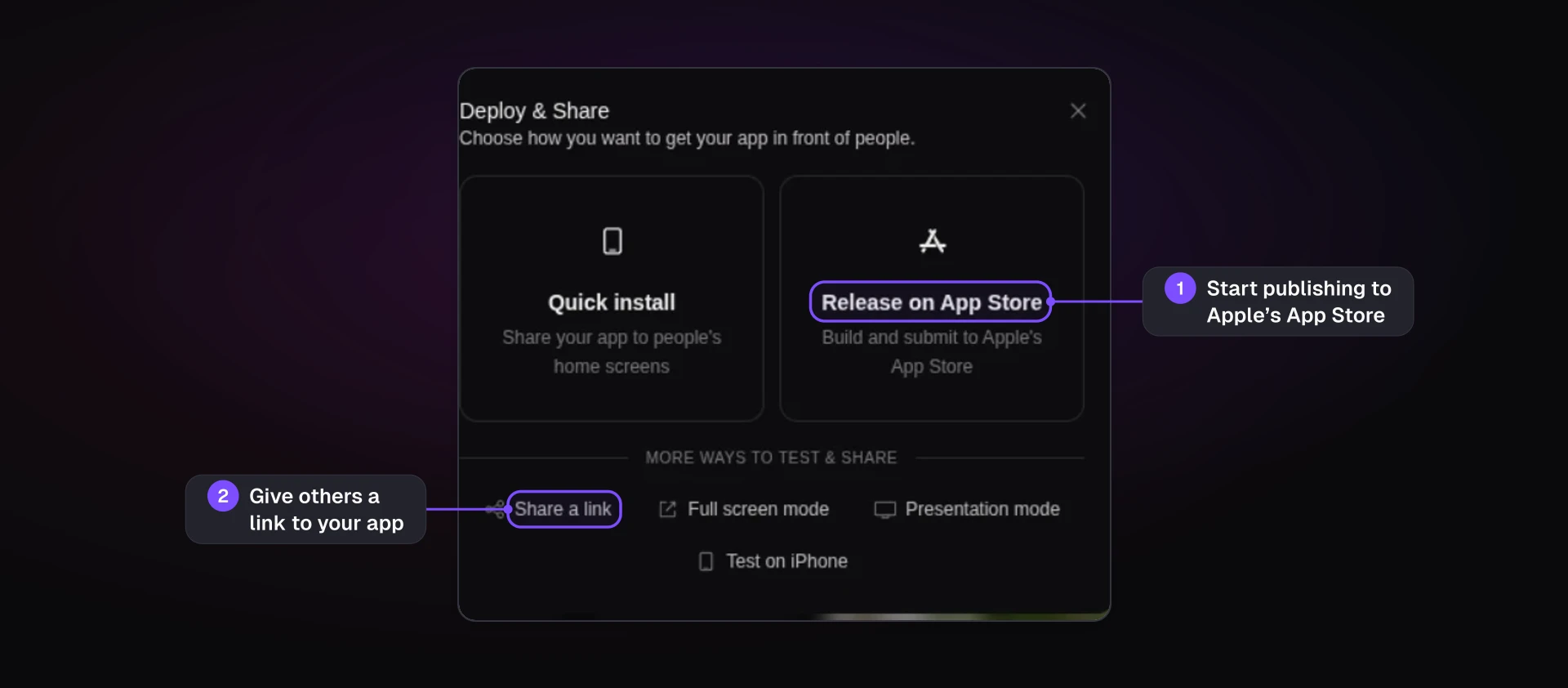
When you're ready to publish, Bilt handles the build, signing and submission to both stores through your own developer accounts, and Apple and Google still review the app. You can also export the React Native code for a developer.
When customers ask whether they can order from their phones, the answer can be your own app. You can start building free, with no credit card.