
Developers who've built calendars on their own tell the same stories on Hacker News, and they're about recurring events. Making a weekly series is easy. Moving one Tuesday meeting to Thursday raises questions the creation screen never asked.
Booking apps have their own version. One developer on DEV Community tested an AI-generated booking app by sending 20 bookings for the same slot at once, and every one went through.
None of that shows up while you're testing alone. It shows up after launch, as double-booked customers and meetings an hour off. You can plan for those cases in plain English from the first description and know exactly what to check before the app goes to the stores.
Calendar app building essentials
A personal planner, a shared calendar and a booking app can all show the same month grid. What changes is what someone needs to do with the time shown there. Choose the main job before adding features:
- A personal planner helps someone manage their own events and get reminders.
- A shared calendar lets a group coordinate plans, with some people only viewing the calendar and others able to add or move events.
- A booking app shows customers available slots and prevents two customers from reserving the same time.
I’d keep the first version focused on a complete event workflow. A useful starting scope is:
- Saved events that are still there when someone reopens the app.
- Event creation and editing, including changing the date or time.
- Deletion for plans that are canceled.
- A calendar view or an agenda, which shows upcoming events as a list.
- Repeating events for plans that happen regularly.
- Reminders tied to those events.
That gives someone a way to make a plan, find it again and change it.
Your customers or team may already keep appointments in another calendar app. Connect that calendar in the first version only if your app needs those appointments to do its main job.
For booking, that could mean checking your existing schedule so customers can’t reserve time you’ve already committed elsewhere. If your app works without that data, leave the connection for later.
1. Define the build requirements
“Repeating meetings” leaves an important question unanswered: what happens when someone changes one meeting in the series? Your build brief needs to spell out the result you want, so you can check whether the app does it.
Start by writing down the boundaries of the first release:
- Who will use the app, and what will they open it to do?
- Will the first release run on iOS, Android or both?
- Should an event added on a phone also appear on a tablet or for other people? Does it need data from a calendar they already use?
Then describe the actions people will take and what should happen afterward. For a weekly meeting, you might write: “When I move one meeting in a weekly series, only that meeting moves. The other meetings keep their original times.”
That gives you something you can check on a real phone: move a meeting, then check the rest of the series.
Some choices will still be unresolved. Keep them in the brief with a line like: “Still to decide: when someone edits a repeating meeting, can they change all future meetings at once?”
If you leave that choice out of the brief, the AI may choose a behavior you only notice when a tester edits a repeating meeting. Settle it before you describe that part of the app.
2. Create the app scaffold
Your first description covers the screens and how someone moves between them. That’s what “scaffold” means here: you can tap through the app before adding saved data, repeating events or reminders.
Start with a description like this, adjusted to your requirements:
“Create a calendar screen, an event details screen and an event creation form. Show the events from my week that I’ve included below. When I tap an event, open its details. When I tap to add an event, open the creation form. Let me return from the details screen to the calendar, and return to the calendar when I cancel the form.”
Copy a handful of real events from your own week beneath that description, including their titles, dates and times. Familiar events give you something real to tap and make it easier to spot when the details screen shows the wrong event.
Open the live preview and follow the paths you described. If tapping an event opens the creation form, report that exact mismatch: “Tapping an existing event opens the creation form. It should open that event’s details instead.”
Once every screen opens as described and leads back to the calendar, the scaffold is done and ready for saved data.
3. Model events and time
A birthday marked as an all-day event could appear on the previous date after you fly west if it’s stored as midnight in UTC, the single world clock apps use behind the scenes. An afternoon call, meanwhile, needs a time zone so the app knows which place’s afternoon you mean.
Describe what each event must remember:
- Title and owner: what the event is called and who it belongs to.
- Start and end: clock times for a timed event, or calendar dates for an all-day event.
- All-day flag: whether the event occupies dates without a clock time.
- Named time zone: the city or region a timed event’s clock time belongs to.
Add this rule to your description: “All-day events belong to calendar dates and have no time zone. Timed events keep the time zone they were created in.”
A named time zone carries daylight-saving rules. For future appointments intended to keep the same local time, describe the behavior: “My weekly morning meeting should stay at the same local clock time in its saved time zone after the clocks change.”
Multi-day events need a clear last day. Describe it as: “An all-day event from Monday through Wednesday shows on those three days and not on Thursday.”
Back-to-back appointments need the same care: “An appointment ending at 10:00 doesn’t overlap one starting at 10:00.”
Daylight-saving changes can make a local time occur twice or not occur at all. For manually entered appointments, write: “If the time occurs twice, ask which occurrence I mean. If it doesn’t exist, ask me to choose a valid time.”
4. Connect data and event workflows
If an event you added disappears when you reopen the app, it may have lived only on the screen. Saved events need to go into a database, and each one needs to record who it belongs to.
Sign-in tells the app who’s using it. Hiding someone else’s events on screen doesn’t keep them private: the database must also restrict who can see and change them. People can share the same database while those rules keep their private calendars separate.
In your description, say that creating, editing and deleting events must update the database. Include what someone should see afterward:
- Successful save: show “Saved” only when the event or edit has actually been kept.
- Failed save: keep what the person typed, explain that saving failed and let them try again.
- Empty calendar: show that there are no events, with a way to create one.
For private calendars, you can write: “Each person can only see and edit their own events.”
Deletion needs a choice too: ask for confirmation first, or offer undo afterward. If you choose undo, the restored event must still be there after closing and reopening the app.
Check those promises with an event of your own. Create it, close the app and reopen it. If undo is available, delete the event, undo the deletion and reopen again. Finally, sign in with a different account and confirm that you can’t see or change the private event.
5. Implement recurrence and exceptions
Canceling a meeting during a holiday week should leave the repeating schedule intact. The repeat pattern belongs to the series, while a cancellation or change to one meeting is an exception attached to it.
When someone edits a repeating meeting, the app should ask which meetings the change applies to:
- This occurrence: apply the single-meeting change you defined in your brief.
- This and following: earlier meetings keep their old schedule, while the selected meeting and later ones follow the new schedule.
- Entire series: apply the change across the series, reviewing existing exceptions.
For future or whole-series changes, include a rule for meetings someone has already adjusted: “Keep exceptions that still apply, and ask me to review conflicts rather than silently dropping them.”
A moved meeting must stay attached to its original slot. If you move a Tuesday meeting to Wednesday, it remains Tuesday’s replacement. Move one meeting in the preview, then check that it no longer appears on Tuesday and the rest of the series hasn’t shifted.
Check cancellation separately: cancel the very first meeting and confirm that every later one is still on the calendar.
Decide how a series can end: never, after a set number of meetings or on a date.
Monthly repeats also need an explicit decision. Under iCalendar recurrence rules, repeating on the same day of the month skips months without that date. If you want “the last day of every month,” put that in your description so shorter months don’t leave unexpected gaps.
6. Build calendar views and interactions
You don’t need month, week, day and agenda views all at once. Start with the views that help someone make plans in your app:
- Personal planner: a month overview helps someone find a date, while an agenda list lets them read upcoming plans.
- Shared calendar: a week view shows the group’s plans together, so members can see who is busy before adding an event.
- Booking app: a day or week view shows free slots between appointments, with each booking taking up its actual length on screen.
Tapping an empty day or time should start a new event. Describe it precisely: “When I tap an empty slot, open the event form with that date and time already selected.” That saves someone from finding the same slot again inside the form.
Dragging needs equally clear feedback: “When I drag an event, show the proposed new time before saving the move.” Someone should be able to see where the event will land before committing to the change. Keep a tap-based way to edit the time too, so dragging is never required.
In the preview, tap different dates and check that the form follows your selection. Refine one interaction at a time by asking for a change, reviewing the result and trying that action again.
7. Implement sharing and privacy
Inviting someone to a calendar means deciding how much control you’re giving them. A person who needs to check the team’s schedule may have no reason to move anyone’s meetings.
Give each member a clear role, with these limits enforced where the events are stored:
- Owner: controls membership and assigns roles.
- Editor: can add, move and cancel events.
- Viewer: can read the calendar without changing events.
Private events need a separate decision. Other members might need to know you’re busy without seeing the appointment’s title, notes or location.
You could describe that as: “Show private appointments to other members as busy time, with no event details.” If even the busy time should be hidden, say so explicitly.
Removing a member also needs an expected result: “When the owner removes someone, that person loses access to the shared events.” Removing someone stops them from opening the calendar again, though anything they’ve already seen or screenshotted stays with them.
Check sharing from the invited member’s account. Confirm that a viewer can’t change an event, private details stay hidden, and removing the member prevents them from reopening the shared calendar.
8. Add availability and booking
If your app doesn’t take bookings, skip to step 9. For a booking app, a slot that looks free can be taken by someone else before you confirm.
Free slots come from a few settings working together. With working hours from 9 to 5, a 45-minute appointment plus 15-minute cleanup occupies an hour. Offering hourly starts gives you eight slots a day. An existing booking at 11 leaves seven.
Define the settings separately:
- Working hours: when appointments can happen.
- Appointment length: how long a booking lasts.
- Slot spacing: how far apart offered start times are.
- Booking window: how far ahead customers can book.
- Buffers: preparation or cleanup time. Can cleanup run past closing, or should that slot disappear?
Apply the exceptions from step 5: canceling this Tuesday’s weekly meeting should open that slot. Moving it to Thursday should free the old slot and block the new one. Decide whether events marked “maybe” and all-day events block bookings too.
Customers in another city should see times in their own zone, while your calendar shows appointments at your local time.
Describe confirmation like this: “Check availability again before confirming. Reserve every required person and room together. If any is occupied, reject the booking.”
If someone taps Confirm twice, or loses their connection and tries again, they should end up with one booking.
On separate phones, try booking the same person or room at the same time: only one reservation should succeed, and the other customer should be able to choose again. Double-tap Confirm and check that it doesn’t create duplicate bookings.
9. Connect external calendars
Start with a read-only connection: existing appointments appear alongside plans made in your app, and the originals stay untouched. Leave editing those calendars for a later decision.
Connecting Google Calendar means signing in to a Google account. Reading calendars already on the phone means asking for the phone’s permission to access them. Decide which connection your first version will support.
The connection also needs clear behavior when someone refuses access or disconnects later. Otherwise, an empty calendar could look like a missing appointment, or old imported events could look current.
For a phone-calendar connection, you can use this description:
“When someone taps to connect their phone’s calendars, explain that the app will show events from calendars they pick without changing them, then request permission. Let them choose which calendars appear. Label imported events with their source calendar and keep them read-only, with a message explaining that edits belong in the original calendar. If permission is denied, explain that no calendar was connected and let them continue using the app. When a calendar is disconnected, remove its imported events and show that it’s disconnected.”
On your phone, check that denying permission leaves the app usable and disconnecting removes the imported events with the explanation you requested.
10. Deliver reminders and notifications
Moving an appointment should also move its reminder. Otherwise, someone could get an alert for a meeting that’s no longer happening at that time.
A reminder set to “30 minutes before” a 10:00 call fires at 9:30. Move the call to 11:00 and it should fire at 10:30. The reminder follows the start time rather than staying pinned to a clock time.
Some reminders belong after an event. A personal trainer who built a subscription fitness tracker with Bilt sent push reminders before each workout, with its time and how to prepare, and after it, asking clients to give feedback and log their day. Decide which of your reminders come before an event and which come after, so each one follows the event when it changes.
Describe how edits affect alerts:
- When the appointment moves: cancel the old pending reminder and replace it with one calculated from the new start time.
- When the event is deleted: cancel all its pending reminders.
- When only the shown time zone changes: keep the same alert instant. A traveler viewing the call in local time hasn’t moved the call.
People must allow notifications before the app can alert them, so ask when someone first turns on a reminder, explaining that notifications will alert them before their event.
If they decline, show a line under the reminder switch: “Alerts are off until you allow notifications.”
Test on a real phone: move an upcoming event and check that only the replacement reminder fires, then delete another and confirm its alert never appears. Also deny notification permission and check that the reminder screen says alerts are off.
11. Synchronize devices and offline edits
Your calendar can keep working on the phone with no signal. Build it so changes wait on that phone until they reach your account, even if you close the app in between. Decide whether creating, editing and deleting events should all remain available offline.
Two phones can disagree. If an offline phone moves an appointment from 2 pm to 3 pm while another moves it to 4 pm, accepting whichever change arrives last would erase the other choice without showing anyone.
The safer rule holds that clashing change and shows both versions for review. Describe the offline behavior and that rule together:
“Keep events available on the phone without a connection. Let people create, edit and delete events offline, keeping those changes until the account confirms them, even after closing the app. Put a small label on each event: ‘Waiting to sync’ before confirmation, ‘Saved to your account’ afterward, or ‘Needs your choice’ when changes clash. If an event has changed elsewhere since this phone last successfully synced, pause its change and show both versions side by side, such as ‘This phone: 3 pm’ and ‘Other phone: 4 pm’. Ask which to keep. An older edit must never silently restore a deleted event.”
Check the behavior on two phones:
- Turn on airplane mode, edit an event and close the app fully.
- Reopen while still offline. Confirm the edit and its “Waiting to sync” label remain.
- Turn airplane mode off. Check that the label changes and the edit appears on the second phone.
- Change the same event on both phones before reconnecting, including a deletion on one. Confirm the app asks you to choose.
12. Test complete calendar workflows
Permission prompts and actual notification alerts need checking on a phone. A working browser preview doesn’t tell you whether either works on iOS or Android.
On each supported phone platform, follow an event through creation, saving, closing and reopening the app, editing and deletion. Write down what should happen before tapping anything, then compare the result:
- Moving one meeting in a series: only that meeting moves.
- Changing this and following meetings: earlier meetings stay unchanged, while the selected meeting and later ones follow the new schedule.
- Changing the whole series: the schedule updates, and existing exceptions are handled exactly as you wrote in your requirements.
- When the clocks change: a series defined by local time keeps the same local hour in its saved time zone.
- Changing the phone’s time zone: a fixed-time appointment keeps its scheduled instant, and an all-day event stays on its intended date.
- Moving or deleting an event: its reminder follows the revised time, or disappears when the event is deleted.
- Refusing notifications: creating and saving events still work.
- Signing in as a viewer: you can read every shared event but can’t change any of them.
- Editing on two phones without signal: reconnecting handles competing changes using your chosen conflict rule, including deletions.
Report mismatches as: what you did, what you expected and what happened instead. After the fix, repeat the workflow. Move on to submission testing once the specified workflows pass on every supported phone platform.
Collect task-based calendar feedback
“The calendar looks good” doesn’t tell you whether someone can change their plans. Share the build with a few people who would actually use your calendar, on their own phones. Even a handful of intended users can show you where they get stuck.
Give them an outcome to reach, without telling them which buttons to press:
“Add a weekly class, then move just next week’s class to Thursday.”
Watch without coaching. Someone hesitating may have found a button name they don’t understand, a screen they can’t find, or no sign that their change was saved.
Keep a record you can use to reproduce the problem:
- Task and outcome: what the tester tried to do, what they expected and what actually happened.
- Steps taken: their taps and choices, whether they finished alone or needed a hint, and where they stalled.
- Device details: phone model, operating-system version (the iOS or Android number in settings) and app build (which version of your app they had open).
Use that observation as your next description of what should change. If the tester couldn’t understand the repeat options, you might write: “The repeating-event options don’t explain which classes will change. Add a short explanation beside each choice.”
Check the result on your phone, then give the same task back to the tester. If they stall at the same spot again, the change hasn’t fixed the problem.
Production reliability and maintenance
Open the app fresh on a phone and read each permission prompt as a reviewer would. Each should explain what the app reads or alerts you about, and why. Apple and Google decide whether the app is approved.
Before launch, name who will maintain it. You can handle reports and describe fixes yourself, or bring in a developer. Bilt generates React Native code you can export and hand to that developer, so they can work from the actual code.
(AI image placeholder — instruction: Insert a screenshot of a real React Native project exported from Bilt, opened in a code editor with the project file tree and one app source file visible. Prefer the calendar project used for this tutorial, and redact credentials, private paths, and account identifiers.)
Whoever maintains the calendar takes on these jobs:
- After launch: monitor crashes and missed reminders, alongside user complaints about lost or incorrect events.
- When someone reports a problem: look at what they tried and what happened, then investigate.
- When a connected calendar changes how it works: check the connection and handle any changes needed to keep it working.
- Before every update goes out: rerun the step 12 tests, called regression checks, because a change to the event form can break saving or reminders.
Choose one place for support reports to arrive and agree when the maintainer will check it. Log each report the way you logged tester feedback, so the maintainer can reproduce the problem.
Build routes and total costs
Coding, hiring an agency and describing the app to Bilt change who turns your calendar rules into software. Compare the work involved alongside the starting cost:
| Route | Who builds and prepares the app | Starting costs |
|---|---|---|
| Code it yourself | You write, test and submit it | Mac from $599, plus hours of signing setup |
| Hire an agency | Specialists build from your requirements | $30,000 to $100,000+, Bilt’s stated benchmark |
| Describe it to Bilt | Bilt builds, signs and submits it | Free tier, then store account fees |
Ask any builder: “Can I install the app on my own iPhone and Android phone, and does it handle signing and store submission?” Those answers tell you whether it can take you beyond a preview.
Include the costs beyond development:
- Store accounts: $99/year for Apple and $25 once for Google means $124 for both in the first year, then $99/year afterward.
- Testing: if you don’t own both phones, optional cloud device testing through BrowserStack starts around $29/month, and AWS Device Farm costs about $0.17 per device-minute.
- Data storage: coding it yourself or hiring an agency means paying to host the database that keeps each person’s events. Every Bilt plan, including Free, includes the database, sign-in and storage.
- Maintenance: budget for your own time or a developer’s fees for fixes and updates.
Build and refine your native calendar
Your calendar now has written rules for moved meetings, saved time zones and reminders that follow edits. Bilt is an AI mobile app builder that turns those plain-English rules into a native app for iOS and Android.
Each message rebuilds the app and updates the preview, so you can paste one requirement, tap through it and ask for the next change.
Scan a QR code to open the app on your own phone, then check each result against your step 12 checklist. A repeating series, a booking or a sync only counts as working once it passes on a real phone.
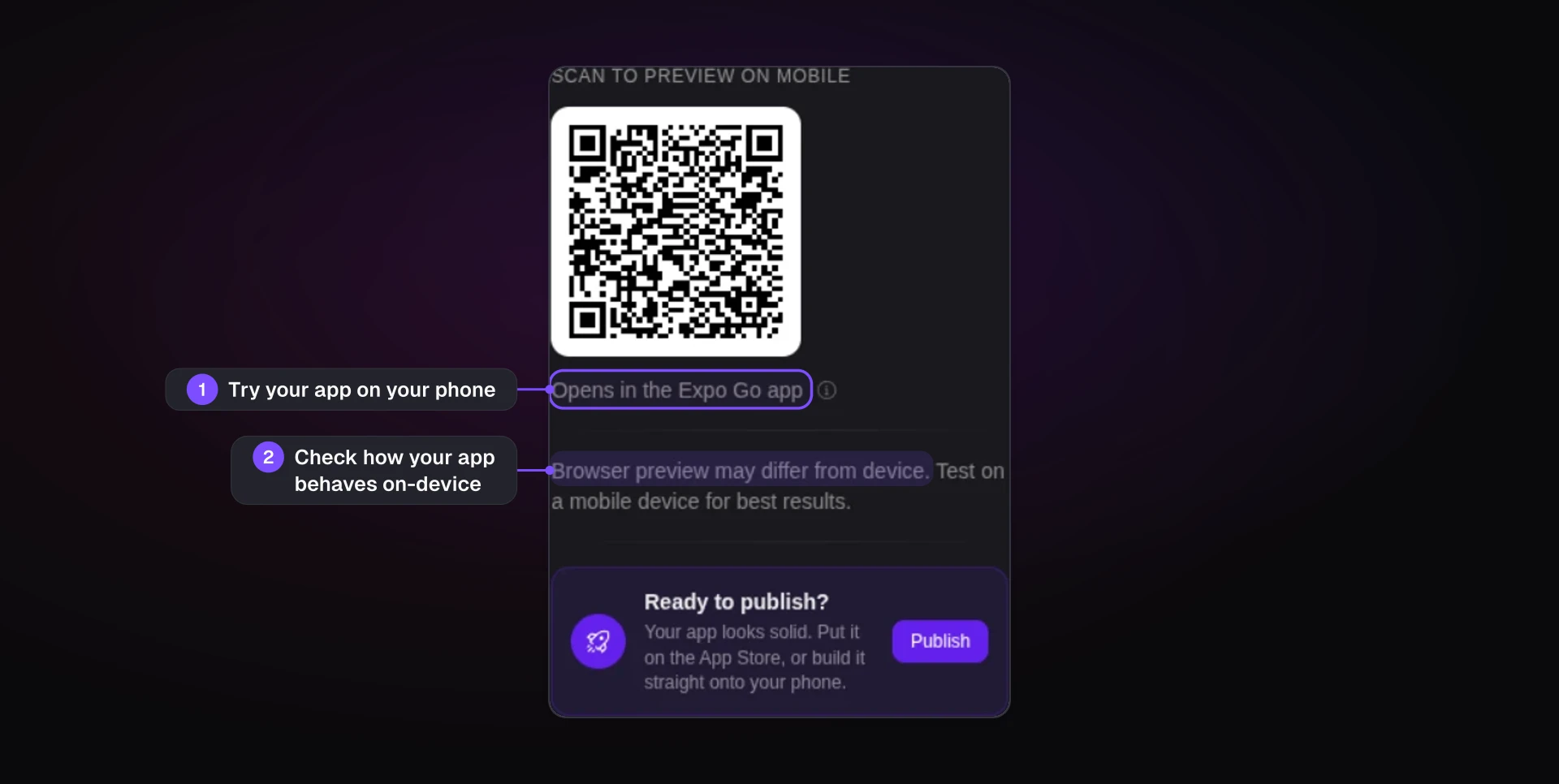
Once the checks pass, Bilt prepares, signs and submits your app to the App Store and Google Play under your own developer accounts. The rules you’ve written are already the description Bilt needs, so start building free and tap through your own calendar on your phone. Signing up needs no credit card.