
If you've already asked an AI tool for a budgeting app, you've probably seen how fast it hands back something that looks finished, with category cards and a tidy number showing what's left to spend.
That number is where the trouble hides. Nobody has checked what a refund does to it, whether another signed-in account could read your spending, or how the installed app gets through store review.
Miss those and you end up rebuilding an app you thought was almost done, with real people's money in it. Here's how to take a budgeting idea from a plain description to the App Store and Google Play, with totals you've actually tested.
The budgeting app build path
Monthly limits per category are one way to budget: people type in each expense, and the app shows what’s left. That gives your first version a concrete job.
- Write a brief describing who the app helps and what they’ll do.
- Define expenses, categories and budgets, including how to calculate what’s left.
- Decide which features stay out of version one and how to protect personal data.
- Describe the app to an AI builder to generate a first version.
- Connect a database to save entries and control who sees each person’s spending.
- Add expense entry, editing and corrections.
- Refine how people set limits and check spending.
- Test calculations and usability on real phones.
- Add subscription billing if needed.
- Write privacy details and let store reviewers access the app.
- Submit to both stores and check the released app.
- Monitor problems and improve after launch.
1. Write the build brief
A build brief holds who the app is for, the problem its first version fixes and what someone can do when they open it.
Choose one budgeting method: zero-based budgeting gives every euro a job, 50/30/20 splits income between needs, wants and savings by percentage, and envelopes give each category a fixed pot. One method gives you one set of calculations to check and a clear meaning for “left to spend.”
An envelope-based brief could look like this:
- Audience: First-time budgeters who struggle to track spending by category.
- Method: Envelopes, with a fixed spending limit for each category.
- Platforms: iOS and Android.
- Core flow: Set limits, manually enter expenses and compare planned spending with actual spending.
- Done when: Someone can set limits, add an expense and see what’s left in each category.
When a new feature idea comes up, check it against that core flow. If it doesn’t help someone complete the flow, leave it for a later version.
2. Define financial records and rules
With a €200 limit, €100 spent and a €20 refund, spending becomes €80 and €120 remains. Write that rule down so the AI builder doesn’t guess how refunds count.
Keep expenses, category limits, money sources (such as cash or a debit card) and budget periods separate, so editing an expense doesn’t change its category’s limit. Each transaction needs an amount, date, account and type: income, spending or refund. Spending and refunds also need a category.
Add rules like these to your brief:
- Currency: “Use euros, store amounts in cents and display two decimals.”
- Periods: Choose calendar months or payday-to-payday, define start and end dates, and assign expenses by transaction date, including dates on those boundaries.
- Rollover: Decide whether unused category money carries forward or resets.
- Refunds: Name the category and period whose spending decreases.
- Edits: Moving a €30 expense from Food to Transport subtracts €30 from Food’s spending and adds €30 to Transport’s, increasing Food’s remaining budget and decreasing Transport’s.
Beside each rule, write the result you expect for a sample entry before the app calculates it.
3. Plan security and regulatory scope
Manual entry still involves personal financial data, but version one never needs to ask for a bank login. Check every sign-up and entry field, and remove anything no calculation or screen uses.
In two months of work with enterprise teams, we saw most developers get access to the whole codebase, while importing and exporting client data stayed with admins. Copy that distinction: access to build the app shouldn’t automatically include permission to export someone’s spending history.
Leave bank syncing, AI advice and transfers off the brief, noting each as a later project with a specialist. Add explicit decisions for the first build:
- Access: Only the account owner can view, edit or export their expenses and budgets. Developer access to the code gives no access to that data.
- Corrections: Deleting an expense removes it from the saved list and category total. Editing updates the original without creating a duplicate.
- Unexpected inputs: Invalid amounts and dates show an explanation instead of being saved.
- Ownership: Name the person responsible for investigating problems and maintaining the app after launch.
4. Generate the first app
A native app is downloaded from the App Store or Google Play, rather than opened as a web page. Your description needs to explain what each screen does, including how saving an expense changes the budget.
Paste your brief and the rules from step 2 into your first message, so the builder doesn’t guess:
Build a native iOS and Android app for first-time budgeters using envelopes. Follow the brief and rules below.
On the category screen, users set limits. On the transaction screen, they enter an amount, date, category and account. Saving adds the amount to that category’s spending and lowers what’s left. The budget screen shows limits, spending and remaining balances. Refunds update category spending in the period specified by the brief’s refund rules.
Set a €200 Groceries limit, enter a €50 expense and confirm €150 remains. If it fails, ask: “Saving an expense doesn’t change the Groceries total. Fix that before anything else.”
Adding features before this works creates more places for sums to go wrong.
5. Connect storage and access controls
Records stored only on the phone stay there. A database lets someone open their budget on another device, but puts spending on a server, where access rules become essential.
Sign-in tells the app who you are (authentication). Deciding whose budget you can open is a separate check (authorization). If that rule only lives on screen, someone signed in could still read or change another account’s spending in the database.
Ask the AI builder to enforce the access decision from your step 3 brief in storage: “Give every transaction and budget an owner. Reject reads and changes unless the signed-in user owns that record.”
Save an expense, close the app and reopen it. The expense should come back unchanged, in the right category and budget period. Then sign in with a different account and check that it cannot read or change those records.
A shared household budget needs its own rules: who can join, and whether a partner can add and edit expenses or only see them.
6. Implement transaction input and corrections
Fixing a mistake should change the existing entry. If someone typed €54 instead of €45 for Groceries, editing it lowers spending by €9 while leaving the date and category unchanged.
A shop returning money needs a separate refund record. If the same coffee was accidentally saved twice, delete one entry. Use the fields from step 2, allowing income without a category.
Without clear saving rules, totals can count an entry twice or show a balance nobody can explain. Ask the AI builder to follow these rules:
- Amounts: “Reject empty fields, letters, entries like ‘12,5,0’, amounts outside the allowed range and more decimal places than the currency permits.”
- Dates: “An expense dated 31 May stays in May, even if the phone’s time zone changes.”
- Failed or canceled edits: “Keep the previous entry and totals unchanged.”
- Repeated Save taps: “Save once, but allow a deliberately entered identical purchase as a separate transaction.”
I’d leave recurring entries out until you’ve defined exactly when the app should create them.
7. Refine the budgeting loop
When someone comes back to check Groceries this month, “left to spend” should be easy to spot. If they’ve exceeded the limit, the screen should show how far over they are rather than stopping at zero.
One change at a time makes it easier to spot which request caused a problem. Ask for a specific result:
When a category’s remaining balance goes below zero, show the negative amount and label it “Over budget.”
For example, enter €220 against a €200 category limit and look for “−€20, Over budget.” Delete a €30 expense and confirm spending drops to €190, leaving €10. Check both states before requesting the next change.
A reminder should help someone act on that balance. You could request an alert at 80% spent: with a €200 limit, that means €160 spent and €40 left. Add that alert as its own request, then check it before adding a reminder to enter transactions.
8. Test financial correctness and usability
Start with the expected answers you wrote in step 2. Build a sample month in a sheet listing expenses, category limits and expected remainders, then compare it with the app.
- Amounts: Check €0, −€15 and €1,000,000 against your allowed range. Reject or round €3.335 according to your precision rule.
- Dates: For calendar-month budgets, enter expenses on 31 May and 1 June. Each should count only in its own month.
- Corrections: After editing an expense, the total should include only the new amount. Deleting expenses and correcting refunds should match your sheet’s expected totals.
- Other accounts: Sign in with a second test account and confirm it can't read or change the first account's expenses or budgets, unless your step 5 household rules allow it.
Repeat the sample after every fix. A refund repair can break rollover, so previously correct results need checking again.
Testing only in the browser misses problems that show up on a real device. One builder testing their Bilt app on a phone only spotted a problem with a camera animation there, because the browser preview never showed it.
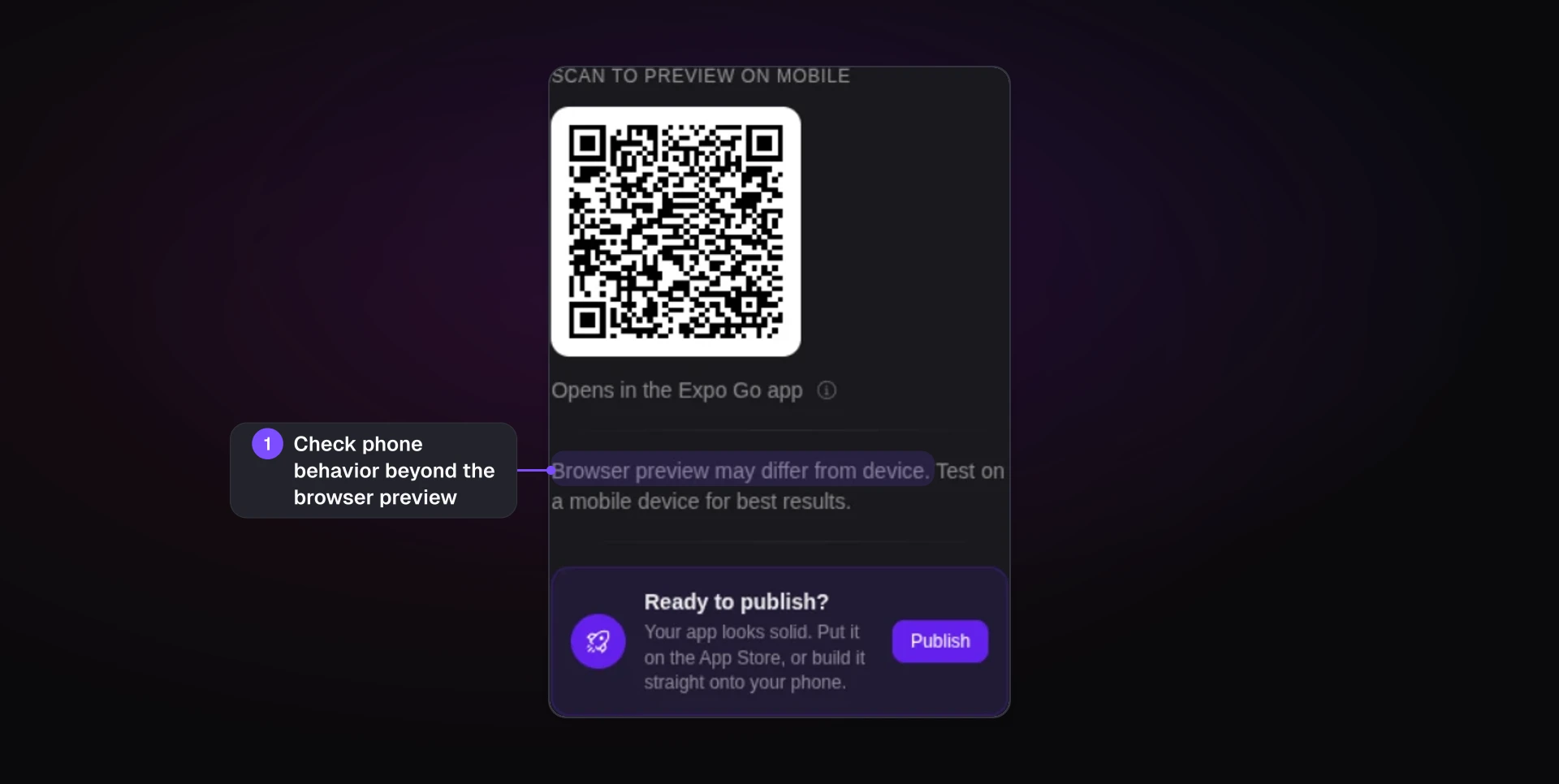
On a real phone (iOS and Android if you release on both), ask someone to record spending, correct an entry and find the remaining budget without help. Watch where they hesitate and refine those screens.
9. Add optional subscription billing
Keep version one free unless the launch is meant to test whether people will pay. I’d spend that time on the budgeting flow instead.
For a paid version, keep expense entry and remaining balances free, and charge for extras. Set the access rule clearly: when a subscription ends, extras lock while the person’s saved expenses and budgets stay visible.
Apple and Google store-billed subscriptions carry a standard 15–30% fee. Bilt Payments uses their native in-app purchases and adds no revenue share of its own.
Run these checks with test purchases before accepting real charges:
- Purchase: Complete a purchase and open a paid feature. Failed or canceled purchases should leave access unchanged.
- Restoration: Install on another phone, restore the purchase and confirm extras return without a new charge.
- Renewal: Confirm extras stay available after renewal.
- Lapse or refund: Confirm extras lock when the subscription expires or is refunded, while saved expenses and budgets remain visible.
10. Prepare privacy and review access
Your privacy disclosures must match what the app collects, including its backend and third-party SDKs, the software libraries added for services such as analytics.
Prepare these for review:
- Listing links: Supply a privacy policy URL and a support URL.
- App Privacy: Answer Apple’s questions using that full picture of data collection.
- Account deletion: If your app creates accounts, allow in-app deletion. A support email alone won’t meet Apple’s requirement.
- Tracking: App Tracking Transparency asks permission to track users across other companies’ apps on iOS. Analytics alone doesn’t necessarily involve tracking.
- Export compliance: Answer App Store Connect’s encryption and export-compliance questions before submitting.
Every declared permission, such as camera access, needs a human-readable reason called a “purpose string.” Apple can reject an upload or review when it’s missing.
Our support usually spots it from the App Store Connect email and sends the exact prompt to paste into the Bilt agent: add a one-sentence usage description for every permission in app.config.ts, then rebuild and resubmit.
Provide a demo account or review mode with sample budgets and expenses. Reviewers can then compare limits with spending without typing in their own financial details. Check that access on a phone.
11. Publish and validate the release
The store build must be signed with your developer account before upload, and Apple and Google review the app before it’s released.
Use the submission route for each platform:
- iOS: Upload the signed build to App Store Connect, then select it and submit it for App Review. Uploading alone doesn’t start review.
- Android: Upload an Android App Bundle, a file ending in
.aab, to Google Play Console and submit it for review.
Your listing should describe the submitted app. Leave planned features out so people know what they can actually do.
If it’s rejected, read the rejection email, find the guideline or item it names, fix that issue and resubmit.
Once it’s live, install the store version and repeat the test transactions and expected totals you wrote down in step 8, including edits and refunds. If spending or remaining balances differ, fix the discrepancy in a new build before sharing the store link.
12. Monitor and improve the app
A complaint that an expense disappeared needs attention before a request for another chart. I’d prioritize crashes, incorrect totals, lost transactions and blocked spending entry. If people repeatedly struggle to record purchases, count the taps needed to log a coffee and remove any unnecessary ones.
The person you named in step 3 reads problem reports and follows each fix through to a store update.
Updates need a safe place to test without changing anyone’s live financial records. Use a staging environment, a test copy of the app with its own database. After changing calculations or transaction storage, rerun the known-total checks from step 8 before releasing the update.
In Apple Product Page Optimization tests on our own apps, simpler App Store pages converted better. Keep your listing focused: show planned limits beside actual spending in the first screenshot, and name your budgeting method in the subtitle.
Budgeting app build routes
Choose how you’ll build, publish and change the app:
- Hire a developer: They write the app and make later changes you request. You decide the budgeting method and how totals work.
- Use a visual editor: You shape the app by arranging screens rather than describing changes.
- Generate a web app: Working in a browser leaves the native phone build, signing and store submission undone.
- Use an AI mobile builder: You describe the app and it generates screens and logic. Native output, code export and submission support vary, so check each.
- Convert your web app: If you already have a budgeting web app, turn it into native iOS and Android apps instead of building from scratch. Check whether conversion keeps your screens and money rules.
Ask any tool or developer:
- Will I get iOS and Android builds?
- Who handles store submission?
- How do I make later changes?
- Can I export code, and what happens to connected services, such as the transaction database?
Build and operating costs
Publishing fees belong to your own developer accounts, separate from what you pay to build the app:
| Store account | Price | When you pay |
|---|---|---|
| Apple Developer Program | $99 | Every year |
| Google Play developer registration | $25 | Once |
Publishing on both stores costs $124 in the first year and $99 each year afterward, before building tools, hardware or testing.
If you build and sign the iOS app yourself in Xcode, you need a Mac. A Mac mini starts at about $599, and self-managed code signing adds a few hours of setup. If your tool builds in the cloud, you can skip that hardware purchase.
Device-testing services are optional. When you need to check phones you don’t own, BrowserStack starts at about $29/month.
After launch, budget for the costs that continue:
- Hosting and storage: Running the backend and keeping financial records.
- Subscription fees: If you add paid plans, include the store cut covered in step 9.
- Maintenance: Investigating problems, testing fixes and releasing updates.
Make separate columns for one-time and recurring costs. Put hardware and Google registration in the first, then Apple membership, tool subscriptions, testing, hosting and maintenance in the second. Hosting and maintenance depend on your usage, so the recurring column only becomes accurate once real bills arrive.
Build and ship an owned app
The rules behind your totals stay yours. You decide who can open each person's records and check that an edited expense or a refund lands in the right category total. With one method and manual entry, that checking stays small enough to finish before launch.
Budgeting and expense trackers are a common build on Bilt, an AI mobile app builder that turns your brief into native iOS and Android apps from one build. Bilt then prepares the app and takes it through the store submission steps using your own developer accounts.
The React Native code is yours to export, so a developer can pick it up when bank syncing or other specialist work comes up.
Your brief and money rules already describe the first version, so start building free and watch them work in the live preview on your own phone. No credit card needed.