Figma is still the default comparison point for UI/UX teams. It handles shared components, design systems, and multiplayer review better than many tools.
But not every Figma search is really about replacing the canvas. Some readers need cheaper design files. Others need a prototype, a website, or a real mobile app they can test on a phone.
Figma Dev Mode can improve handoff, but a polished file still needs implementation, QA, app-store prep, and release work before anyone installs it.
Use this guide by asking what you need to create next:
- A native mobile app: compare Bilt.me when the goal is working iOS and Android output from a plain-English app idea.
- A better design canvas: compare Penpot, Sketch, Lunacy, or UXPin when the team still needs UI files first.
- A stronger prototype or handoff: compare ProtoPie, Axure RP, Balsamiq, or Zeplin-style handoff tools when the design needs more proof before build.
- A live website: compare Framer or Webflow when the end product is a published site instead of a static screen.
- A workshop board: compare Miro when the team needs FigJam-style planning more than polished UI design.
TL;DR
- Best if your Figma search is really about a native mobile app: Bilt.me
- Best open-source Figma replacement: Penpot
- Best macOS design tool: Sketch
- Best code-backed prototyping tool: UXPin
- Best free desktop design tool: Lunacy
- Best low-fidelity wireframing tool: Balsamiq
- Best AI mockup tool: Uizard
- Best website builder for motion-heavy pages: Framer
- Best advanced interaction prototype: ProtoPie
- Best FigJam alternative: Miro
- Best visual website builder: Webflow
- Best logic-heavy prototype tool: Axure RP
Why teams look for Figma alternatives
UI teams usually look beyond Figma when the design file slows handoff or release work.
- Seat costs scale quickly: Figma lists Professional at $12 to $16 per editor per month, and Enterprise Full seats at $90 per user per month.
- Non-designers hit the learning curve: Founders and product managers may need edit access, but Figma still expects them to think like designers.
- Large files can slow down: Large design systems can feel clunky in the browser when component libraries and layer structures get heavy.
- Offline work is limited: Figma depends on cloud collaboration, which creates friction for teams that need reliable offline access.
- Lock-in matters: Teams with sensitive data or strict infrastructure rules may prefer open-source or self-hostable tools.
- Design files do not ship apps: A complete mockup still needs engineering and an app-store release path before users can install anything.
For non-technical app builders, the comparison changes once the goal is a real app on a phone.
Bilt.me belongs in that branch of the list because it starts from a natural language app description and moves toward React Native output, live previews, and the app-store path.
Figma alternatives at a glance
Compare the output before the price. Some tools replace Figma's design canvas. Others help you publish a website, test interactions, or build a mobile app.
| Tool | Primary Use Case | Free Plan | Starting Price | Key Differentiator |
|---|---|---|---|---|
| Bilt.me | AI-native mobile app generation (iOS & Android) | Yes | €25/mo (Professional) | Generates production-ready React Native code from natural language |
| Penpot | Full UI/UX design and prototyping | Yes | Free (self-hosted or cloud) | Fully open-source and self-hostable; no vendor lock-in |
| Sketch | High-fidelity UI design and design systems | Trial only | $12/mo per editor | macOS-native performance with mature plugin ecosystem |
| UXPin | Interactive prototyping and design systems | Free trial | $29/mo per seat (Core) | Code components sync: React components usable directly in prototypes |
| Lunacy | UI design with built-in assets | Yes (free) | Free | Offline-capable with built-in icons, photos, and illustrations |
| Balsamiq | Low-fidelity wireframing and product thinking | Limited trial | $16/mo per editor (Starter, billed yearly) | Sketch-style wireframes that force structure-first thinking |
| Uizard | AI-assisted UI mockups for non-designers | Yes | $12/mo (Pro) | AI converts screenshots and hand-drawn sketches into editable mockups |
| Framer | Design-to-production website building | Free (with branding) | $10/mo (Basic) | Rich micro-animations published directly to live websites |
| ProtoPie | Advanced interaction and micro-interaction prototyping | Limited (2 projects) | $25/mo (Basic) | Conditional logic, variables, and sensor-based interactions without code |
| Miro | Collaborative whiteboarding and team ideation | Yes (3 boards) | $8/mo (Starter) | Infinite canvas with 2,500+ templates for cross-functional workshops |
| Webflow | No-code visual website design and CMS | Free (with limits) | $15/mo (Basic, billed yearly) | Visual designer outputs real CSS, no export-to-code step needed |
| Axure RP | Enterprise wireframing with logic-driven prototypes | Free trial | $25/mo (Pro) | Conditional flows, dynamic content, and variables for complex UX |
Budget planning beyond seat prices gets clearer in the design-to-launch cost breakdown, which separates prototypes from store-ready apps.
How we ranked these Figma alternatives
We did not treat every product as a direct Figma clone. That would make the list less useful.
Instead, each tool was evaluated by the job it helps you finish:
- Final output: design file, prototype, website, workshop board, or mobile app.
- Collaboration model: browser-first, desktop-first, self-hosted, or team workspace.
- Handoff quality: how clearly the work moves into code, publishing, or review.
- Pricing shape: free plan, trial, per-seat cost, workspace cost, or project limits.
- Learning curve: whether a founder, designer, or product team can get value quickly.
- Fit for non-technical builders: whether the tool helps someone move from idea to something users can actually try.
The 12 best Figma alternatives in 2026
Start with the output you need. The numbers make the list easy to scan, but the tools are grouped by job: mobile apps, design files, wireframes, websites, workshops, and advanced prototypes.
1. Bilt.me ✨
Bilt.me is the pick when the real goal is getting an app onto a phone.
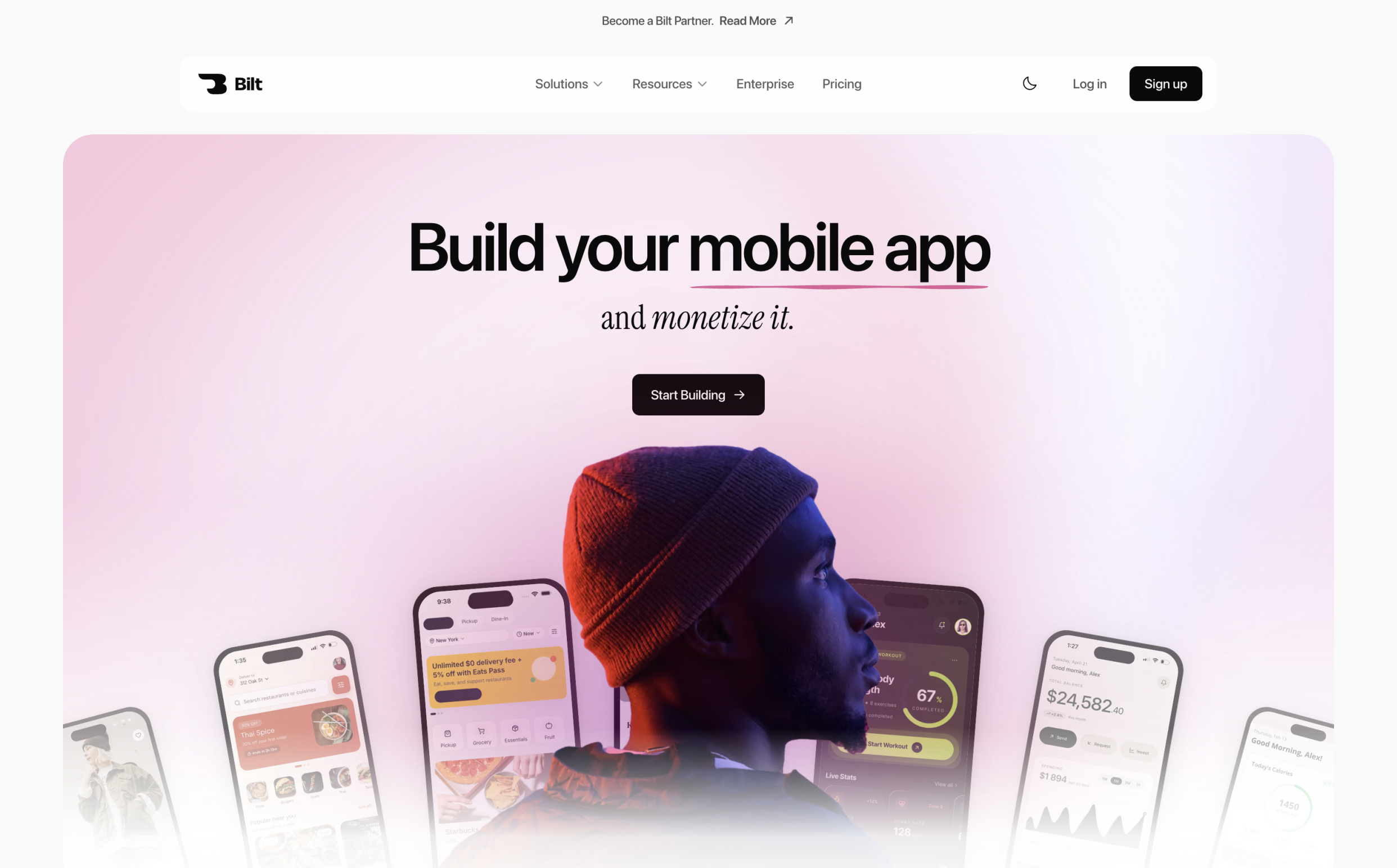
Figma helps you design the interface. Bilt.me starts one step earlier: describe the app in plain English, then refine the iOS and Android build through chat.
Where Bilt.me differs from Figma:
- Native mobile output: Bilt.me generates React Native code for iOS and Android instead of leaving you with static screens.
- Live previews: Test in a browser simulator or scan a QR code to check the app on a phone.
- App structure: Create screens, navigation, forms, authentication, storage, backend logic, and user flows from a conversation.
- Store workflow support: Move toward build generation, code signing, app icons, screenshots, App Store Connect, and Google Play submission.
- Code ownership: Export source code, connect GitHub, or bring in a React Native developer later.
How Bilt.me changes the handoff:
Describe an app in plain English and see Bilt turn it into a native app in live preview.
- Figma workflow: create design frames, write specs, send files to a developer, review the implementation, and repeat.
- Bilt.me workflow: describe the app, inspect a live preview, ask for changes in chat, then prepare the build for submission.
- Web app conversion: bring apps built with Lovable, V0, or Next.js into a native iOS and Android path.
Best for: Non-technical founders, creators, small business owners, and web app owners who want a working mobile app without starting in a design file.
Skip it if: Your team only needs static mockups, design systems, or collaborative whiteboarding. Penpot, Sketch, UXPin, or Miro will fit those jobs better.
Pricing: Bilt.me is free to start. Paid plans begin at €25/month when the free plan's token allowance is too small for the build, and you can preview a working app before upgrading.
Have an app idea you want to test on a phone? Start building free.
2. Penpot
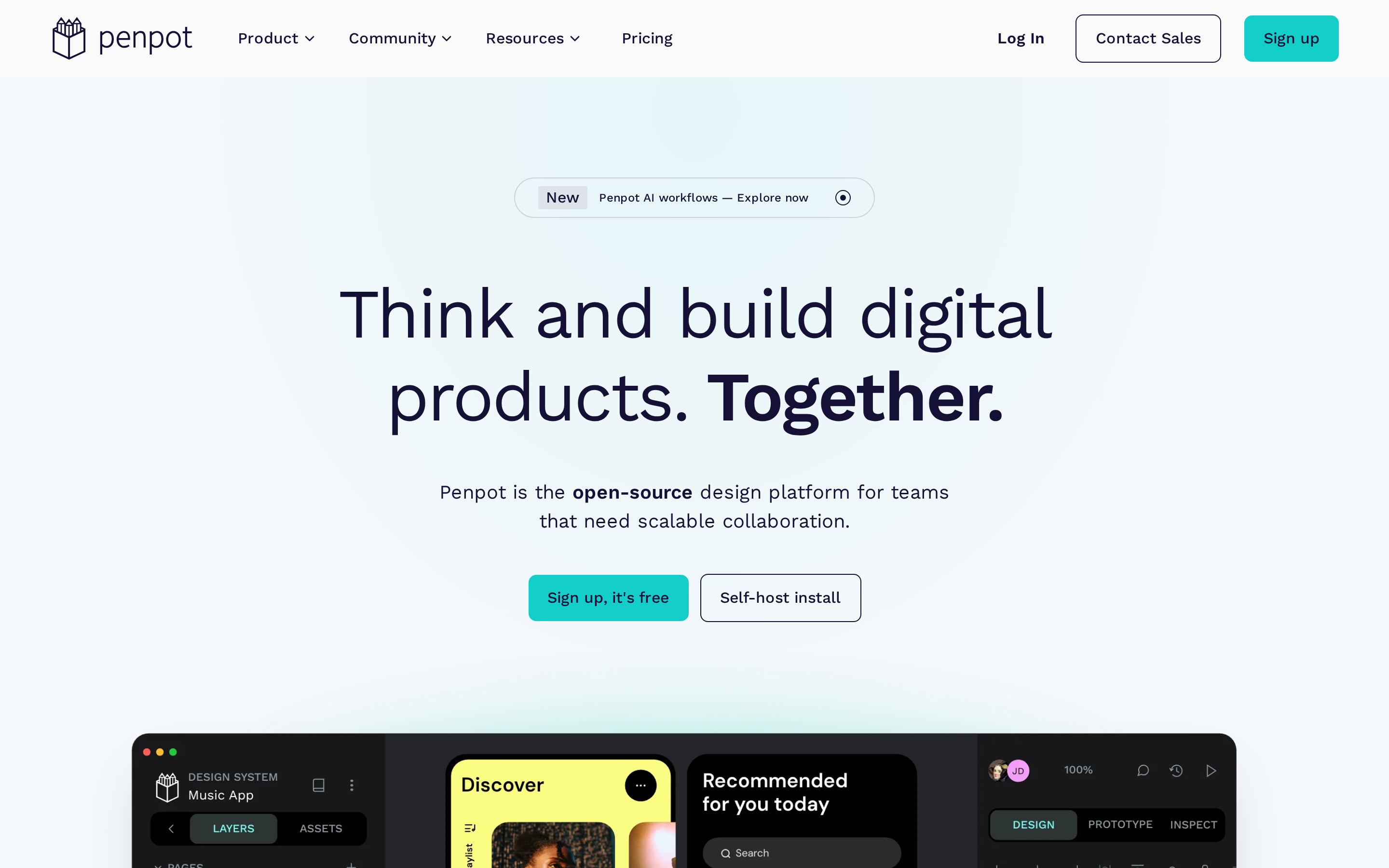
Penpot is the first conventional Figma replacement to check. It fits teams that want free, web-based UI design with optional self-hosting.
Best for
- Teams replacing Figma or Adobe XD when seat cost and self-hosting control matter.
Skip it if
- Your workflow depends on Figma community plugins or advanced motion prototypes.
Where Penpot differs from Figma
- Open source: Penpot is fully open-source and self-hostable, so teams can inspect the codebase and run it privately.
- SVG-native files: Penpot uses SVG as its native format instead of a proprietary design format.
- No per-seat pricing: Penpot's pricing page lists hosted and self-hosted access as free, so large teams avoid per-editor fees.
- AI workflow access: Penpot documents an MCP server for connecting the design environment to AI agents and automation workflows.
What Penpot covers
- High-fidelity interface design with components and design systems.
- Real-time multiplayer collaboration in the browser.
- Clickable prototyping flows for product screens and user journeys.
- Developer inspect mode exposes CSS properties and design specs; teams should compare handoff against Figma Dev Mode or Zeplin before migrating.
Migration path
Start with one product squad before moving the whole design org.
- Import or recreate the shared component library.
- Rebuild plugin-dependent workflows.
- Run developer handoff on one feature against the current Figma process.
Penpot risks to test in a pilot
- Plugin migration: Penpot's extension ecosystem is smaller than Figma's, so audit required plugins before importing active files.
- Less advanced motion tooling: Penpot does not cover the same timeline-based animation depth as Framer or ProtoPie.
- Self-hosting overhead: Private Penpot requires hosting plus a clear owner for upgrades and uptime.
Watch out: Self-hosting removes license cost, not ownership work. Your team still needs someone to manage uptime, upgrades, and backups.
Pricing
Penpot's pricing page lists both the hosted cloud product and self-hosted edition as free. Budget time for hosting and admin work if you run it privately.
3. Sketch
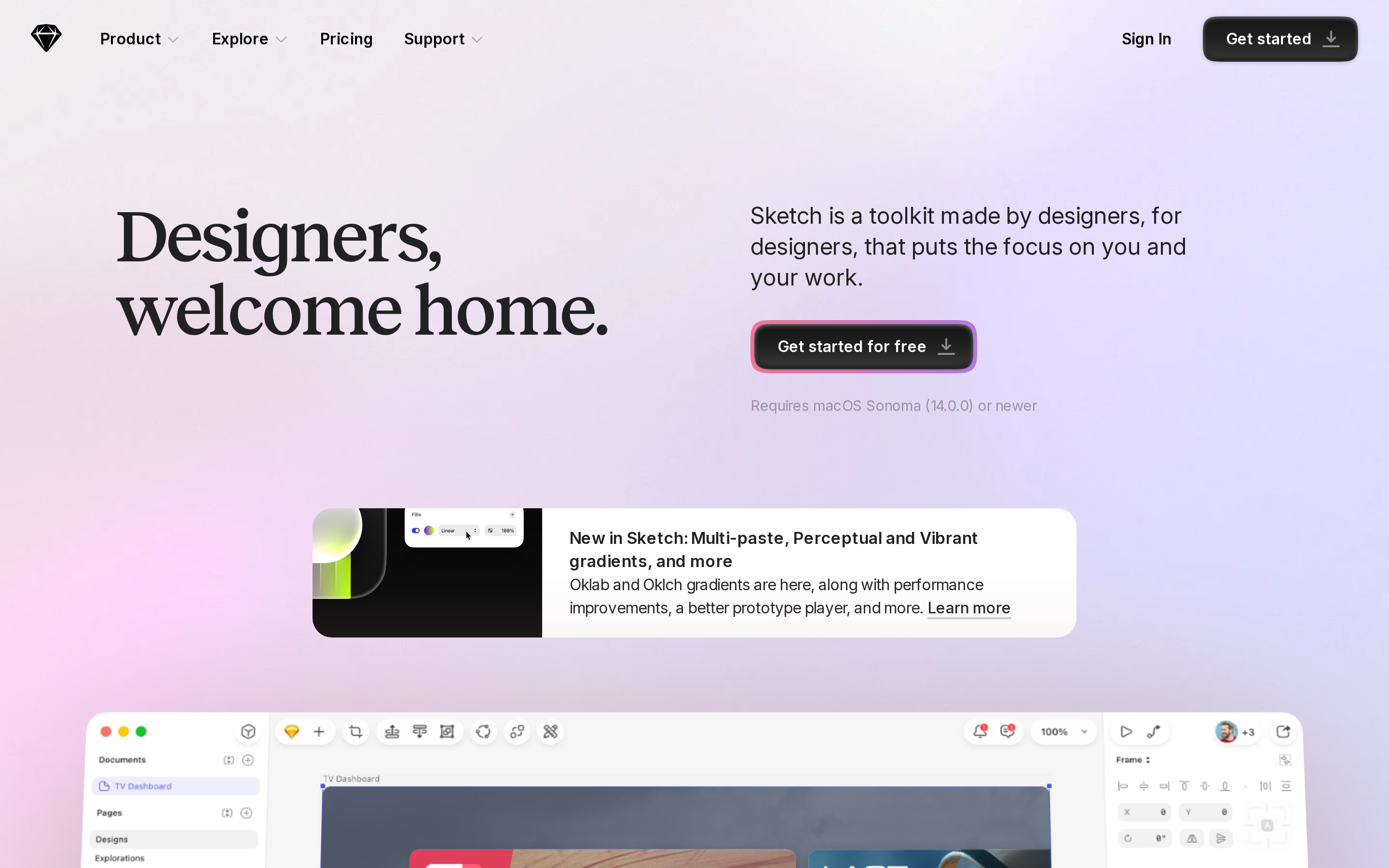
Sketch is the Mac-native path after Penpot's browser-based, open-source model. It fits Mac-only teams that want offline editing and local files.
Best for
- Mac-only product teams with existing Sketch files or designers who need offline desktop work.
Skip it if
- Mixed-OS teams that rely on browser-first multiplayer editing.
Where Sketch differs from Figma
- Native macOS app: Sketch runs as a downloadable Mac app and supports offline design work.
- Open file format: Sketch documents can be read and written by third-party tools, unlike Figma’s proprietary file format.
- Long-running plugin ecosystem: Sketch's plugin model predates Figma and still supports established Mac design workflows.
- Subscription and license options: Sketch offers a Standard subscription and a Mac-only license, so procurement is not limited to recurring editor seats.
Sketch capabilities
- Symbols and reusable components for design systems.
- Vector editing for interface layouts and visual assets.
- Interactive prototyping for screen flows.
- Developer handoff tools for specs and design inspection.
- Direct Figma file import for moving active screens into Sketch before rebuilding libraries.
Migration path
Use Sketch as a Mac-only pilot before canceling Figma.
- Import priority Figma files.
- Rebuild symbols and shared styles.
- Test developer handoff against Zeplin or Figma Dev Mode expectations.
Sketch tradeoffs for mixed teams
- macOS only: Windows and Linux users cannot run the native Sketch app.
- Whiteboarding gap: Sketch does not include a native FigJam equivalent for workshops.
- No free plan: Teams need a paid subscription or license to use Sketch beyond evaluation.
- Collaboration tradeoff: Sketch Cloud supports sharing, but teams used to always-on multiplayer editing should test review cycles first.
Watch out: Sketch can lower friction for Mac designers and raise it for Windows reviewers. Test one mixed-team review cycle before migrating active work.
Pricing
Sketch's pricing page lists Standard at $12/editor/month, billed yearly. The Mac-only license is $120/seat for perpetual access to that version.
4. UXPin
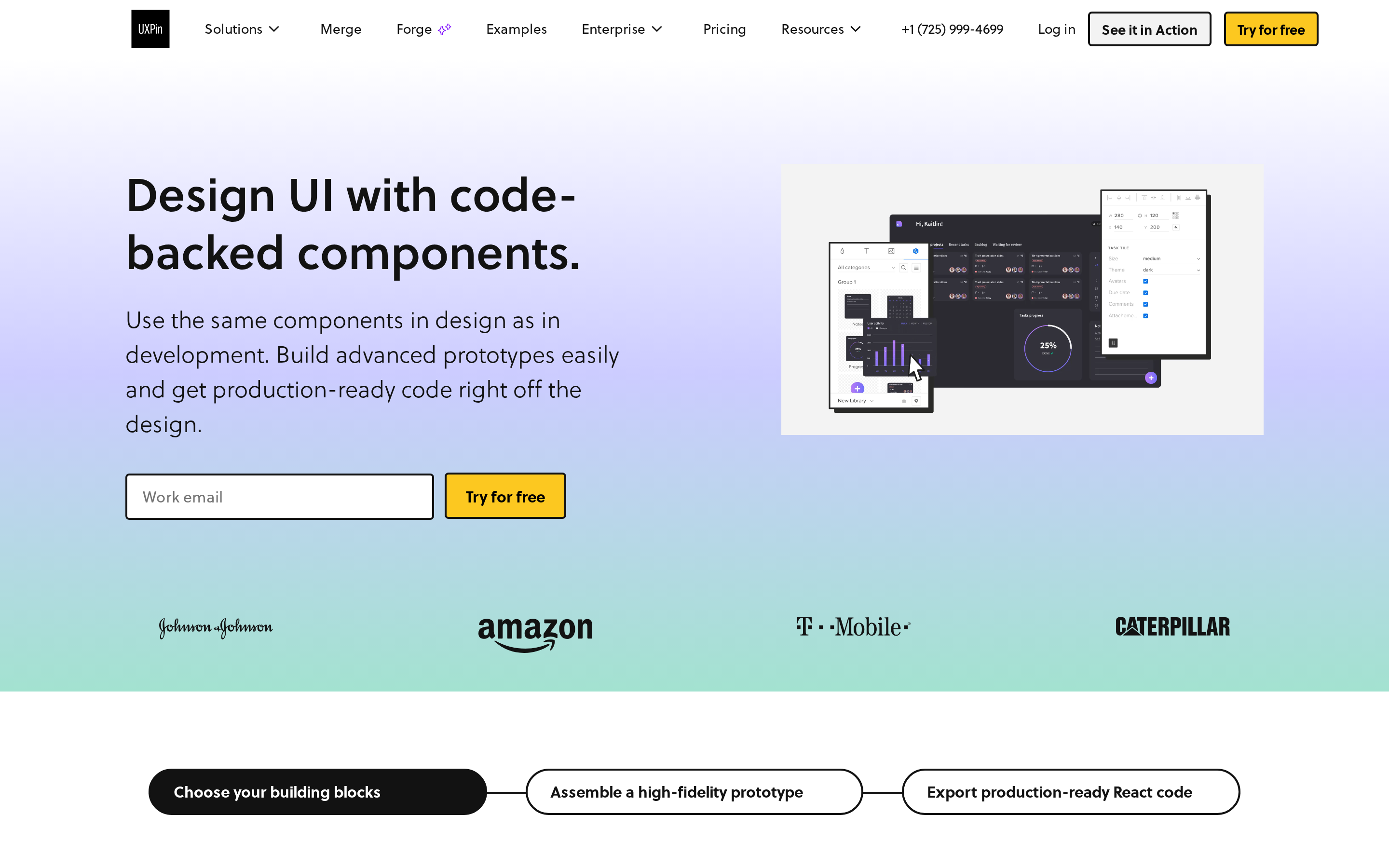
UXPin moves the comparison from screen design into coded component governance. Merge is the reason to evaluate UXPin when React libraries already define production UI.
Best for
- Design systems teams that maintain React components in Storybook or Git and want prototypes to use those components.
Skip it if
- Teams that only need visual mockups and basic wireframes.
Where UXPin differs from Figma
- Code-backed components: Merge lets teams design with production React components from libraries like MUI or Ant Design.
- Repository-connected workflows: Merge can connect with Storybook and Git repositories, depending on plan access.
- Prototype depth: UXPin supports interactions such as hover states, sliders, ripple effects, and conditional navigation.
- Stakeholder review: Viewers can comment, approve, or reject projects without needing an editor seat.
UXPin capabilities
- High-fidelity prototyping with interactive states and conditional flows.
- Auto-generated CSS can support handoff, but teams should compare output against Figma Dev Mode or Zeplin requirements.
- Developer inspection for colors, dimensions, and specs.
- Contextual documentation attached to design elements.
- Real-time collaboration, including on the free plan.
Merge workflow check
UXPin makes sense when design needs to test the coded React component system. For visual-only design systems, Merge can add setup work before handoff improves.
UXPin adoption risks to check
- No Linux desktop app: UXPin’s downloadable client supports macOS and Windows.
- Plan dependency: Full Merge workflows depend on plan access, especially when repository sync is required.
- Pricing jumps: Compare the tier that includes repository sync against current Figma Dev Mode or Zeplin spend.
Watch out: UXPin can expose gaps between a design system and the coded React library. Pilot Merge with one real component set before buying seats.
Pricing
UXPin's pricing page lists Core at $29/editor/month, billed yearly. Merge with repository sync may require a higher tier.
5. Lunacy
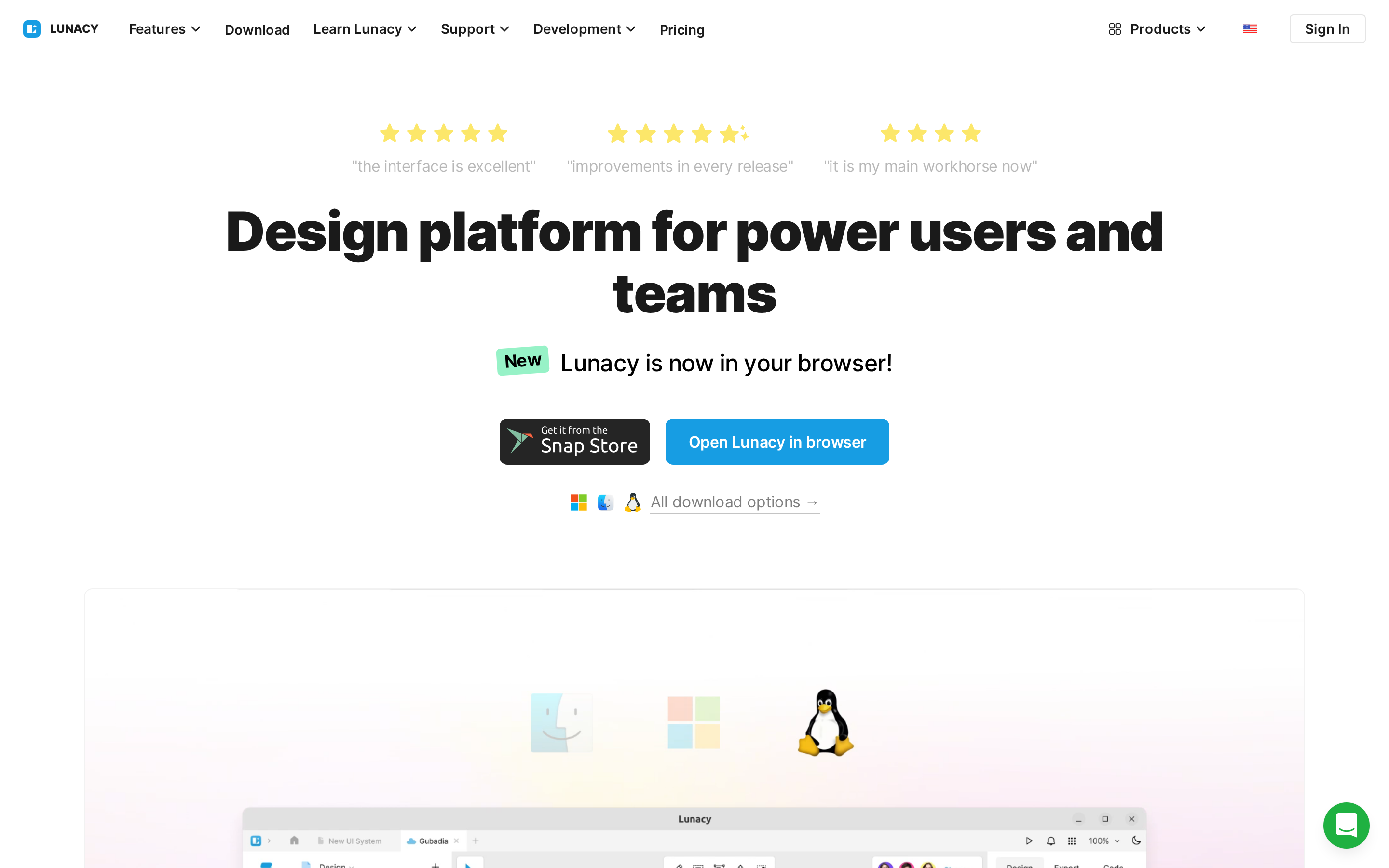
Lunacy is a lightweight desktop tool. It works well as a free Adobe XD-style app for basic UI design, offline work, and Sketch file access.
Best for
- Solo designers and Windows users who need to open old Sketch files without buying Sketch.
Skip it if
- Your team needs multiplayer collaboration or Dev Mode-style handoff.
Where Lunacy fits instead of Figma
- Lunacy is a native desktop app with offline editing and direct .sketch file support.
Lunacy capabilities
- Runs on Windows, macOS, and Linux as a native desktop app.
- Includes Icons8 icons and illustrations.
- Covers reusable components and shared styles for simple UI systems.
Lunacy constraints worth checking
- Collaboration is lighter than Figma's cloud canvas.
- Prototypes handle basic frame links rather than advanced motion work.
- Handoff is limited compared with Figma Dev Mode and Zeplin.
Watch out: Lunacy saves app cost, but shared design systems can hit collaboration friction. Test file sync and team review before moving production work.
Pricing
- Icons8 lists the Lunacy core app as free. Paid Icons8 assets are the main upsell.
6. Balsamiq
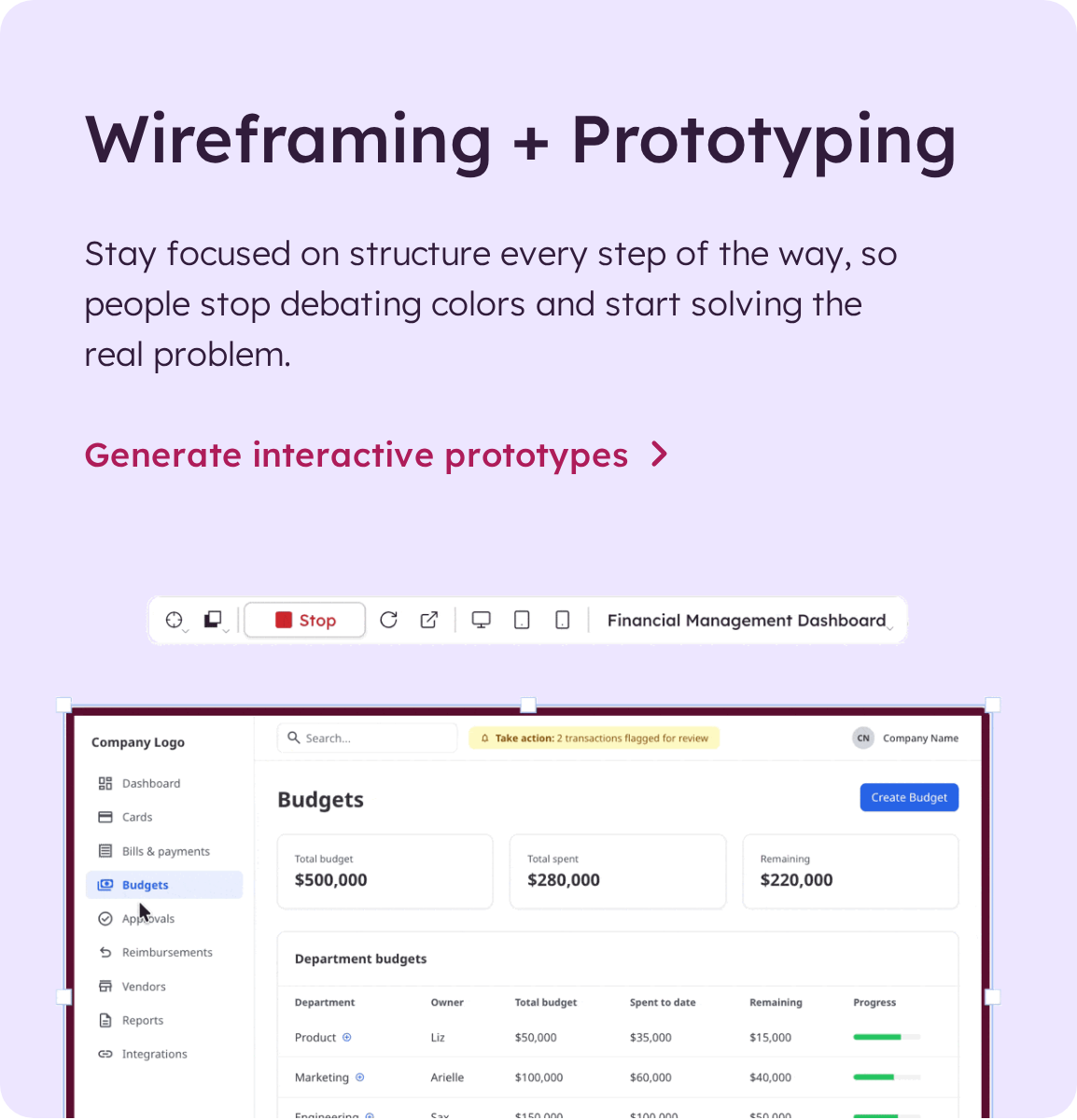
Balsamiq feels intentionally rough. Use it when the question is screen structure, not visual design polish.
Best for
Balsamiq fits early product workshops, information architecture reviews, and stakeholder sessions where polished UI would distract the room.
Skip it if
Skip Balsamiq if you need high-fidelity UI design, design tokens, developer inspect mode, or native app prototyping.
How Balsamiq differs from Figma
Balsamiq is a wireframing tool, not a full UI design workspace. The sketch-style canvas keeps screens visibly unfinished, which makes layout feedback easier to get.
Useful capabilities
- Drag pre-built controls onto rough screens instead of drawing each input, menu, or button from scratch.
- Reuse symbols for repeated navigation, headers, forms, and common screen patterns.
- Add basic click-through links to test a flow before moving into Figma, Sketch, or UXPin.
Use Balsamiq when speed and shared understanding matter more than visual polish. It is strongest before the team invests in high-fidelity design.
Watch out before using it
Watch out: Balsamiq can make weak product logic look acceptable because the interface stays rough. Validate the flow before visual design starts.
Balsamiq also has no Linux desktop app, no free plan, and no code-ready handoff.
Pricing
Balsamiq's Starter plan costs $16/editor/month when billed annually, covering up to 10 projects with unlimited reviewers.
Editor count now drives the bill, while reviewers are free. Check how many people need editing access before choosing a plan.
7. Uizard
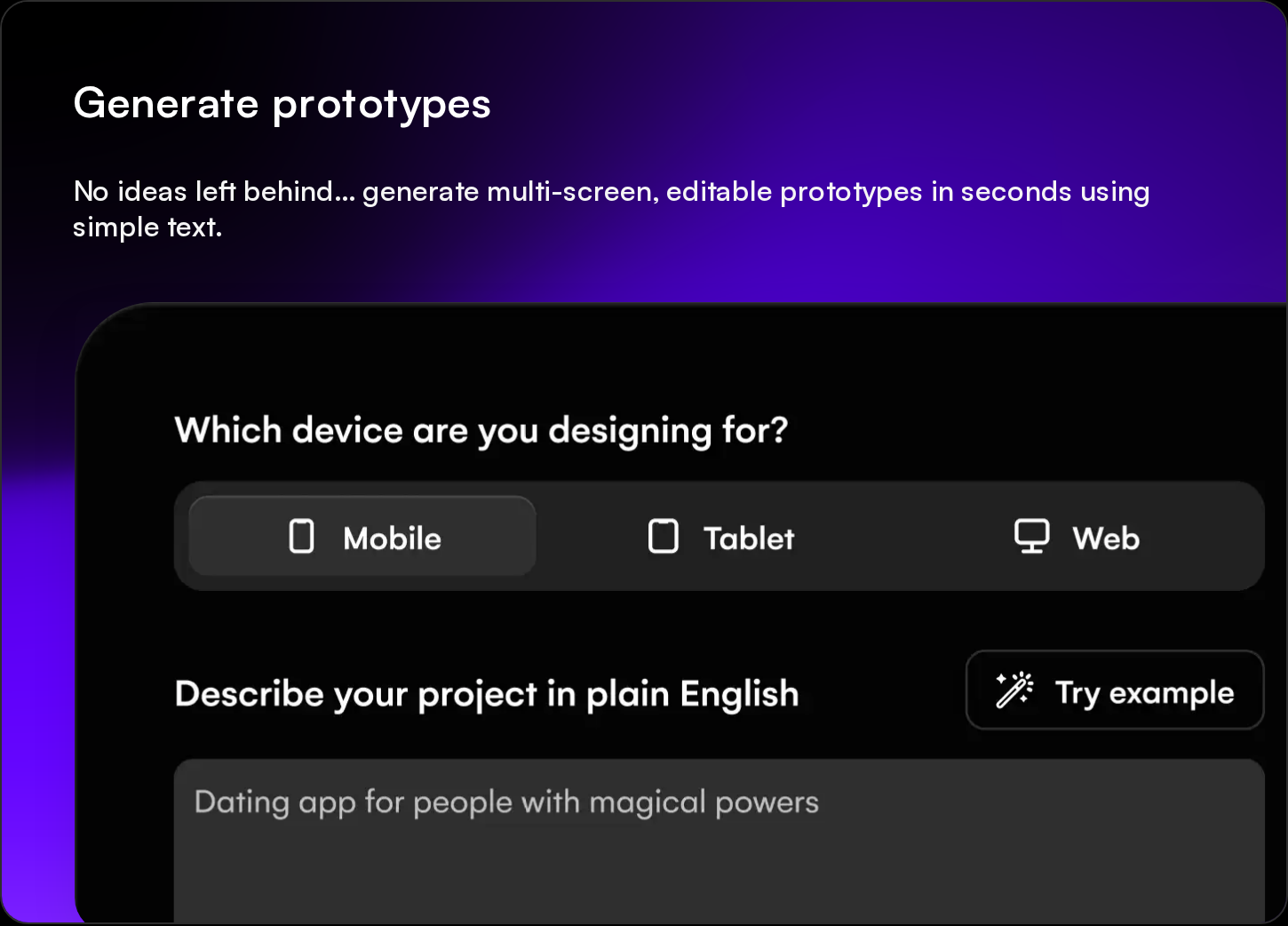
Balsamiq keeps humans in control of rough layouts. Uizard adds AI generation when you want a first mockup from a prompt, sketch, or screenshot.
Best for
Uizard fits founders, product managers, and early-stage teams that need editable UI concepts before hiring a designer.
Skip it if
Skip Uizard if your next step is production-ready front-end code, a mature design system, or direct Figma file handoff.
How Uizard differs from Figma
Figma starts with a blank collaborative canvas. Uizard starts with inputs: prompts, screenshots, sketches, and brand assets.
That makes Uizard faster for first-pass concepts, but less controlled for teams that already have strict component rules.
Useful capabilities
Use Uizard for quick source-to-screen work:
- Generate a multi-screen concept with Autodesigner.
- Convert a hand-drawn wireframe into editable screens.
- Scan an existing app or website screenshot into UI layers.
- Add comments, shared files, and desktop, tablet, or mobile views.
Use Uizard for early concepts, then validate the design in another tool before treating it as production-ready.
Watch out before using it
Watch out: Uizard does not export directly to Figma. Save designs as SVG first, then import and clean up the layers manually.
Uizard also does not export image-to-HTML code, so a developer or app builder still has to create the product.
Pricing
Uizard has a free plan. Its paid plans start at $12/month, according to Uizard's pricing page.
That makes Uizard more expensive than Lunacy's free desktop app, but cheaper than several high-fidelity prototyping subscriptions.
8. Framer
Uizard stops at editable mockups. Framer moves the work to websites, where the design canvas can become a published page.
Best for
Framer fits marketing teams, founders, and designers building landing pages, campaign sites, or CMS-backed websites without a separate publishing stack.
Skip it if
Skip Framer if the output needs to pass App Store or Google Play review as a native app. Framer publishes websites, not app binaries.
How Framer differs from Figma
Figma is mainly a collaborative design file. Framer combines design, motion, CMS, hosting, and publishing for web projects.
That difference matters when the deliverable is a live website. It matters less when the deliverable is a mobile app spec for engineers.
Useful capabilities
- Publishing: Framer publishes responsive websites to its own hosting.
- CMS: Repeatable content sections can be managed inside the same workspace.
- Motion: Scroll effects, animations, and interactions can carry into the live site.
- AI setup: Framer can help generate initial page structure and copy.
- SEO controls: Site-level SEO settings are available inside the platform.
Before moving a full marketing site into Framer, compare its publishing, CMS, and pricing fit against Webflow for the same site count.
Watch out before using it
Watch out: Framer can pull app teams into a web workflow by accident. Native screen flows, iOS patterns, and Material Design systems still need another design process.
Early wireframing can also feel heavy in Framer. Use Balsamiq or Uizard first when the team is still debating layout direction.
Pricing
Framer has a free plan for personal projects with Framer branding on published sites.
Framer's current paid site pricing starts at $10/month for Basic, according to Framer's pricing page.
Framer pricing is per site, so compare total cost by website count before moving multiple landing pages into the platform.
9. ProtoPie
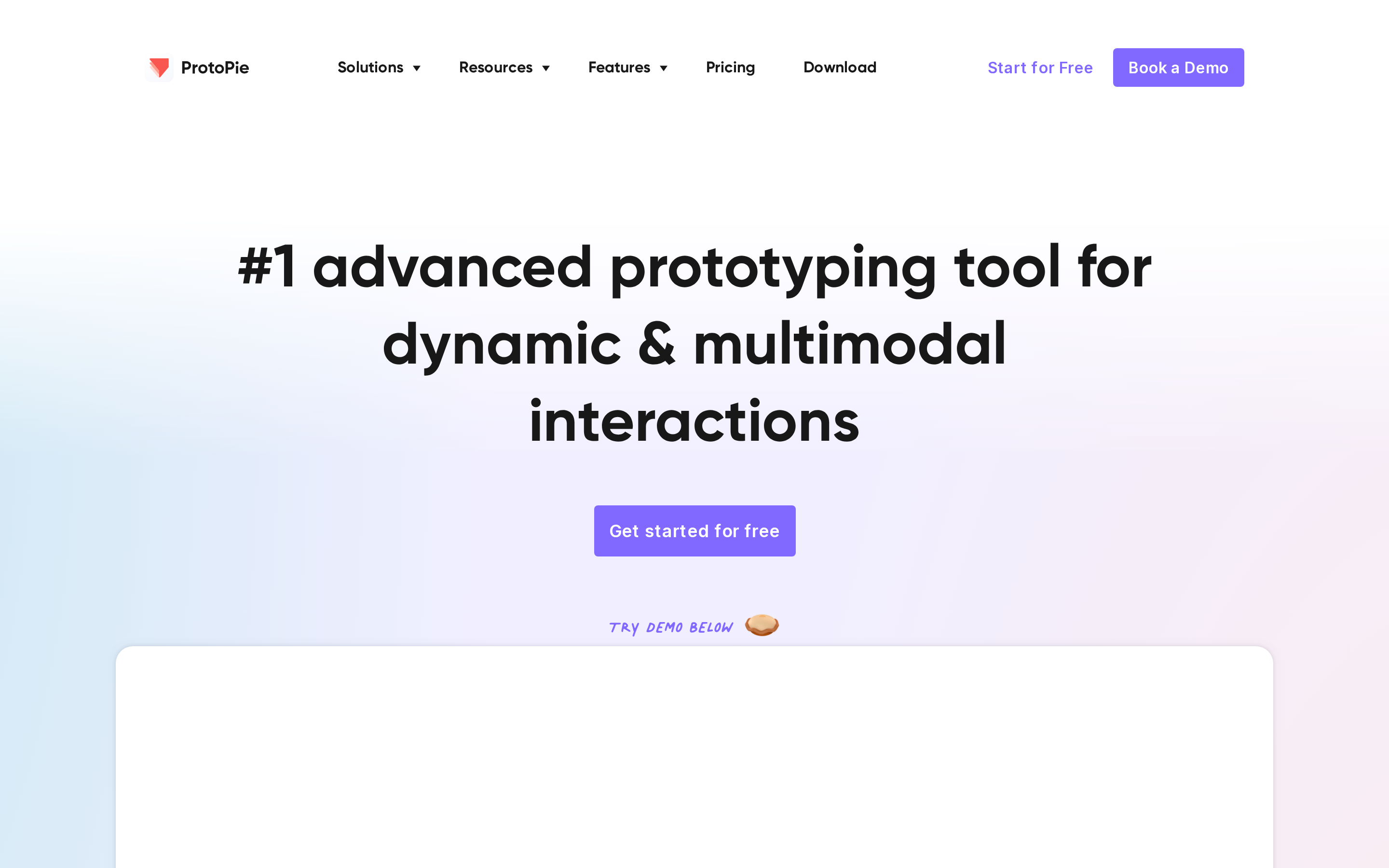
Framer publishes websites. ProtoPie sits deeper in prototyping, where the problem is interaction behavior, sensors, and multi-device testing.
Best for
ProtoPie fits senior interaction designers working on hardware-linked flows, connected devices, automotive interfaces, or prototypes that need realistic input behavior.
Skip it if
Skip ProtoPie if you need a general Figma replacement, early wireframes, visual design from scratch, or a lower-cost team collaboration tool.
How ProtoPie differs from Figma
Figma handles interface design and standard clickable prototypes. ProtoPie handles interaction logic after the UI layer already exists.
Designers usually create screens in Figma, Sketch, or Adobe XD, then import assets into ProtoPie for behavior testing.
Useful capabilities
ProtoPie is useful when static links cannot explain the product:
- Trigger interactions from text, video, audio, and user inputs.
- Use device inputs such as accelerometer and tilt behavior.
- Run one prototype across multiple devices for side-by-side testing.
- Connect prototypes to APIs, car infotainment systems, game consoles, or custom hardware through ProtoPie Connect.
- Work from macOS or Windows desktop apps.
ProtoPie is strongest when interaction fidelity matters more than all-in-one collaboration. Check sharing access and pricing before rolling it out to a wider team.
Watch out before using it
Watch out: ProtoPie adds a second tool to the workflow. Budget time for importing, rebuilding interactions, testing device behavior, and explaining the prototype setup to stakeholders.
ProtoPie is also the wrong place to start visual design. Build the UI layer elsewhere first.
Pricing
ProtoPie has a free version. Paid plans start at $25/month, according to ProtoPie's pricing page.
Collaboration features sit behind higher pricing tiers, and plans below Enterprise are described as community-support only.
Verdict: ProtoPie is overkill for ordinary app screens, but useful when interaction behavior is the thing you must prove.
10. Miro
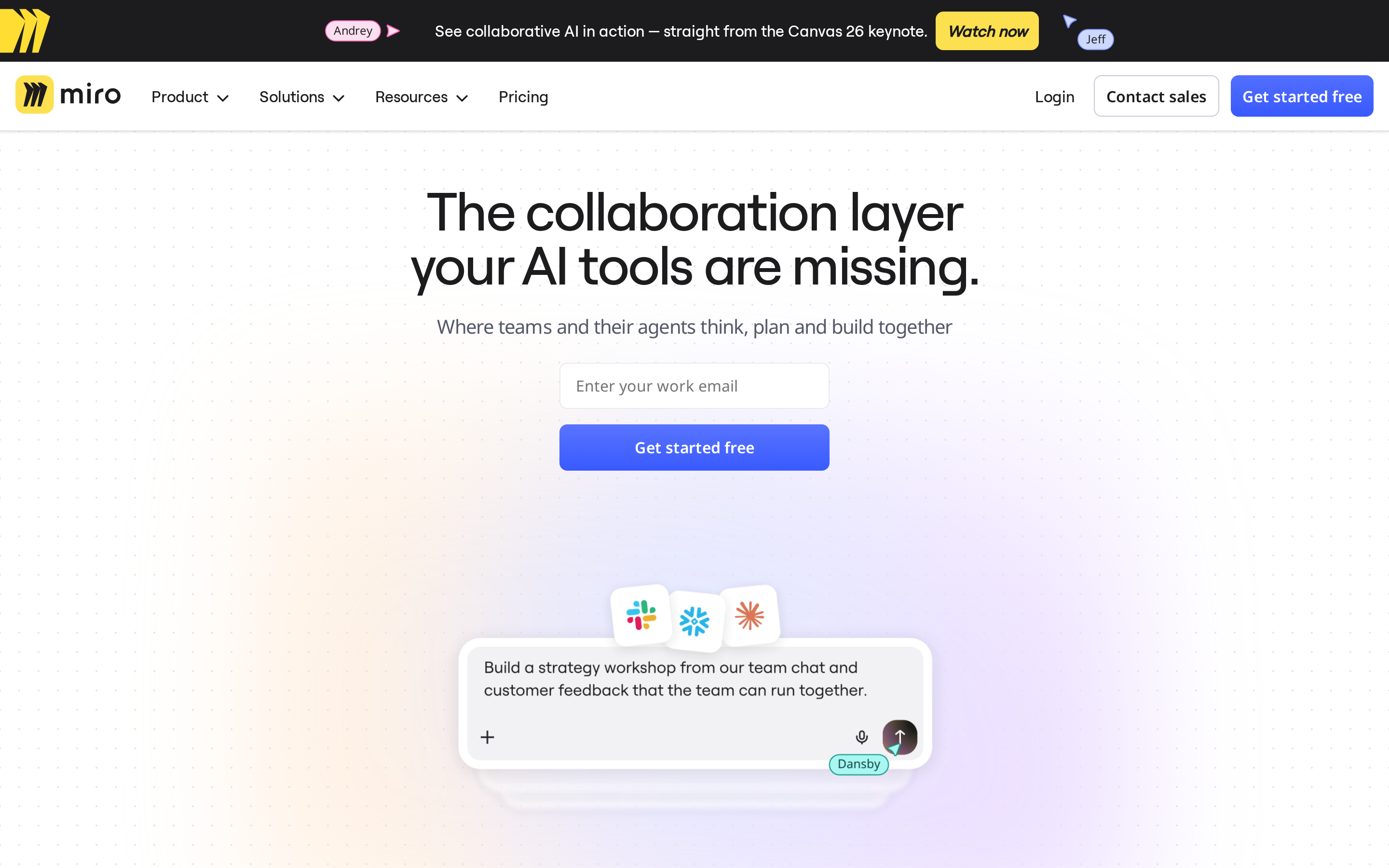
Miro moves the conversation upstream. It is the board for workshops and early flows before a team commits to screens.
Best for
Product teams that need shared discovery boards with workshop tools and low-fidelity flows in one place.
Skip it if
Skip Miro when the same tool must handle polished UI design and developer handoff.
Where Miro fits beside Figma
Miro is closer to FigJam than Figma. Its canvas is built for group decisions instead of finished interface work.
UI/UX jobs Miro can cover
- Wireframe sketches: Templates, Miro AI, and basic UI elements are enough for early layout drafts.
- User flows: Teams can map screens and decisions before committing to UI.
- Workshops: Voting, timers, and sticky notes keep planning inside the same board.
Watch out before using Miro as a design tool
- Design depth: Miro does not cover design systems, variants, inspect mode, or production code output.
- Paid interactivity: Interactive design work can require a paid plan.
- Plan limits: Check AI features, sharing permissions, and board limits before using Miro as a design workspace.
Miro pricing
Miro's public pricing page lists:
- Free: 3 editable boards
- Starter: $8/member/month, billed annually
- Business: $20/member/month, billed annually
Verdict: Miro belongs before the design tool; polished UI work should move elsewhere.
11. Webflow
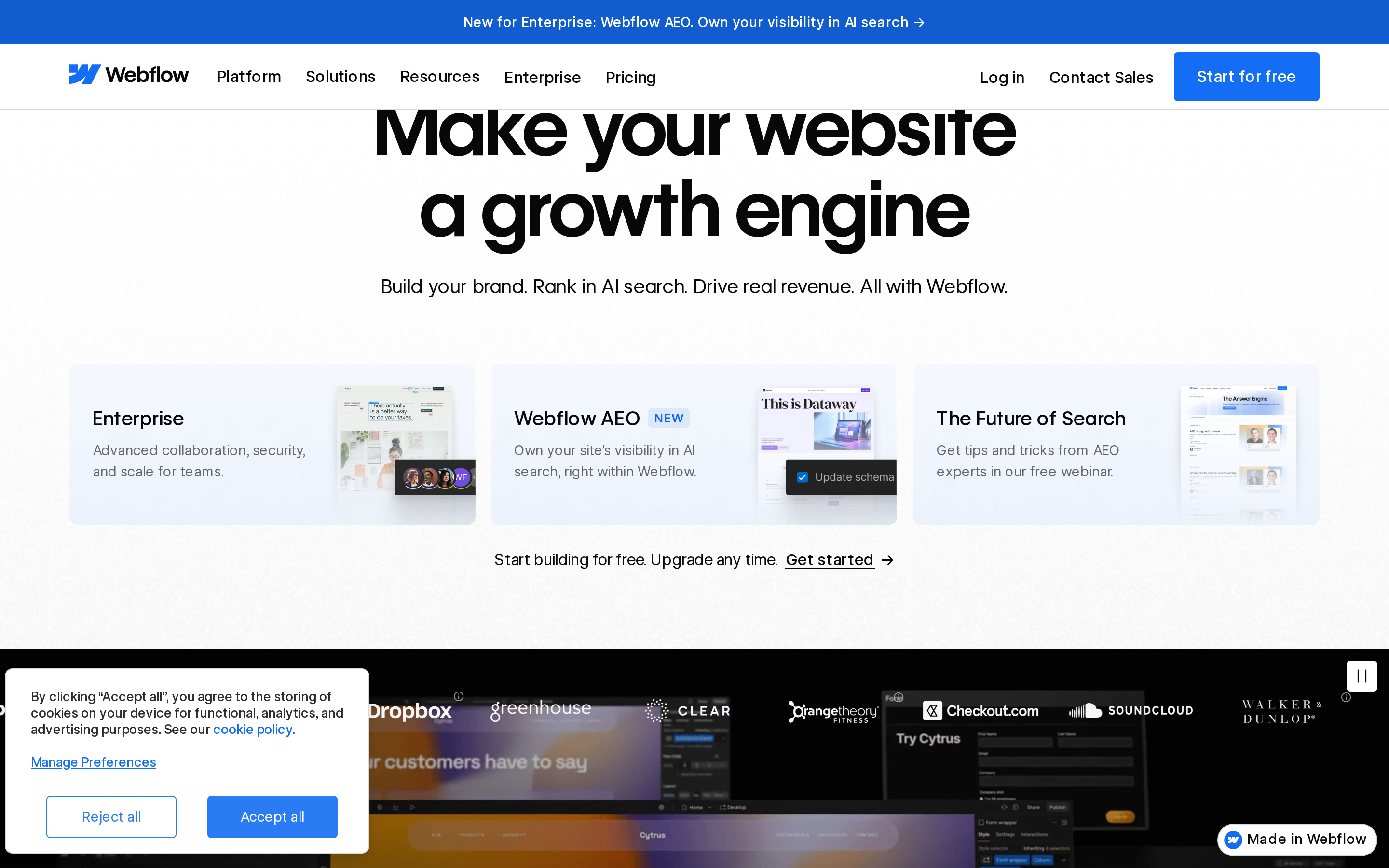
Use Miro to plan. Use Webflow when a marketing site needs to go live. Webflow belongs here because visual layout decisions become hosted HTML and CSS.
Best for
- Marketing sites and landing pages
- CMS-driven content pages
- Smaller ecommerce experiences
Skip it if
Skip Webflow if you need App Store or Google Play distribution. Webflow publishes websites, not native iOS or Android app binaries.
The Figma difference
Figma stops at design and prototype handoff. Webflow publishes the site, so design decisions include layout structure and responsive behavior.
Hosting and CMS setup also move into the workflow.
Compared with Framer, Webflow gives designers more granular control over:
- CSS boxes
- grids
- classes
- responsive breakpoints
Web workflow it covers
Webflow covers four parts of the workflow:
- Visual CSS control: Designers adjust box model, flexbox, grid, typography, spacing, and responsive behavior visually.
- CMS and hosting: Marketing teams can publish collection pages without adding a separate CMS.
- Interactions: Hover states, scroll triggers, and multi-step animations can ship with the live site.
- Ecommerce: Smaller storefronts can use Webflow for branded shopping flows.
Watch out before publishing in Webflow
- Category fit: Webflow builds websites, not native iOS or Android apps.
- Design systems: Token-based systems, variant-heavy libraries, and mobile gesture prototypes still belong in a product design tool.
- Plan limits: Check CMS items, ecommerce features, interactions, and workspace seats before moving a full site into Webflow.
Webflow pricing
Webflow's public pricing page now lists:
- Basic: $15/month
- Premium: $25/month in the simplified site-plan lineup
Workspace pricing is separate. Check Webflow's current workspace page before budgeting for:
- seats
- staging
- collaboration controls
Verdict: Webflow is a practical Figma alternative only when the deliverable is a live website. For app UI, Webflow solves the wrong problem.
12. Axure RP
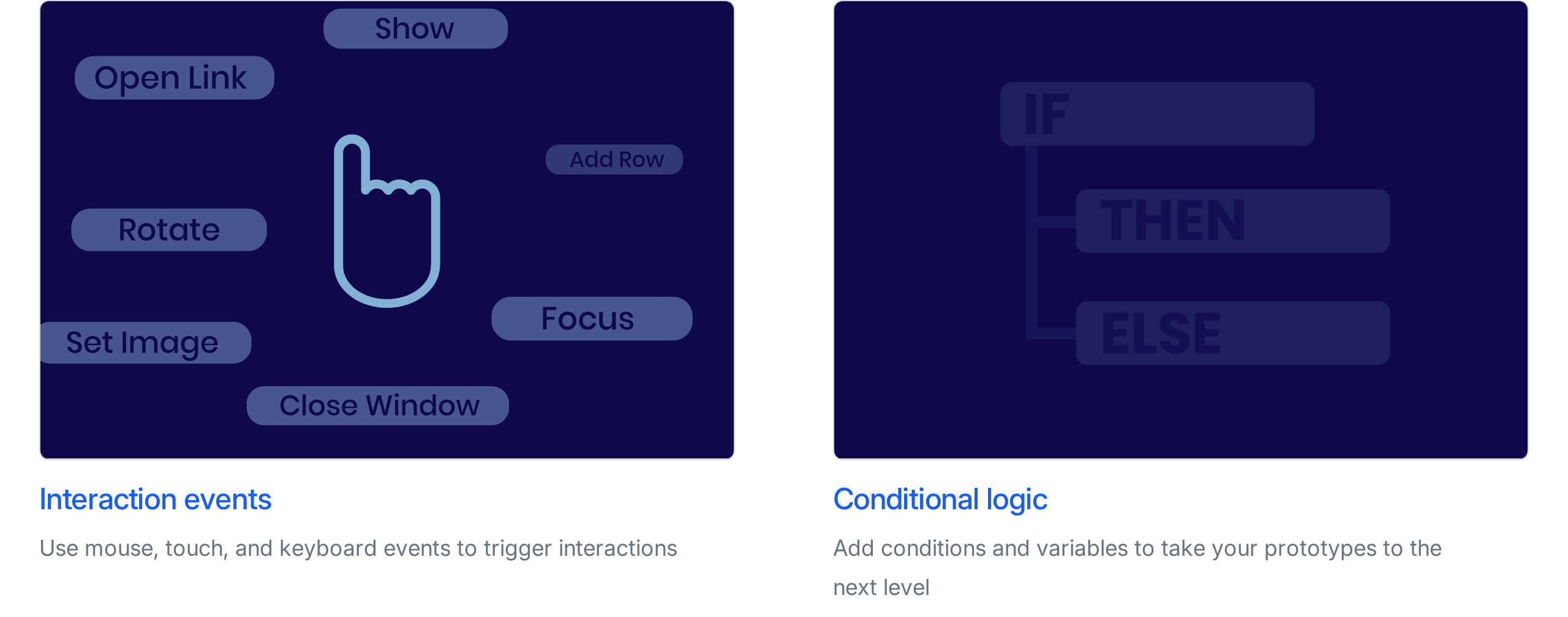
Webflow turns design into a published site. Axure RP goes the other way: use it when the prototype needs logic before anyone writes code.
Best for
Axure RP fits teams testing:
- conditional form flows
- data-heavy dashboards
- role-based journeys
- research prototypes with detailed interaction rules
Skip it if
Skip Axure RP when the priority is:
- polished visual UI
- live multiplayer editing
- a modern component system
Where Axure diverges
Axure prioritizes behavior over canvas polish. The tool is built for prototypes that change state based on user input.
Figma-style canvas tools are faster for everyday screen design. Axure earns its place when the prototype must behave like an application.
Logic Axure can model
- Conditional logic: Show different screens, states, or messages based on user input.
- Dynamic panels: Simulate layered interfaces, menus, toggles, and changing content areas.
- Variables and repeaters: Model data-driven interactions without connecting a live backend.
- Documentation: Share prototypes and specs through Axure Cloud for review.
Watch out before standardizing on Axure
- Collaboration model: Axure RP is a desktop Mac and Windows app; Axure Cloud handles sharing, comments, and review.
- Version control: Teams need clear file ownership because browser-style multiplayer editing is secondary to file management.
- Visual systems: Component variants, auto layout, and token workflows are stronger in Figma, Penpot, or Sketch.
- Learning curve: Confirm variables, repeaters, and Axure Cloud workflows with one realistic prototype before standardizing on Axure.
Axure pricing
Axure's public pricing page lists:
- Pro: $25/user/month, billed annually
- Team: $42/user/month, billed annually
- Enterprise: custom pricing
Axure also offers a 30-day free trial. There is no permanent free tier.
Verdict: Axure RP belongs in the complex-prototyping slot. Keep a visual design tool beside Axure if the UI needs polish.
Which Figma alternative is right for you?
After reviewing all 12 tools, start with the plain question that makes the shortlist useful: what do you need to publish, test, or hand off?
Pick one output first. The table below keeps the choice practical.
| If your goal is... | Look at... | Why |
|---|---|---|
| A native iOS or Android app | Bilt.me | Generates React Native code and supports the app-store path from idea to mobile build. |
| A published marketing site or web experience | Webflow or Framer | Both publish websites directly from a visual canvas. |
| Full product UI design | Penpot, Sketch, or UXPin | These cover design systems, component libraries, and developer handoff. |
| Early wireframes | Balsamiq | The low-fidelity style keeps discussion on structure and flow. |
| Complex interaction prototypes | ProtoPie or Axure RP | These handle advanced interactions, variables, logic, and branching flows. |
| Whiteboarding and workshops | Miro | The canvas is built for mapping ideas, journeys, and team planning. |
| Open-source or self-hosted design work | Penpot | Teams can control the infrastructure and design data. |
For native mobile apps, a design file is only the starting point. The shipping work starts when teams need a coded build for device testing and App Store preparation.
If the mobile branch is the real shortlist, the launch-focused AI mobile builder comparison weighs native output and store support.
Use the rest of the list like a filter, not a loyalty test:
- Need speed from a rough idea? Start with Uizard or Lunacy.
- Need precise product design? Compare Penpot, Sketch, and UXPin.
- Need stakeholder testing for complex flows? Compare ProtoPie and Axure RP.
- Need a shipped mobile app instead of a design artifact? Look at Bilt.me first.
The category matters less than what you need to deliver. Pick the tool that gets you there with the fewest handoffs.
Why non-technical builders use Bilt.me to close the app-shipping gap
Figma is useful when the bottleneck is UI design. Non-technical founders usually hit a different wall: getting the idea onto a phone as a working iOS or Android build.
The traditional path has three handoffs: founder to designer, designer to developer, developer to App Store release. Each handoff can turn product decisions into status updates.
| Step | Traditional design path | What creates delay |
|---|---|---|
| Concept | Wireframes in Figma, Sketch, or another design tool | The idea becomes a separate file before phone testing. |
| Mockup | Polished screens before product logic is proven | Visual decisions can outrun feature decisions. |
| Handoff | Developers rebuild the screens in React Native, Swift, Kotlin, or Flutter | Spacing and flow details can change during rebuild. |
| QA | Teams compare the coded app against the design file | Mismatches become another review cycle. |
Bilt starts from the app description and creates the first mobile build path earlier. That means the first serious review can happen against something you can test, not just another static file.
Proof point: Alpakids
Kelly Lilles, CEO at Alpakids, turned to Bilt after a two-week manual design-to-code cycle slowed phone testing. Her team reached a functioning mobile prototype in one working session.
The hard part is getting the app onto a phone early enough to learn from it.
After the first build, the conversation becomes the product workspace:
- Change the flow: adjust onboarding, add a screen, or reorder steps from the prompt.
- Add product logic: describe a reminder or content rule in normal language.
- Preview quickly: check the live preview before deciding what to change next.
- Keep ownership: export the generated React Native code when developer access matters.
Building a mobile app? Skip the design-to-dev gap with Bilt.me
Figma handoff still works when a mobile developer is ready to build. Figma Dev Mode exposes spacing and assets, but the app still has to be written, tested, packaged, and submitted.
Figma-to-code tools like DhiWise can generate code from completed designs. The design file still comes first, so the project still starts as a handoff.
Bilt starts with the app idea, then moves into a React Native build path for iOS and Android.
| Build concern | Figma handoff | Bilt.me |
|---|---|---|
| Starting point | Completed screens in a design file | Plain-English app description |
| Mobile output | Developers rebuild the interface in code | React Native app structure for iOS and Android |
| Testing | Requires a separate build pipeline | Browser simulator plus QR testing on a phone |
| Store prep | Handled after design and development | Code signing, store assets, and submission support |
Mobile-web previews are where non-technical builders get burned. A phone-shaped web page can make a project feel close, but App Store submission exposes the gap.
That gap includes native packaging, device behavior, store assets, code signing, and review-ready build output.
Use Bilt when:
- The deliverable is a native app: iOS or Android output matters more than another mockup.
- You need founder-led testing: you want a working build before hiring a mobile developer.
- Developer access may matter later: exported React Native code gives the team a path beyond the builder.
Ready to test a mobile idea on a phone? Start building free, describe the app once, and use the preview to decide what changes before store prep.
FAQs about Figma alternatives
Who is Figma's biggest competitor?
Historically, Sketch is the name most teams compare with Figma. Before browser collaboration became normal, Sketch was the default in many Mac-based product design rooms.
| Competitor | Why it comes up | Where it differs from Figma |
|---|---|---|
| Sketch | High-fidelity UI design, design systems, and Mac-based product workflows | Mac-first desktop workflow rather than browser-first collaboration |
| Penpot | Browser collaboration, open-source setup, and pressure to avoid paid Figma seats | Open-source and self-hostable, with a newer product-design audience |
Today, Sketch and Penpot answer different Figma concerns. Sketch is the legacy rival for Mac-based design work; Penpot is the open-source, browser-based challenger for teams avoiding paid Figma seats.
Is there a free Figma alternative?
Yes. Penpot is the first free alternative to check when you need a full UI design workflow rather than a whiteboard or website builder.
Penpot is open-source, self-hostable, and browser-based. That mix helps a product team collaborate without adding paid Figma seats.
Penpot covers:
- vector editing
- design systems and reusable components
- interactive prototyping
- developer handoff
- browser access across operating systems
Free tiers are useful for narrower jobs too:
- Lunacy: free cross-platform desktop design.
- Uizard: limited projects and screens; AI generation sits behind paid tiers.
- Miro: 3 editable boards per workspace, with unlimited viewers.
- Framer: free tier available, though Penpot is the stronger free pick for UI design.
What's the best FigJam alternative?
Miro is the best FigJam alternative for structured workshops. FigJam feels lighter; Miro gives facilitators more room to plan sessions with templates, timers, voting, and team boards.
Use Miro for:
- brainstorming and workshop boards
- sticky-note clustering
- AI-assisted wireframes
- built-in voice and video
- timers and polling
- interactive sliders and buttons
Miro can replace FigJam-style whiteboarding. Keep product screen design in a UI tool such as Figma or Penpot when component systems or developer handoff matter.
Pricing starts with a free plan. Paid Miro plans start at $8 per user per month, billed annually.
Final takeaway
Choose the Figma alternative based on the thing you need to finish.
- Need a native mobile app? Start with Bilt.me.
- Need a design file? Compare Penpot, Sketch, UXPin, or Lunacy.
- Need a website? Compare Framer and Webflow.
- Need a workshop board? Use Miro.
- Need complex prototype logic? Look at ProtoPie or Axure RP.
If your Figma search is really about getting an app onto a phone, start building free with Bilt.me. Describe your idea, preview the build, and move toward the app-store path without starting from another static file.