If you're looking for the best AI tool for UI design, you probably want to turn an app idea into a polished interface without spending weeks in a design tool or thousands on freelance help.
Start by choosing the endpoint. You might need an editable design, an interactive prototype, a hosted website, or a native mobile app. That choice prevents expensive rework later.
I compared seven tools by how they accept ideas, how much control they give you, and what they produce at the end.
For each tool, you will see what it outputs, who it fits, where it stops, and what it costs.
Quick picks and comparison table
Pick by where you need to end up: Bilt for native mobile apps, Figma Make for code-backed prototypes, Google Stitch for design-to-code exploration, and Uizard or Visily for editable mockups.
- Best for turning a UI idea into a real native iOS and Android app: Bilt
- Best for prototyping without leaving Figma: Figma Make
- Best for turning sketches or screenshots into editable mockups: Uizard
- Best for high-fidelity multi-screen flows pushed into Figma: UX Pilot AI UI Generator
- Best for non-designers who need clean wireframes: Visily AI
- Best for getting a live, hosted website instead of a design file: Readdy AI
- Best for moving between generated UI, Figma, and front-end code: Google Stitch
| Tool | Primary workflow | Main output | Figma relationship | Starting price |
|---|---|---|---|---|
| Bilt | Prompt-to-mobile app build | Functional native mobile app flows | Figma plugin for selected frames | Free; paid plans from €25/month |
| Figma Make | Figma-native AI prototyping | Interactive prototypes | Included in paid Figma plans: $12 to $15 per seat monthly | Included in paid Figma plans: $12 to $16 per seat monthly |
| Uizard | Beginner-friendly mockups | Editable mockups and prototypes | Import and export support | Free tier. Pro from $12 monthly |
| UX Pilot AI UI Generator | Structured UX flows in Figma | High-fidelity screens and multi-screen flows | Figma plugin with sync | Free daily credits. Pro about $12 to $29 monthly |
| Motiff AI | Former prompt-based UI generation | Discontinued | Standalone before shutdown | Discontinued |
| Visily AI | Accessible wireframing for non-designers | Wireframes and editable mockups | Figma import and export on paid plans | Free tier. Pro from $11 per editor monthly |
| Readdy AI | Prompt-to-website builder | Live responsive websites | Figma export plugin | Starter about $15 monthly |
How I evaluated these tools
I compared seven dimensions: accepted inputs, editing workflow, output type, publishing endpoint, pricing and usage limits, export and ownership, and the evidence available for each claim.
Endpoint fit is the main comparison. An editable design, a hosted site, and a native app can all be good results when they match the job you need to finish.
Evidence basis:
- Hands-on: Bilt and the Figma-to-Bilt workflow.
- Researched from official product and pricing pages: Figma Make, Uizard, UX Pilot, Google Stitch, Visily, and Readdy.
The 7 best AI UI design tools
These seven active tools accept prompts or visual inputs, but their outputs differ: editable designs, functional prototypes, hosted websites, front-end code, or native mobile apps.
1. Bilt
Verdict: Bilt is the pick when the UI needs to become a real native iOS and Android app, not just a design or browser prototype.
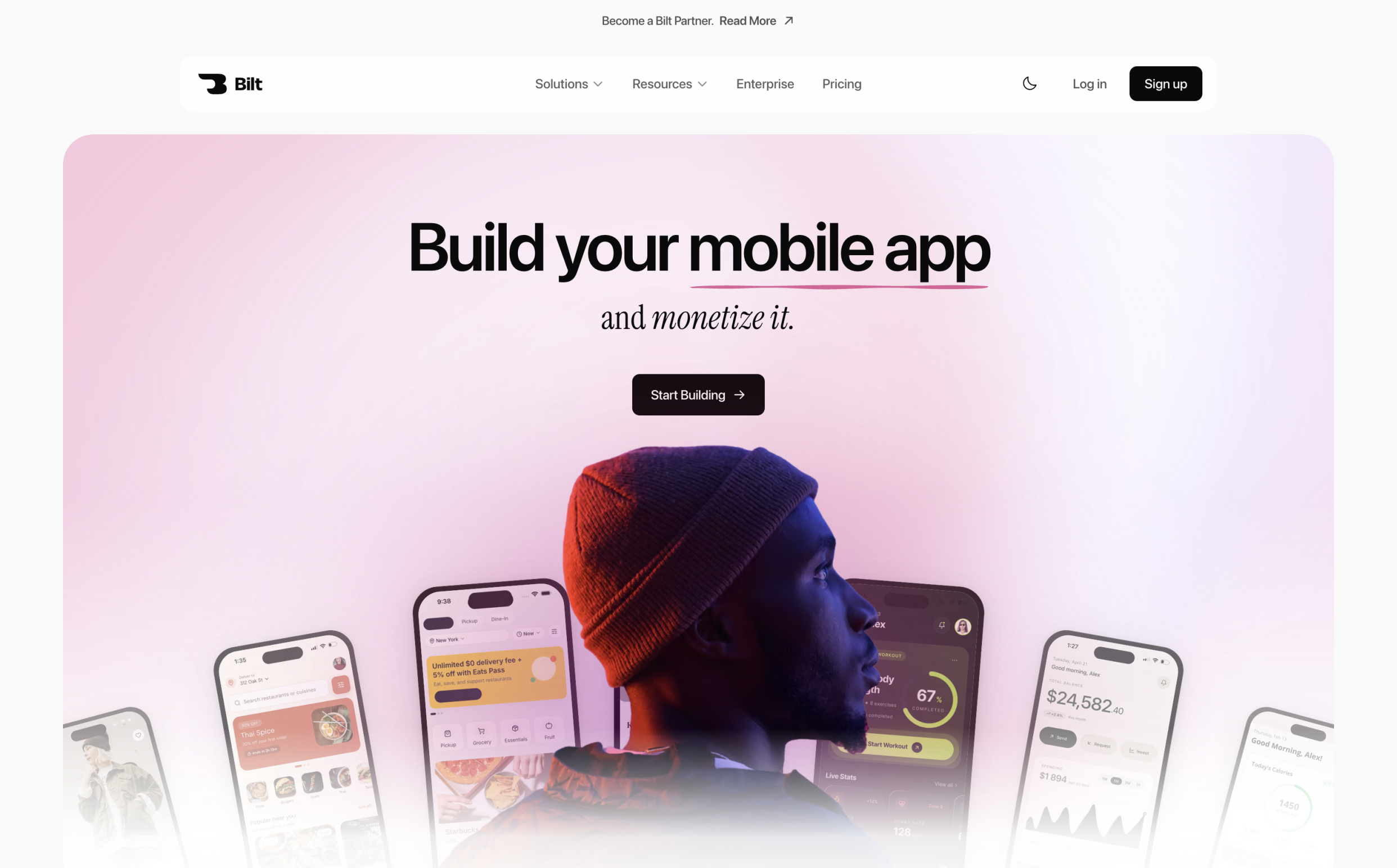
Bilt carries the work through live preview, refinement, and store submission.
Bilt suits founders, designers, marketers, and web app owners who want to avoid native toolchains. It focuses on mobile apps rather than standalone hosted websites.
What it builds from a prompt
The first build is a working app, not a screen mockup. Describe the app in plain English and Bilt generates the interface, the core feature set, and the backend it needs to run.
What you get in that first output:
- Screens and navigation: built out and interactive from the first build.
- Core features: the functionality you described, wired up rather than faked.
- Backend integrations: authentication, database, and storage set up for the app.
- React Native code: real source you own and can export or hand to a developer.
Start with a plain-English description, reference image, or selected Figma frames. Bilt’s Figma plugin connects the design to a Bilt project for the build.
People use Bilt for reminder apps that schedule recurring tasks, trigger alerts by location, and sync with calendars. It also supports music streaming apps with playlists and offline playback.
How it turns UI into a real mobile app
The generated screens compile into native React Native apps for iOS and Android. Nothing is wrapped in a web view, so the app behaves like an app on the device.
Backend work happens in the same build. Authentication, database, and storage are generated with the app, and they are included on the free plan.
When the app needs payments, notifications, or device features, Bilt can configure those flows during creation, including the related permissions and delivery setup.
How you preview and refine it
You can watch the app run while you build it, and test it on your own phone before anyone else sees it.
- Live preview: UI and functional changes appear immediately in the live browser preview. Switch to a cloud-streamed iOS simulator for a native iOS view.
- QR code testing: scan a code to open the app on a real iOS or Android phone.
- Cloud Android emulator: check Android behavior without setting anything up locally.
- Refine by chatting: ask for a color change, a new screen, or another feature in plain English, and the AI keeps earlier design decisions consistent across revisions.
What happens after the design is ready
Once the design is ready, Bilt generates the build and handles code signing, certificates, and provisioning profiles automatically.
- iOS: Bilt builds, signs, and uploads to App Store Connect. You submit the build for Apple review there, while Apple still controls public release timing.
- Android: Bilt builds the
.aaband can send it to internal testing. Your first release may require a manual upload in Play Console. - Your code: The React Native source stays yours to export, keep building on Bilt, or hand to a developer.
Bilt has a permanent free tier. Professional starts at €25 per month, Professional Plus costs €50 per month, and Enterprise has custom pricing.
Publishing also requires your own store accounts: the Apple Developer Program costs $99 per year, and Google Play Console registration costs $25 once.
2. Figma Make
Figma Make is a prompt-to-code workspace for functional prototypes and web apps. You can bring in Figma designs, refine the result on its canvas, and publish it to a dedicated web URL.
Generating inside an existing Figma file
Attach existing Figma frames or components to a prompt, or start from scratch. When you need standard design layers, copy the Make preview into Figma Design for editing.

Make keeps its code-backed work in a Make file, while copied design layers can sit beside the team's existing frames, styles, and components.
That fits designers and product teams who already live in Figma and want prompt-based generation without adding another tool to the stack.
AI tasks that stay in the design workspace
Figma's broader AI tools also support the surrounding design workflow:
- AI features run inside the Figma workspace instead of a separate tool you sync back from.
- UI copy can be generated, rewritten, or shortened directly in the design.
- Layers get renamed automatically based on context.
- Images can be generated and backgrounds removed without leaving the file.
From generated prototype to production-ready UI
Generated prototypes still need review for flow logic, responsive behavior, accessibility, and alignment with the team's design system.
Repeated generations draw from the seat's monthly AI-credit allowance, so longer exploration sessions need closer usage tracking.
Figma Make can publish web experiences, but it does not turn a design into a shipped native mobile app. A separate build step is still required.
For a native mobile build, the Bilt app inside Figma can connect selected design work to a Bilt project. This is an integration path, not a feature of Figma Make itself.
Figma seats, AI credits, and access
A Professional Full seat starts at $12 per editor per month with annual billing, or $15 month to month, and includes monthly AI credits. Dev Mode seats range from $12 to $35 per month, depending on the plan.
| Plan or seat | Price | AI access note |
|---|---|---|
| Starter | Free | Limited AI access |
| Professional Full seat | $12/editor/month annual or $15 monthly | Includes monthly AI credits |
| Organization Full seat | $55/seat/month annual | Includes higher monthly AI credits |
| Enterprise Full seat | $90/seat/month annual | Includes highest monthly AI credits |
| Dev Mode seat | $12 to $35/seat/month | Separate paid seat for developer handoff |
3. Uizard
Uizard is an AI prototyping tool that turns text prompts, screenshots, and hand-drawn sketches into editable UI mockups.
It produces design files rather than functional applications, so the output is a screen set you hand off, not something you publish.
Starting with sketches in a separate editor
Uizard works in its own editor, with templates, reusable styles, and AI tools for people who do not want to begin on a blank canvas.
Wireframe Scanner converts a hand-drawn layout into editable UI. You can then adjust the layout and components in Uizard's editor.
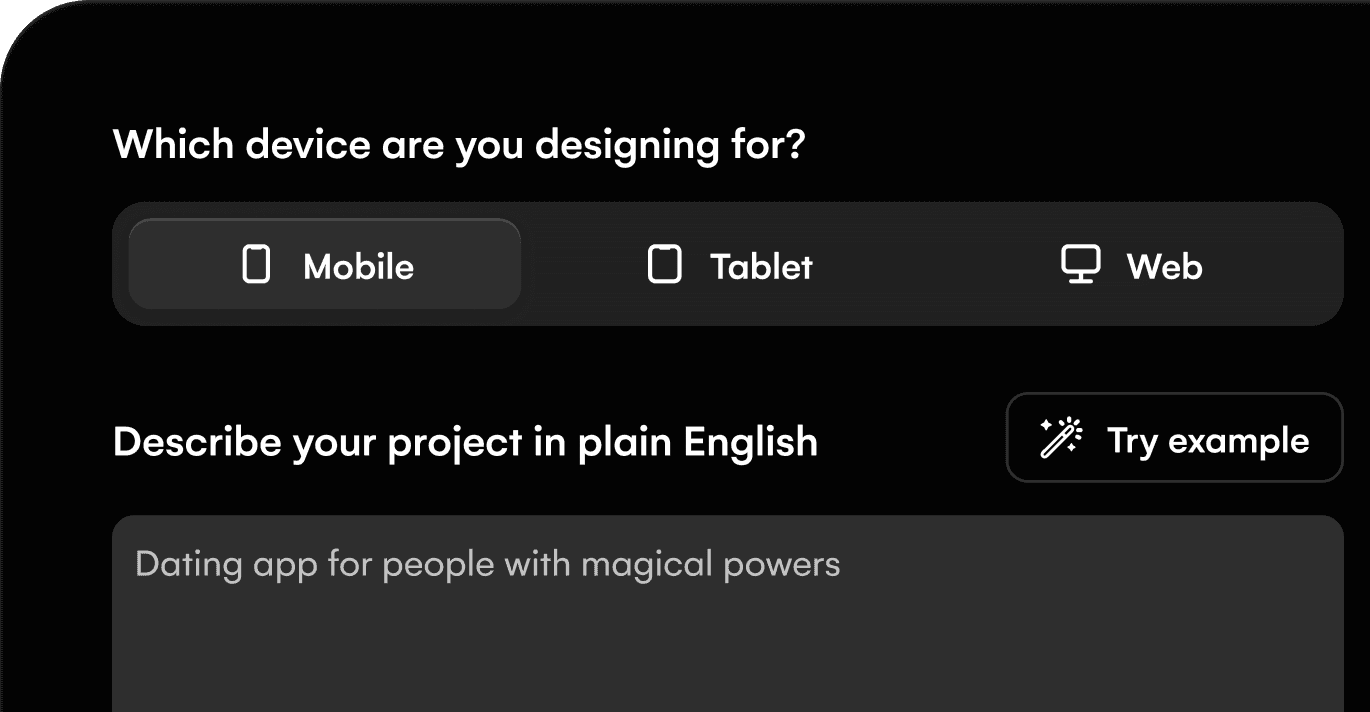
Turning rough concepts into editable mockups
- Wireframe Scanner: Converts a photographed sketch into an editable digital screen.
- Templates and design systems: Apply an initial visual direction without styling every element from scratch.
- Editable multi-screen mockups: Generated flows remain editable instead of becoming flat images.
Why I plan for retries and cleanup
Treat Autodesigner output as a draft. Check flow continuity, content, spacing, and component consistency before sharing it as a finished mockup.
Uizard produces editable mockups and prototypes, not an App Store or Google Play build. Publishing a native mobile product still requires a separate development step.
What the free plan and Pro plan cost
Uizard offers a free plan, and Pro starts at $12 per month with annual billing. Check the official pricing page for current AI-generation allowances.
4. UX Pilot AI UI Generator
UX Pilot turns prompts, reference images, sketches, PDFs, and product documents into editable wireframes, screens, and connected flows. Designs can move into Figma or out as code.
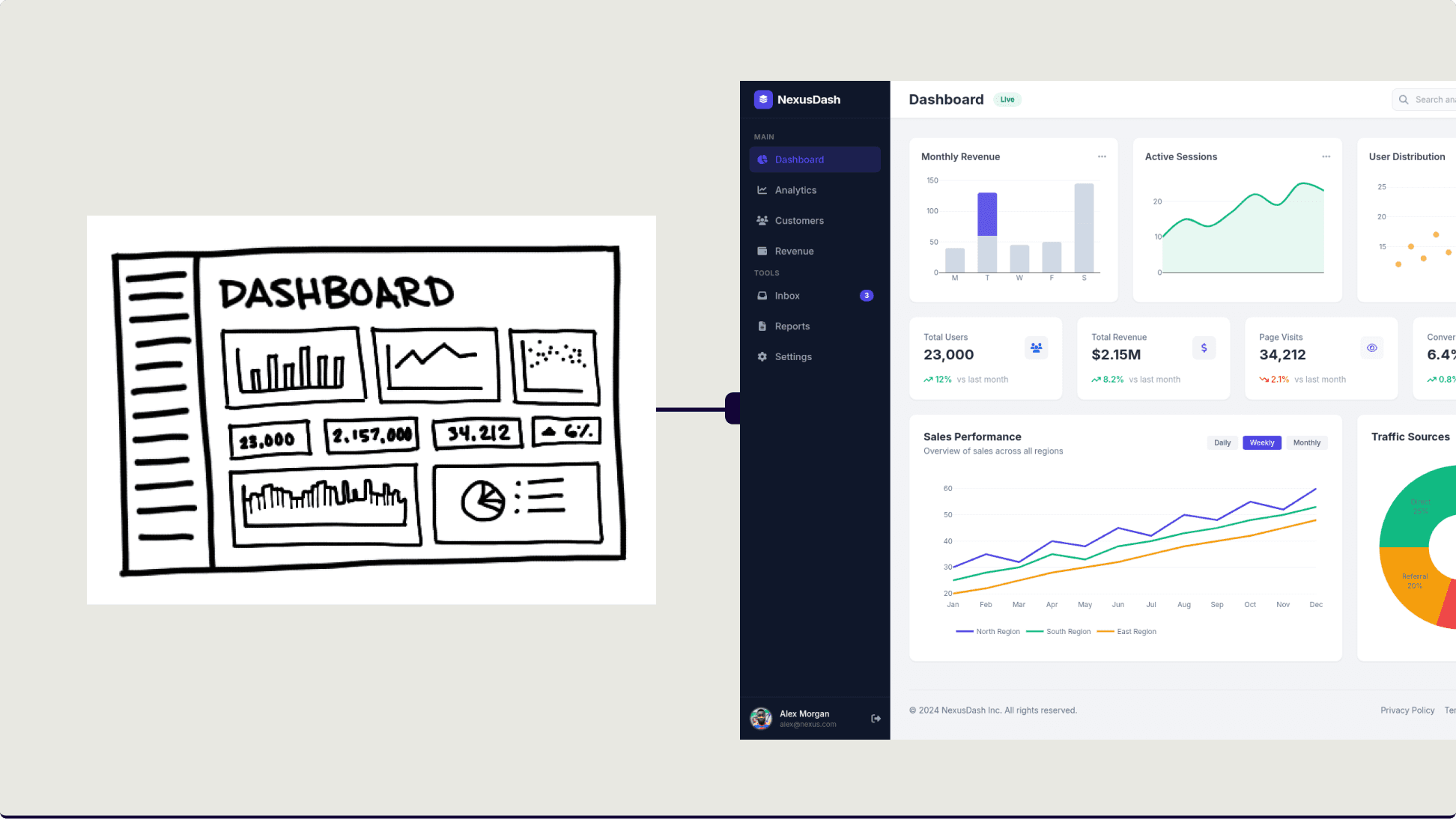
Its flow tools can generate connected journeys rather than isolated screens, which is useful when navigation and screen order matter.
Generating flows without leaving Figma
The workflow moves from a brief or rough reference to an editable design direction without requiring a blank Figma canvas.
- Inputs: Text prompts, sketches, screenshots, PDFs, and product documents.
- Figma workflow: Import components for context and export generated designs back to Figma.
- Output scope: Editable wireframes, high-fidelity screens, connected flows, and code export.
Design-ready screens and conversational edits
UX Pilot supports section-level edits and design review before export, so teams can refine a screen without regenerating the entire journey.
- The same workflow covers wireframing, high-fidelity generation, prototyping, and design review.
- Brand context, light and dark directions, and imported design-system components can guide the generated output.
- Chat-based editing lets you tweak a single component or regenerate a whole screen in plain language.
Where the design workflow stops
UX Pilot can export designs to Figma and code to development workflows. It does not package that output as a native iOS or Android app or handle store submission.
Plans, credits, and rollover
The free plan includes 80 daily credits with no rollover. Pro costs $19 per month billed annually, or $29 monthly, and includes 750 credits per month.
5. Google Stitch
Google Stitch turns text prompts, screenshots, and rough wireframes into mobile or web UI designs. It also generates front-end code and supports conversational refinement.
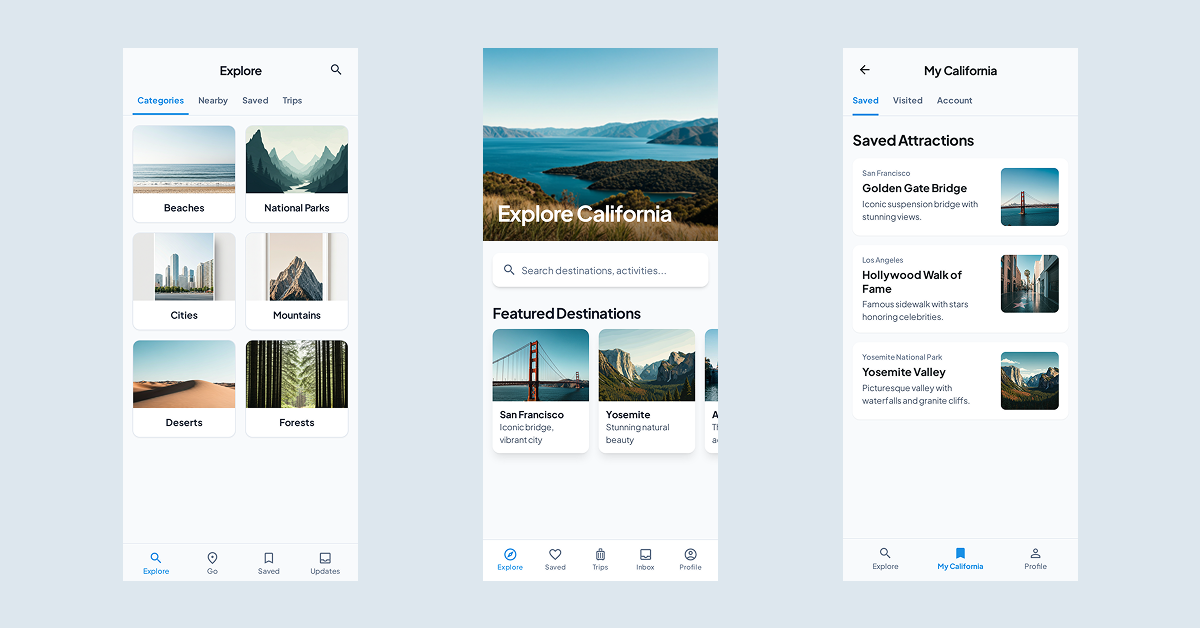
Its useful bridge is the output choice: paste a generated design into Figma for further editing, or export front-end code for implementation.
Stitch fits early interface exploration and front-end handoff. It does not package the result as a native store-ready mobile app.
6. Visily AI
Visily AI is an AI wireframing and prototyping tool that turns screenshots and reference images into editable screens.
Turn screenshots into editable wireframes
Visily is designed for turning a screenshot, diagram, or rough idea into an editable starting point for product discussion. Templates and drag-and-drop components support early exploration before detailed build work.
Presentation-ready early concepts
- Works from existing screens: Screenshot uploads become editable wireframes that teams can restyle and extend.
- Low design-tool barrier: Templates and drag-and-drop components let people assemble screens instead of drawing every element.
- Built for product teams: Visily targets product managers, founders, and engineers who want editable UI without learning Figma first.
Limits of template-led design
Template-led assembly speeds up early layouts, but teams still need to review detailed interaction states, accessibility, and visual polish.
Visily produces wireframes, mockups, prototypes, and code-oriented exports. It does not handle native mobile packaging or app-store submission.
Free plan and editor pricing
Visily's Starter plan includes 300 AI credits per month. Pro costs $11 per editor per month on annual billing, includes 3,000 credits, and adds Figma import and export.
7. Readdy AI
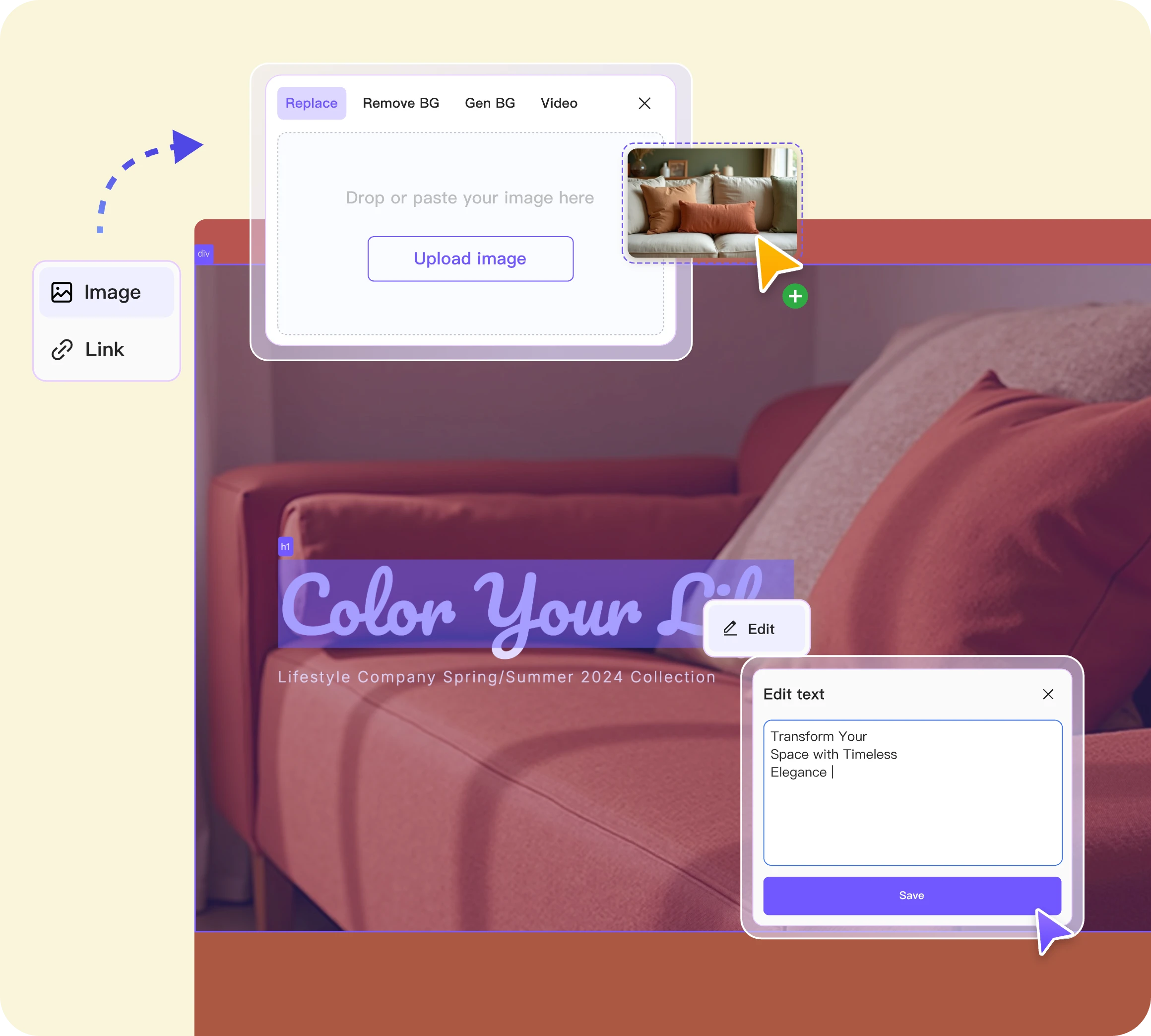
Readdy AI generates responsive web interfaces from prompts and publishes them as live websites. It combines hosting and custom domains with SSL and page-level SEO settings in the same workflow.
From a prompt to a live website
A prompt produces a responsive starting site rather than a loose set of screens. Editing, hosting, domain connection, and publishing stay in the same workflow.
Publishing, domains, and SEO in one place
Readdy differs from design-only generators because its hosting layer turns an interface concept into a shareable web address without a separate deployment setup.
- One-click publishing: Publish a generated site from the same workspace.
- Custom domains and SSL: Connect an existing domain, with SSL handled in the same publishing workflow.
- Page-level SEO settings: Set SEO controls where the site is built and published.
- Design inputs: Start from text, templates, screenshots, a reference URL, or a Figma frame.
Web delivery, not mobile distribution
Readdy's deliverable is a hosted website with a live URL. That is useful for web launch and testing, but it is not an iOS or Android package.
Plan access and code export
Readdy has a free plan with 250 monthly credits. Starter costs $15 per month billed annually, or $25 monthly; GitHub connection and code export are listed on Agency Pro and Ultimate.
How to choose the right AI UI tool
Choose among app-focused design tools by four questions: where the work must stay editable, what the final output must be, who will refine it, and whether someone still needs to implement it.
1. Do you need to stay in Figma?
Staying in Figma matters when the design file is the thing your team actually works on: reviewed, commented on, and handed to developers.
If that is your setup, a Figma-native or Figma-synced generator keeps every revision in one place instead of bouncing files between tools.
Two things make that workspace hard to give up:
- Live collaboration: Several people can edit the same file, comment, and work on a shared canvas.
- Connected reviews: Figma integrations let feedback and project tickets point to the live file instead of a screenshot.
The integrations vary by depth. Figma Make is part of Figma, UX Pilot imports components and exports designs, Bilt connects selected Figma work to an app build, and Uizard, Visily, Readdy, and Stitch offer narrower import, export, or paste workflows.
When the canvas is no longer the endpoint, alternatives to Figma separate design-file replacements from tools that publish.
2. Do you need design files, prototypes, or a real app?
Pick the tool whose output stops where you need it to stop: an editable design, an interactive prototype, a hosted website, or a native mobile app.
- Design files and mockups: Editable screens for team design work from Uizard, Visily, UX Pilot, Figma Make, or Stitch.
- Interactive prototypes: Clickable or functional flows for testing before a full build, including Figma Make, Uizard, and UX Pilot.
- Published products: A hosted website from Readdy, or a native iOS and Android app from Bilt.
A design file or prototype may still need a development step before it becomes a shippable product. Figma Dev Mode gives developers measurements, CSS, and component documentation, but it does not build the app.
Developer handoff works when a developer is ready to build. It does not serve someone who plans to publish without that next step.
Editability matters after the first draft, because AI output rarely survives review untouched. Design-file tools keep screens editable, while prompt-driven app builders move the work into code you keep changing by prompt.
Production requirements to test:
- Authentication: Can the product support sign-in and user accounts?
- Payments: Can it handle the payment flow you need?
- Outside API calls: Can it connect to the services your product relies on?
- Real-device testing: Can you test the product on the phones and screen sizes users will have?
- Platform permissions: How does it handle camera, location, notifications, and other device access?
- Ownership: Do you leave with editable files, standard assets, or source code?
- Store submission: Who handles signing, metadata, upload, and rejection fixes?
- Product states: Can you review errors, empty states, loading states, and accessibility?
- Monitoring: How will you track analytics, crashes, and production issues after launch?
A prototype can defer these requirements. A shipped app needs a clear answer for each one it uses.
3. Are you a designer, a founder, or a builder?
Your role matters less than who owns the next step. Ask who must refine the output, who must implement it, and whether users need to access it immediately.
- Choose design control when a design team must keep editing layouts, components, and states in its established workspace.
- Choose fast concept work when the immediate goal is feedback, stakeholder alignment, or validation before implementation.
- Choose implemented output when the result must run, publish, or move directly into a development workflow.
Role also decides how you want to refine. Figma-native tools keep polish inside the design file, while prompt-first tools ask you to describe the change instead of drawing it.
What to check before you commit
Check four areas before you commit: what you leave with, how you refine the work, what usage limits cost, and how easily you can move on.
Run one real project through the free tier before paying. Use the same inputs, number of screens, and revision pattern you expect in production.
Test the exact inputs your project will use:
- Sketches
- Screenshots
- Prompts
- PRDs
- Existing design files
Credit limits can halt multi-screen exploration. Figma's Starter plan allows 150 AI credits per day, up to 500 per month, so compare how every tool meters revisions.
Then ask what you keep if the project outgrows the tool. Protection may mean editable design layers, standard asset exports, front-end code, or full application source, depending on the output.
- Platform ceilings: Check how the tool handles complex logic, uncommon integrations, and growing projects.
- Code drift: Generated code can fragment as a project grows without a clear architecture and review process.
- Plan before prompting: Sketch data flows, permissions, and integrations so later changes do not become rewrites.
AI UI design FAQs and how Bilt turns UI into a real app
If your endpoint is an app in the store, the UI is only one part of the work. You still need a build that meets Apple and Google Play requirements.
That stretch is where prompt-built projects stall: authentication, payments, a real database, outside API calls, then code signing and store compliance.
Bilt takes the same plain-English description the other tools accept, and keeps going. The app arrives with its backend wired up, and store submission is part of the workflow instead of a separate project.
Before any of that, you can watch it run:
- Live preview: The app updates in the live browser preview as you change it. Switch to a cloud-streamed iOS simulator for a native iOS view.
- Cloud Android emulator: Check Android behavior without installing a local toolchain.
- Plain-English refinement: Ask for a new screen, a color change, or another feature and keep building.
- Shareable links: Let a stakeholder or tester open the app before publication.
Bilt turning a plain-English prompt into a native iOS and Android app
The difference is the endpoint. Figma Make, Uizard, UX Pilot, and Visily hand back designs, Readdy publishes a website, and Bilt produces a native iOS and Android app for store submission.
Do I need to code to use these tools?
No. These tools generate designs, and in some cases working code, from plain-English prompts or a visual editor.
You describe what you want, then edit what comes back. Uizard returns editable multi-screen mockups, and Bilt returns React Native code for a working app.
Complex logic and API integrations are where non-technical users still hit friction. Knowing what the data should do matters even when you never write the code yourself.
Can AI UI tools make real product UIs?
Yes, with review. AI generates the screens, and a person still decides whether they hold up as a product.
AI-generated screens still need human review for user flows, accessibility, empty states, error states, and brand fit before release.
How far "real" goes depends on the output type. Bilt generates React Native code and handles store deployment, so the result is a native app rather than a web hybrid.
How do AI UI tools compare to manual design?
They are faster at drafting and weaker at finishing.
Nielsen Norman Group estimates that AI can roughly double productivity on UX drafting and asset-generation tasks, though the gain depends on the task and review required.
Accessibility edge cases, brand constraints, and production polish still require manual review after the first draft.
Can I export my designs?
Export depends on the tool: you may get image assets, editable design layers, a Figma workflow, website code, or full mobile-app source.
Bilt provides React Native source code that you own, so you can continue the project in standard development tools or hand it to a developer.
Uizard and Visily can export common image formats, UX Pilot and Stitch support Figma or code handoff, and Readdy reserves direct code export for higher agency plans.
If your UI needs to become a native mobile app, Bilt keeps the same plain-English workflow through preview, refinement, signing, and store submission. Start building free to see it running on your phone. You do not need a credit card.