You need an app design tool that matches the next thing you need to prove, whether that is a rough flow, a polished prototype, or a working app on a phone.
Wireframe and UI tools help you shape screens and flows. App builders go further by turning that direction into software that runs on a phone.
This ranking weighs ease of use, time to a usable screen, collaboration, output ownership, and how far each tool carries the work toward release.
The nine picks cover wireframes, shared UI design, AI-generated starting points, web publishing, and native app building. Start with the output you need next, then choose the tool that gets you there without creating a needless rebuild.
Quick verdict: Bilt ranks first when the goal is a working native app rather than a design file. Figma is the stronger choice for design-only collaboration.
Quick picks and comparison table
Use the shortlist to narrow your options quickly. The comparison focuses on the job each tool does, how people work together in it, and what you can take forward into the next stage.
- Best for turning an idea into a native app: Bilt builds from a plain-text description, previews the React Native app, and supports release to both app stores.
- Best for team collaboration: Figma keeps designers, developers, and stakeholders in the same browser file with real-time editing and shared design systems.
- Best for Mac-first offline design: Sketch runs as a native macOS app, so you can keep designing without a connection.
- Best for fast low-fidelity wireframes: Balsamiq stays deliberately rough, which is what you want when screen structure matters more than polished pixels.
- Best for open-source or self-hosted setups: Penpot is open source and can run on your own infrastructure if you cannot put design files on someone else's servers.
| Tool | Best use | Collaboration | What you take forward |
|---|---|---|---|
| Bilt | Idea to native mobile app | Conversation-led build workflow | React Native app and store workflow |
| Figma | Shared UI design | Real-time multiplayer | Design files and prototypes |
| Sketch | Offline Mac design | Browser review for teammates | Design files and prototypes |
| Penpot | Open, self-hosted UI work | Shared workspace | Design files and prototypes |
| Balsamiq | Rough wireframes | Simple sharing and feedback | Wireframes and click-throughs |
| Marvel | Clickable demos | Sharing and comments | Prototype for early review |
| UX Pilot AI | Prompt-led UI starting points | Team review around outputs | Generated concepts for refinement |
| Webflow | Design-to-web publishing | Site workflow collaboration | Published website |
| Adalo | Visual no-code app building | Builder-style collaboration | No-code mobile or web app |
How to choose an app design tool
Match the tool to the next result you need, then check how quickly a new user can reach it. These criteria keep ease of use tied to a real deliverable.
- Learning curve and setup — check how long it takes to reach the first useful screen, whether the editor runs in a browser, and whether software or account setup comes first.
- Workflow stage fit — decide whether you need rough wireframes, polished UI, an interactive prototype, a published website, or a working mobile app.
- Testing depth — look for clickable flows, realistic states, and real-device preview when a static screen cannot prove that the idea works.
- Collaboration and handoff — check for real-time editing, comments, shared libraries, inspect tools, and exports that the next person can actually use.
- Build readiness — confirm whether you own an editable file or codebase, can test on a real device, and can continue into store submission without rebuilding from scratch.
- Free plan versus trial — separate permanent free access from a short evaluation period, then check which tier unlocks publishing or developer handoff.
- Costs outside the tool — include paid seats, marketplace add-ons, hosting, and the Apple or Google developer accounts needed for store release.
The 9 best app design tools
The ranking starts with the tool that takes a non-technical builder furthest toward a usable app, then moves through design, prototype, web-publishing, and visual-builder workflows. A polished screen is useful, but it answers a different need from a build you can test on a phone.
1. Bilt
Bilt turns plain-English prompts into native React Native apps for iOS and Android, with preview, testing, and app store submission in the same workflow.
Bilt begins where a design file stops being enough. Describe the app in plain English, then refine the interface and backend in the same conversation until you have a working preview.
That makes Bilt a different fit from Figma, Sketch, and Penpot. Those tools help you settle screens and flows; Bilt turns approved direction, Figma screens, or reference images into a native mobile build.
The workflow suits first-time builders, entrepreneurs working to a deadline, and vibecoders who have reached the limits of a web prototype. Preview, device testing, exportable React Native code, and app-store submission stay connected instead of becoming separate handoffs.
Build a native mobile app from your idea
Describe the app in plain English, and Bilt creates a functional native mobile app for iOS and Android.
- Bilt produces native iOS and Android builds from exportable React Native code that you own.
Generated together: the interface, backend logic, authentication, storage, and integrations can come from the same description.
- Build around native device features such as the camera, GPS, and platform gestures.
Start with a prompt, then iterate
Bilt starts with a conversation. Describe the first version in plain English, then refine it through follow-up prompts.
- Describe what you want without learning Swift, Kotlin, or React Native. Ask for later changes in the same chat, with the earlier decisions still in context.
- Start from a written idea, Figma screens, or reference images. Bilt uses that direction for the first build instead of making you redraw it on a new canvas.
General-purpose coding tools such as Bolt.new, Cursor, and Replit can help create a web prototype. Bilt is built around the mobile work that follows, including native builds, device testing, code signing, and submission to the Apple App Store and Google Play.
Keep design, testing, and release work together
Bilt carries a project from build generation through backend work, preview, device testing, and app store deployment workflows.
The build can include authentication, databases, storage, and integrations from the start, so functional testing does not have to wait for a separate backend handoff.
- Add payments, subscriptions, media behavior, or notifications through follow-up prompts as the product takes shape.
- Use the browser simulator for fast checks, then scan a QR code to test taps, permissions, and device behavior on an iOS or Android phone.
Video: Watch Bilt generate, preview, and refine a native mobile app
Bilt automates builds and signing, uploads iOS builds to App Store Connect for you to submit for review, and can send Android bundles to Google Play's internal testing track after any required first manual upload.
Figma and Sketch are the better fit when the deliverable is a design file for an engineering team. Bilt fits the next stage: a native build you can preview, test on a device, export as React Native code, and prepare for store release.
Test the build before you submit it
Bilt gives you browser preview, native simulators, QR testing, and store-submission support in one workflow.
Before publishing, check navigation, loading states, permissions, payments, and account flows on real hardware. Store listings and developer accounts still need your approval.
- Test the same build across browser preview, native simulators, and a physical phone before you approve submission.
- Developer accounts: publishing requires an Apple Developer account at $99 per year and a Google Play Developer account at $25 one time. You also choose the store assets, listing copy, and release timing.
Choose Bilt for a working mobile app, with usage-based pricing
Bilt fits people who want to ship native mobile apps without a traditional dev team. Publishing requirements and usage-based plan limits still apply.
Bilt works best when the next milestone is a testable native app, not another round of mockups. You can start free, then move to a paid plan as the build needs more token capacity.
- Entrepreneurs, small business owners, designers, marketers, students and first-time builders who want a published app without hiring developers.
- Web-app owners and vibecoders who already built something in Lovable, Replit, V0 or Next.js and want a native mobile version instead of a manual rebuild.
Consider another route when:
- If the job ends at wireframes, mockups, or a shared design system, use a focused UI design tool instead of taking on mobile build infrastructure.
- A team that already has mobile engineers and wants code-level control from day one may prefer a standard React Native or native stack.
Pricing is usage-based, measured in AI tokens:
- Free: 3M tokens per month, roughly 12 to 30 prompts depending on complexity.
- Professional: €25/month, 10M tokens.
- Professional Plus: €50/month, 20M tokens, plus priority support and early feature access.
- Enterprise: custom usage and billing, with dedicated support, onboarding, custom integrations, group access, and custom design systems.
Annual billing saves two months. One-time token top-ups are available when you need more capacity before the next monthly reset.
2. Figma
Figma is the design-first choice when several people need to shape, review, and hand off the same interface. It keeps UI design, clickable prototypes, and developer inspection in shared browser files.
Shared cloud files let several people edit at once, with live cursors, comments, and updates in the browser.
For a non-designer, the tradeoff appears before the first screen:
- A first screen means learning frames, components, and shared libraries before testing an idea.
- Reusable components and structured feedback become worth that setup when several people are revising the same screens.
Once the screens are approved, Bilt can use Figma files as visual direction for a native mobile build. That handoff makes sense when the next question is how the app behaves on a phone, rather than how the interface looks in a prototype.
Best for
Figma suits product teams and agencies that need one shared UI file for design and feedback. Clickable prototypes fit the same workflow.
Product teams and agencies: adoption sits mostly with UI and UX designers who share one iteration cycle, where several people touch the same screens in a week.
Whole design workflow in a browser tab: vector editing, wireframing, prototyping, and a component system where one change updates every instance, plus Slack, Jira, and Asana connections.
What sets it apart
Shared files and reusable components are Figma's core workflow. It also includes AI screen generation and paid developer handoff.
Shared files: simultaneous editing, live cursors, comments, roles, and in-file audio conversations, with no local file version to keep in sync.
AI creation: Figma Make can generate a functional prototype or web app from a prompt or an existing design. Availability and monthly AI credits vary by plan and seat.
Developer handoff: free viewers can inspect measurements and export assets, while paid Dev seats add advanced inspection and handoff features.
Main limitation
Figma's cloud-first workflow and browser performance can create limits. Developer handoff still ends with implementation work.
Cloud dependency: real-time collaboration and cloud saving depend on a connection. Offline work is more limited than in a native, local-file editor such as Sketch.
Handoff stops at inspection: Dev Mode covers measurements, CSS, and asset export, so someone still has to turn the file into a working app afterwards.
Scale and automation: large files need disciplined component and page structure, while REST API limits vary by seat, plan, and endpoint.
Pricing
Figma pricing starts with a free plan. Paid pricing depends on the assigned seat type and billing arrangement; the table below separates the listed Full, Dev, and Collab options.
Billing follows assigned seat type rather than a flat team rate. Paid plans can still invite people to view and comment without buying another seat.
Paid Dev seats range from $12 per month on Professional to $35 per month on Enterprise. Basic inspection remains available to free viewers.
| Plan / seat | Price | Billing note |
|---|---|---|
| Starter | Free | 3 Figma files, 3 FigJam files, unlimited collaborators |
| Professional Full seat | $12 per editor monthly | Billed annually |
| Professional Full seat | $15 per editor monthly | Billed monthly |
| Professional Collab seat | $3 monthly | Monthly billing |
| Professional Dev seat | $12 monthly | Monthly billing |
| Organization Full seat | $55 monthly | Billed annually |
| Organization Dev seat | $25 monthly | Billed annually |
| Enterprise Full seat | $90 monthly | Billed annually |
| Enterprise Dev seat | $35 monthly | Billed annually |
3. Sketch
Sketch is a Mac-first UI editor for designers who need to keep working in local files, including offline. Figma is browser-based and built around shared cloud files, so the choice starts with where your team needs to work.
Editors work in the native macOS app, including offline. Reviewers can open shared files in a browser to comment, inspect layers, and download assets.
Best for
Mac-based designers who want offline editing and a native interface are Sketch's main audience.
Two setups make the tradeoff clear:
- Mac-first designers can keep files local and use system-level desktop controls in the native macOS app.
- Teams can give reviewers browser access for comments, while editors continue working in the Mac app.
What sets it apart
Sketch centers the workflow on a native desktop editor, not a browser tab.
The native macOS app supports system-level color picking and lets designers drag exports from its panel to the desktop.
Sketch says it does not train on user designs. The non-web editing environment also lets teams keep work in local files.
Main limitation
The macOS-only editor can exclude collaborators, while responsive resizing and large files introduce extra work.
- Only macOS users can edit. Windows users can view shared files but cannot change them.
- Responsive resizing needs more manual setup than Figma's auto layout.
- Complex files still need careful page and component organization, as they do in other full UI editors.
Pricing
Sketch pricing includes subscriptions and a $120 one-time Mac-only license. The license includes one year of updates.
- The free trial runs 30 days and does not ask for a credit card.
- There is no free plan, but Viewers are free and unlimited: they can browse files, comment, inspect layers, and download assets for developer handoff in the browser.
- The one-time Mac-only license covers local files and offline editing, but not online sharing or collaboration. The licensed version keeps working after the included update year; later updates require renewal.
4. Penpot
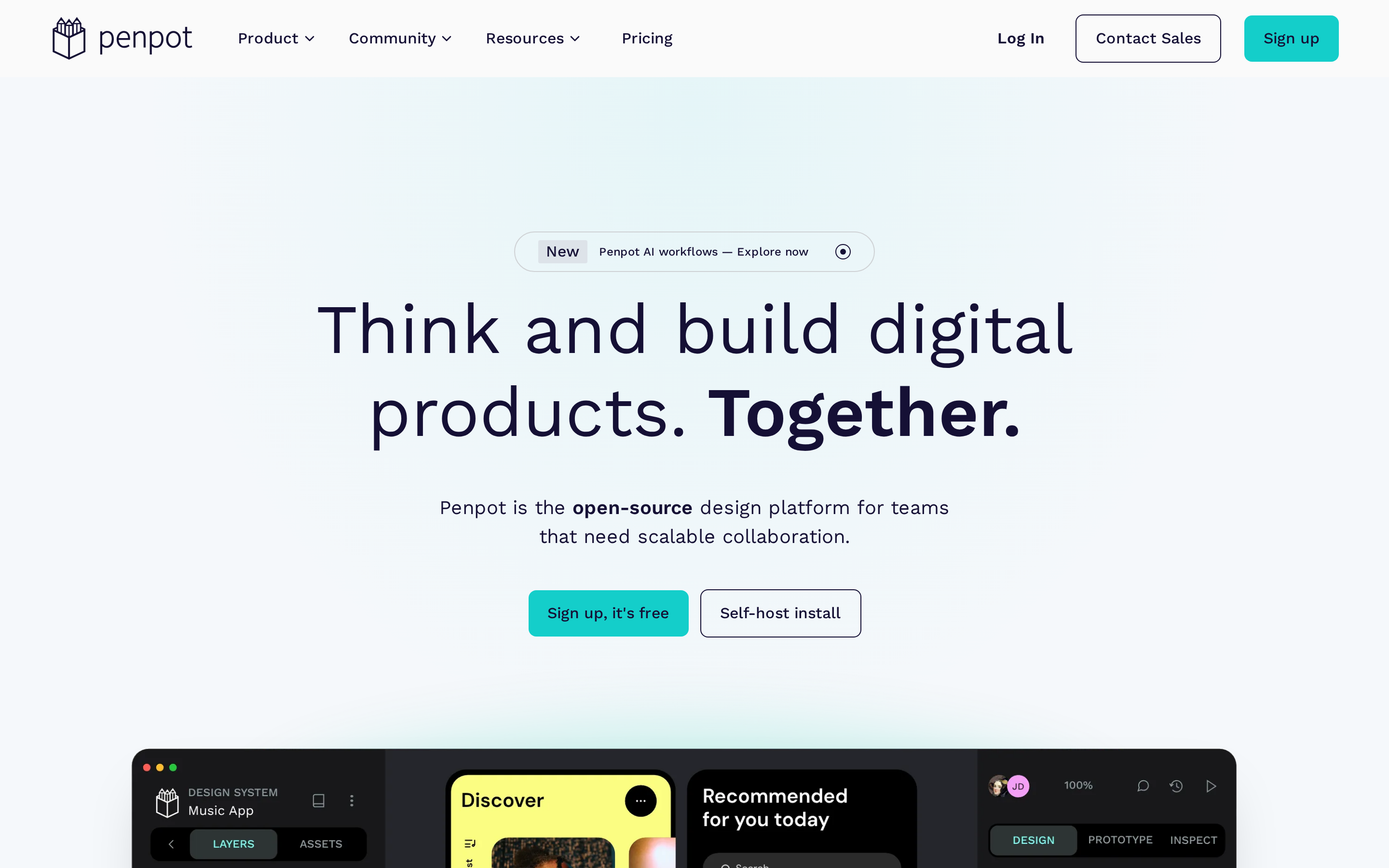
Penpot is the open-source option for browser-based UI design, especially when your team needs self-hosting or control over where design files live. The tradeoff against Figma is a narrower prototyping and component-library ecosystem for complex product work.
Open-source deployment and self-hosting give teams control over design files. Penpot's prototyping and component-library ecosystem is narrower than Figma's, which matters for complex flows.
Best for
Browser-based teams that want open-source control and developer-oriented handoff are Penpot's core audience.
- Teams can open Penpot in a browser and begin working on a shared file without installing a desktop app.
- Self-hosting and the open-source codebase suit teams that need files on their own servers or want to avoid a single vendor.
What sets it apart
Open-source deployment and developer-oriented auto layout distinguish Penpot.
- Penpot's auto layout mirrors the layout structure developers use in shipped product interfaces.
- Penpot's Flex and Grid layouts use concepts close to CSS, which makes spacing and responsive behavior easier to discuss with developers.
Main limitation
The gaps are most visible in advanced prototypes and reusable components.
- A beginner looking for a ready-made template or an answer to a specific question will find fewer community resources than in Figma.
Pricing
Penpot pricing includes a fully featured free plan for up to 8 team members. Paid plans start at $7 per user per month.
- Professional — $0 per user/month. Up to 8 team members, unlimited viewers, 10GB storage, unlimited files, and 7 days of autosaved version history and deleted-file recovery.
- Unlimited — $7 per user/month. 25GB storage, 30 days of version history, and a monthly bill capped at $175 regardless of team size.
- Enterprise: $25 per user per month, starting at $950 per month, with centralized administration, permissions, SSO, audit logs, and unlimited storage.
- Private Server: $50,000 per year for dedicated infrastructure, private hosting controls, and a choice of region.
Every plan includes the same product features: prototyping, components, design tokens, the code inspector, comments, and plugins. Paid tiers add storage, longer history, and admin controls rather than additional features.
5. Balsamiq
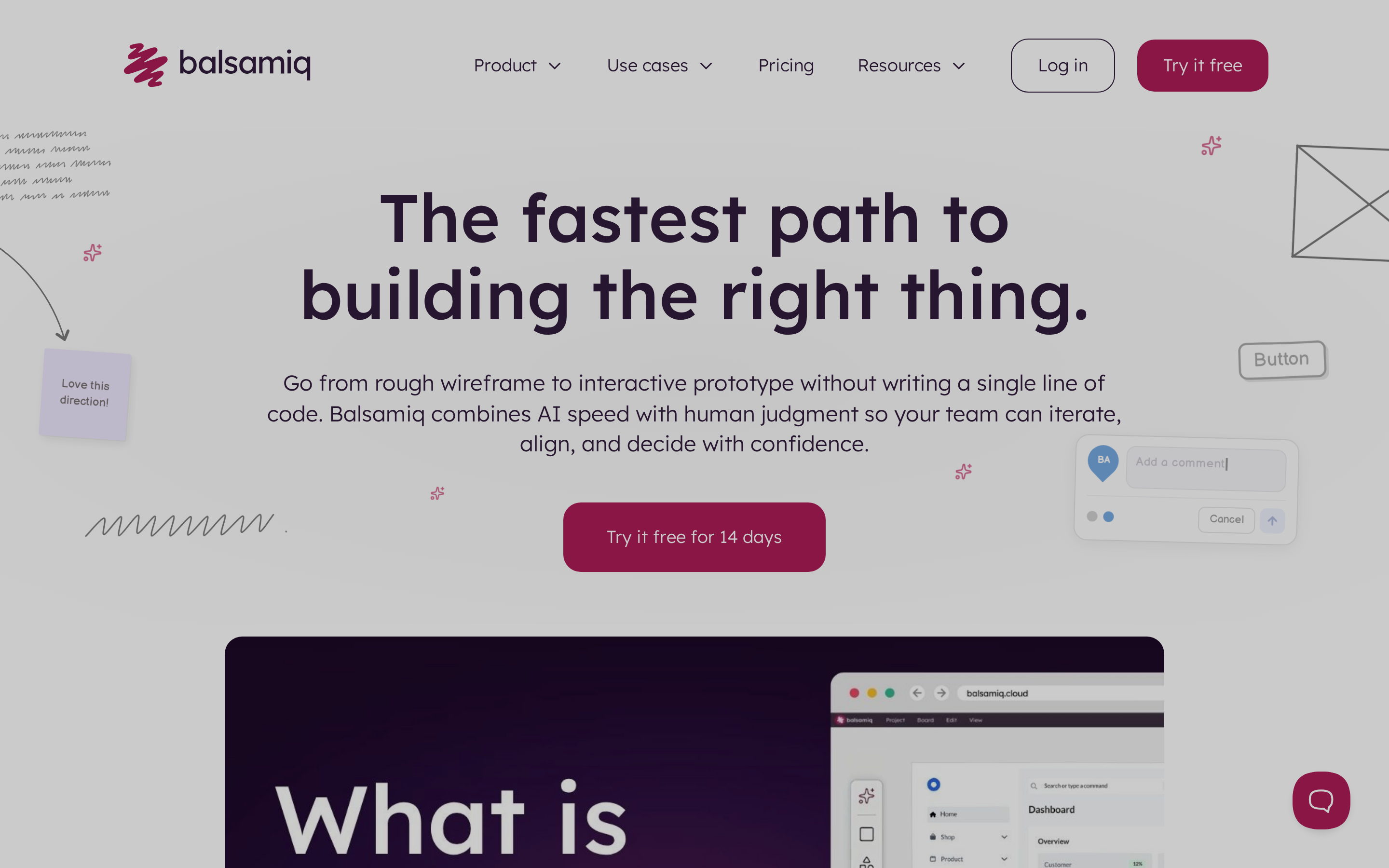
Balsamiq is for deciding whether an app flow makes sense before visual polish gets in the way. Its hand-drawn style keeps reviews on layout and navigation, unlike Figma or Sketch, where the work quickly becomes high-fidelity UI.
Wireframing first keeps early decisions cheap. Teams can settle layout and navigation before color, type, and finished assets make every change feel final.
AI features shorten the blank-canvas stage.
- Generate a wireframe from a text prompt.
- Convert a screenshot into a wireframe.
- Produce a clickable prototype from existing work.
Best for
Its core job is mapping screen structure and low-fidelity user flows before visual polish or advanced prototyping.
- Teams can map screen hierarchy and user flows before final visual choices make late changes more expensive.
- The wireframe stage ends before polished visuals and developer handoff begin.
What sets it apart
A deliberately rough canvas directs reviews toward structure and flow, not UI polish.
Sketch-style wireframes keep reviews focused on structure. Compared with Marvel, Balsamiq is better for rough flow decisions, while Marvel adds recorded usability sessions to a clickable demo.
Main limitation
High-fidelity UI design and advanced interactive prototypes sit outside Balsamiq's low-fidelity wireframing workflow.
- Final UI styling and pixel-level review sit outside its scope, so teams move to a second tool after wireframing.
- Low-fidelity click-throughs do not simulate motion or realistic interaction testing.
Pricing
Balsamiq pricing runs from $16 to $35 per editor per month with annual billing. It has a 14-day trial rather than a permanent free plan.
- Starter: $16/editor/month for 10 projects and 500 monthly AI credits.
- Teams: $24/editor/month for 100 projects and 1,000 monthly AI credits.
- Enterprise: $35/editor/month for 400 projects, 2,500 monthly AI credits, SAML SSO, and US or EU data residency.
- Access: the trial lasts 14 days with no credit card, and unlimited reviewers can view or comment for free.
- Extras: verified nonprofits get 50% off, and 500-credit top-ups cost $15.
6. Marvel
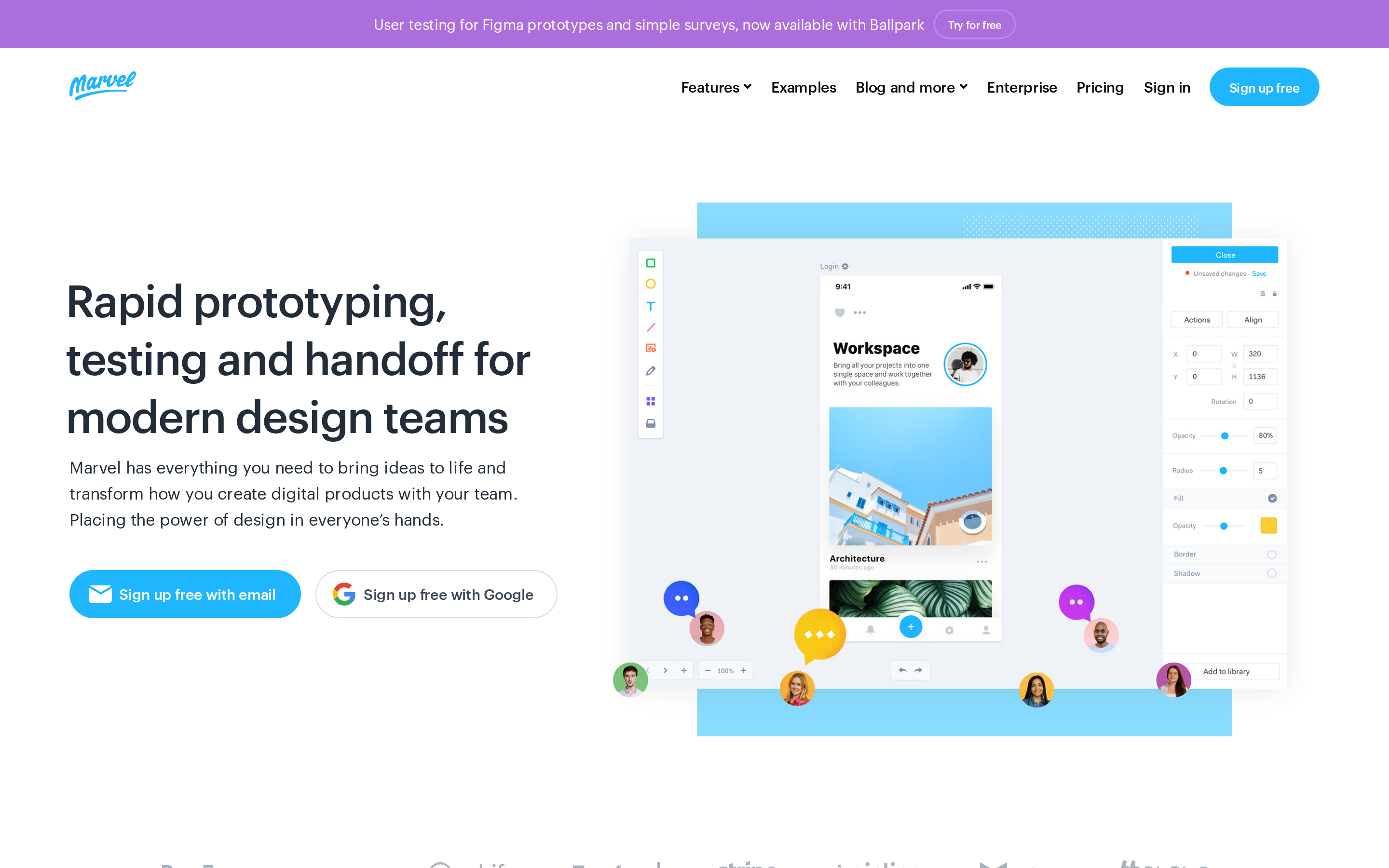
Marvel is for turning a few screens into a clickable demo that someone can try and comment on. It sits between Balsamiq's rough flow work and Figma's fuller interface-design workflow.
Compared with Figma or Sketch, the workflow centers on interactive prototypes and stakeholder sharing rather than a full design system.
The result is a basic clickable demo for an early stakeholder review.
Best for
Early wireflows and user-testing-ready clickable mockups are Marvel's main use cases.
- Quick wireflows and clickable screens make an idea reviewable before detailed UI work begins.
- Paid user-testing access can capture screen recordings, audio and video feedback, and session metrics. Active-test limits depend on the plan.
What sets it apart
Built-in interaction recording adds usability evidence to a browser-based prototype workflow.
- Browser-based and deliberately light — a clickable prototype exists within minutes, with no local install or project setup first.
- Interaction recording during a test session — usability feedback comes from watching people move through the flow instead of asking them about it afterwards.
Main limitation
Detailed UI systems and advanced interactions exceed Marvel's basic prototype workflow.
- Quick drafts work, but detailed UI systems need a fuller design workflow.
- Once a review needs reusable components or a nuanced transition, the prototype has reached Marvel's boundary.
Pricing
Marvel pricing includes a permanent free plan. Pro costs $12/month annually, Team costs $42/month annually for three users, and Enterprise is quote-based.
The free plan has no time limit but caps you at one project, which is enough to try the tool on a single app idea.
Paid plans remove the one-project cap and include user-testing access, with allowances varying by plan.
| Plan | Price | What you get |
|---|---|---|
| Free | $0 | One project, no time limit |
| Pro | $12/mo billed yearly | Higher project cap, 3 active user tests |
| Team | $42/mo for 3 users, billed yearly | 10 active user tests |
| Enterprise | Quote-based | Custom terms |
7. UX Pilot AI
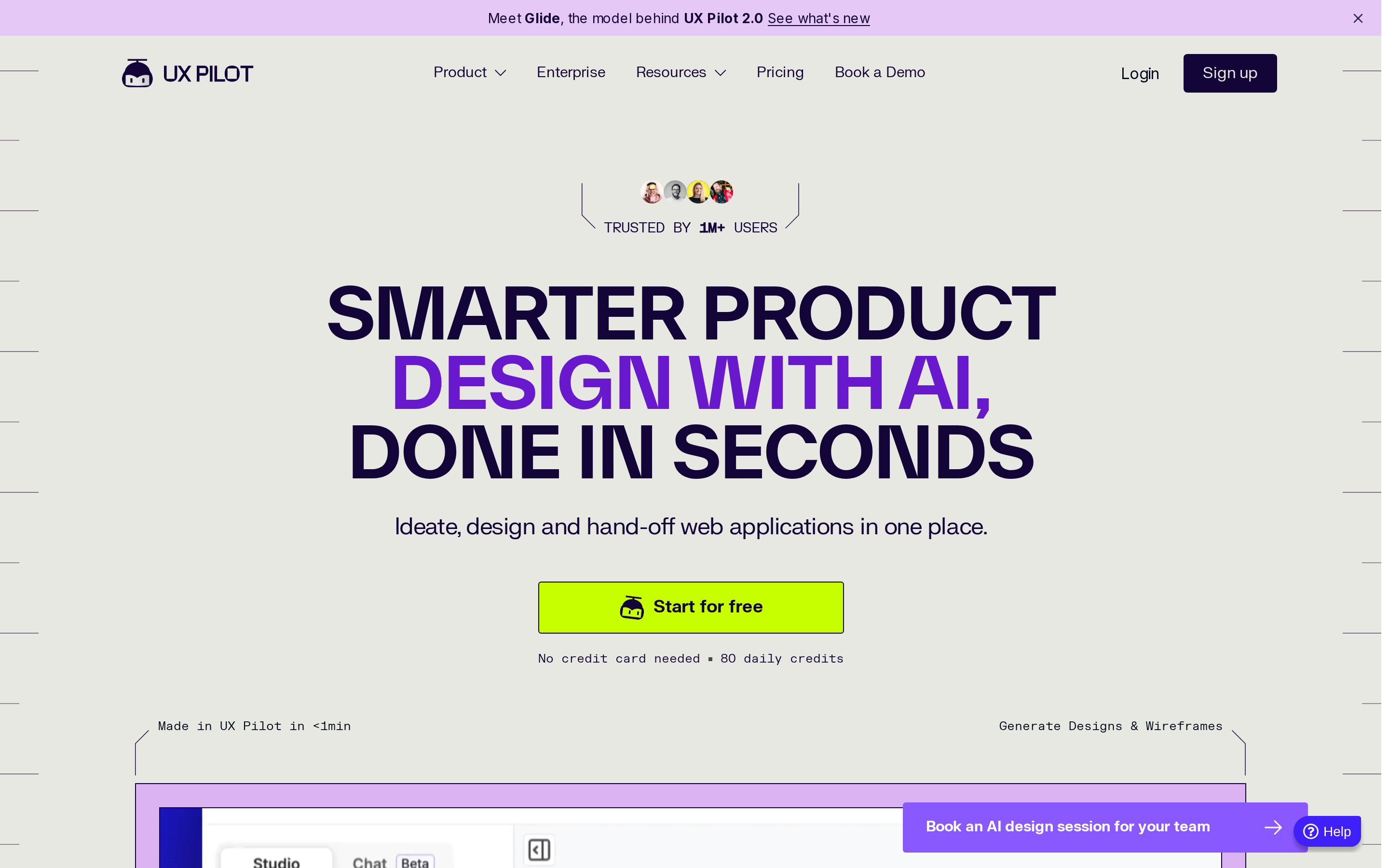
UX Pilot AI is for getting from a prompt to a wireframe or screen direction quickly, then refining the result in Figma. It speeds up the starting point, while Figma remains the place for detailed editing and design-system work.
It generates screens from a prompt, anything from one screen to a full user flow, and connects to Figma so the output lands where the editing already happens.
Best for
UX Pilot AI suits teams that want a prompt-generated wireframe or polished screen before detailed editing and implementation.
- It generates wireframes and high-fidelity designs for web or mobile projects from a prompt, then maps information hierarchy before screen-level work begins.
- Figma integration and imported components let teams carry established design patterns into generated work.
What sets it apart
Prompt-based screen creation sits beside flowcharts, reference-image direction, code export, and GitHub sync.
- Output can range from a single screen to a complete user flow, in wireframe or high-fidelity form.
- Reference images set the direction, and generated screens remain adjustable after creation.
Main limitation
Generated screens still need a separate build workflow before they become a production-ready native app.
- UX Pilot can export front-end code and sync it to GitHub, but the result still needs development, testing, and production integration.
- Device testing, code signing, and store submission still happen in another toolchain.
Pricing
UX Pilot AI is free to start. Check the official UX Pilot site for current paid tiers and credit allowances.
- Free: 80 daily credits with no credit card, which is enough to evaluate its design and export workflow before paying.
8. Webflow
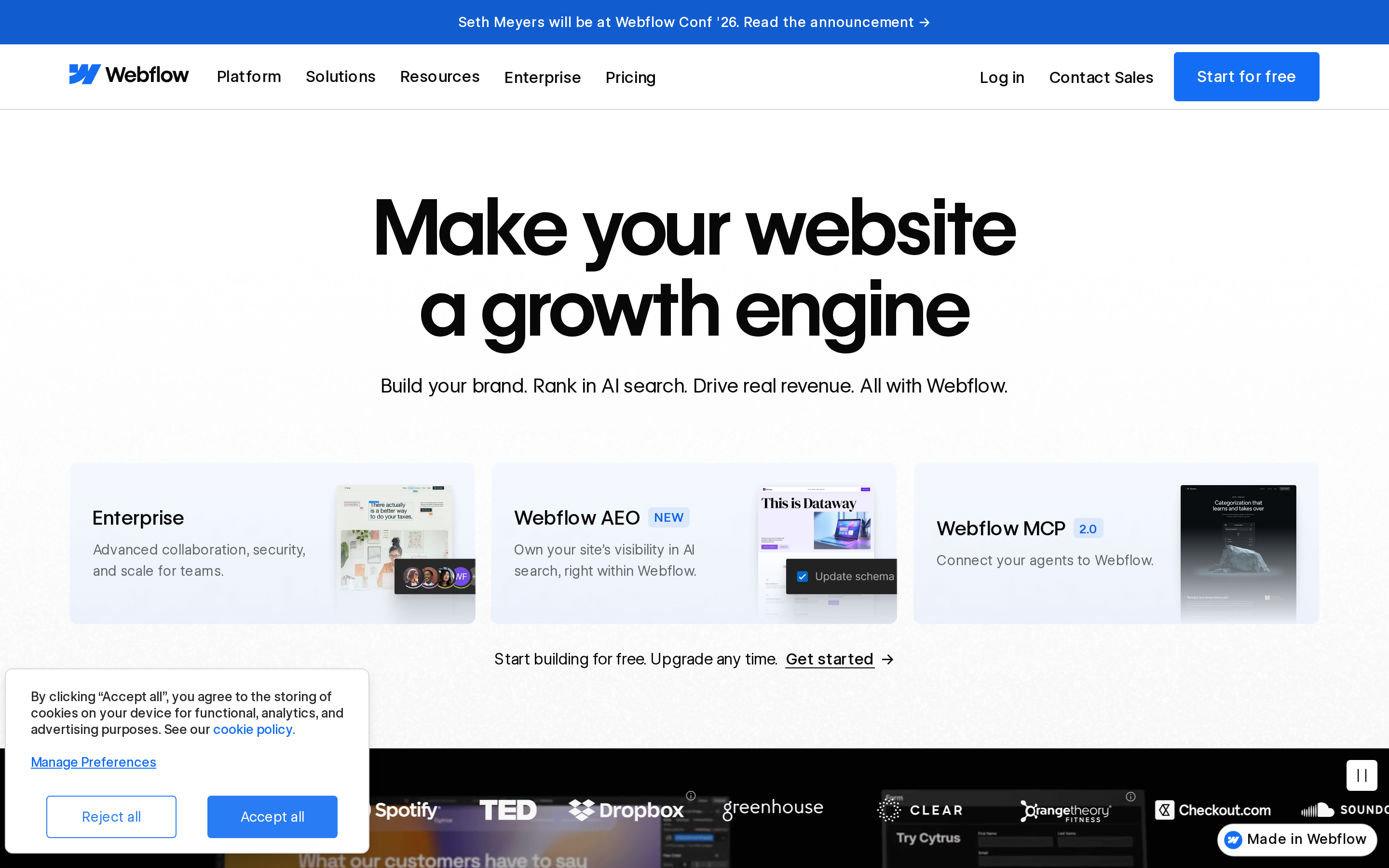
Webflow is for turning approved layouts into a published website or CMS-driven web experience. It carries web work further than Figma, but native iOS and Android apps need a separate build path such as Bilt or Adalo.
The finished output is live on the web, not a design file. That places Webflow after early screen drafting in a typical product workflow.
Its publishing workflow centers on the web, while native iOS and Android apps use a separate toolchain.
Best for
Teams with approved interfaces can use Webflow to build and publish responsive websites or CMS-driven experiences without writing the front end by hand.
- Design, build, and launch without code — Webflow covers responsive websites and web applications from layout through publishing.
- Three starting points — a blank canvas, pre-built templates, or the Webflow AI site builder, so nobody has to work from an empty page.
- Not ideal for rough mobile wireframes — Webflow can start from a blank canvas, but its controls and publishing model are heavier than a low-fidelity prototyping tool.
What sets it apart
The CMS, responsive layout controls, and hosting keep web design and publishing in one environment.
- Production path: layouts, CMS content, interactions, hosting, and publishing stay in Webflow.
- Visual editing: page-layout controls build responsive pages, while Figma uses a free-form design canvas.
- Starting points: begin with a blank canvas, a template, or Webflow AI.
- Output: Webflow publishes to the web; Figma produces editable design files and prototypes.
Main limitation
The tradeoff is a steeper learning curve and a weaker fit for early app mockups.
Steeper learning curve: it asks more of you than a lightweight prototyping tool, and some grasp of web design concepts is needed to get value from it.
Wrong stage for app mockups: it is not a replacement for early-stage design platforms, and its output targets the web rather than native mobile.
Pricing
Webflow pricing starts with a free Starter plan. Paid site plans use separate pricing from team workspaces and add-ons.
- Starter: $0 for experimenting on a Webflow subdomain.
- Basic: $15/month with annual billing for a simple custom-domain site without a CMS.
- Premium: $25/month with annual billing for CMS and higher-traffic needs.
- Team platform plan: $2,500/month with an annual contract for governance and collaboration.
- Enterprise: custom pricing and configuration.
9. Adalo
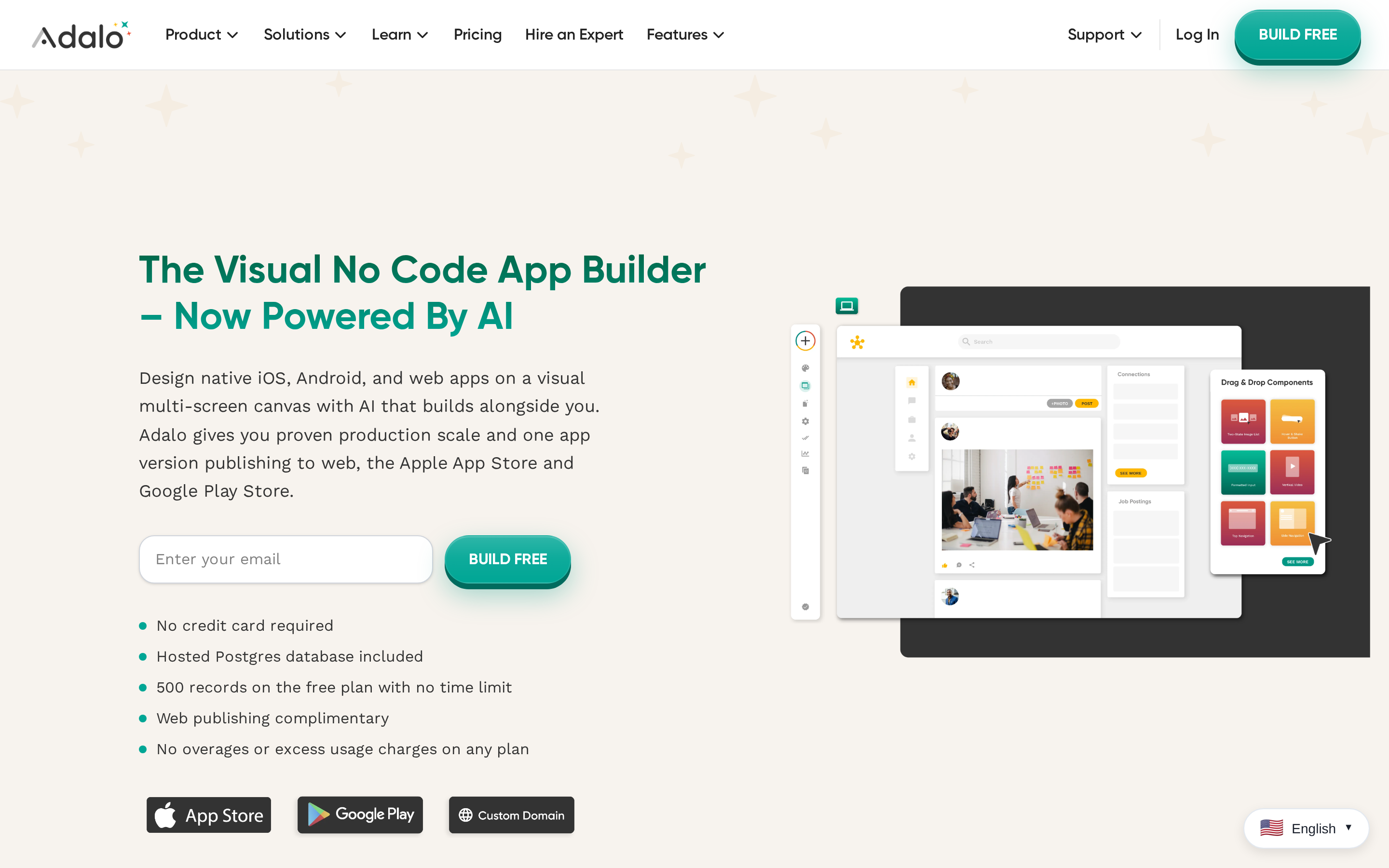
Adalo is a visual builder for simple mobile and web apps that you assemble from screens, records, and actions. Bilt takes a prompt-led route to native React Native output, while Adalo keeps the build in its visual editor.
A single project can be published for the web and both mobile platforms. Native distribution is available, but the builder is designed around simpler app structures and standard components.
Beginners use Adalo to prototype concepts and assemble MVPs.
Best for
Simple MVPs, directories, and database-driven mobile or web apps are the clearest fit.
- Database-driven products: directory and task-tracking apps built around screens and records, which is how the editor is organized.
- Non-technical first-time builders — the drag-and-drop interface removes the setup barrier before the first screen exists.
- A different job than Webflow above — app-style screens and data collections with native mobile publishing, rather than design-to-web.
What sets it apart
The main advantage is one visual workflow for screens, data, and publishing.
- One project, three releases: One build can be published to the web and both mobile platforms. The same interface is maintained once, although complex behavior remains within Adalo's component and logic model.
- More than 200 components — standard interface elements plus lists, navigation, maps, and marketplace add-ons.
- External Collections — Adalo's API lets app data live in an outside database instead of only Adalo's own.
Adalo now includes Ada, an AI assistant that can generate and edit an app from prompts. The visual canvas remains central for reviewing screens, data, and logic.
Main limitation
The constraints emerge as an MVP gains custom logic and more demanding maintenance needs.
- Editor model: complex behavior must fit Adalo's actions, components, integrations, and visual data structure.
Customization ceiling: highly specialized logic or interfaces may outgrow the standard components and visual action model.
- Long-term fit: before committing, check whether the component model, data options, integrations, and project handoff match the app you expect to maintain.
Pricing
Adalo pricing starts free for building and testing. App Store and Google Play publishing starts on the $36/month Starter plan with annual billing.
- Free: build and test unlimited apps with up to 500 records per app, but no published app.
-
- Starter, $36/month annually: publish one app to the web, Apple App Store, and Google Play, with automated store publishing.
- Marketplace components: Advanced charts, custom integrations, and similar add-ons are purchased separately from the subscription.
Recommended app design stacks
A good app design stack gives each tool one job: validate the flow, shape the interface, or build and publish the product. Use the smallest combination that gets you to the next decision without recreating the same screens in another tool.
Early validation stack
Use Balsamiq for rough flows, Marvel or Figma for a clickable prototype, and Bilt only when the idea is ready to become a testable mobile build.
Stop after the prototype if user feedback changes the core flow. Move into Bilt when the concept survives testing and you need real behavior on a phone.
Collaborative product-team stack
Use Figma for shared UI work and Dev Mode for handoff. When approved screens need to become a native app, use them as visual direction in Bilt.
This sequence keeps feedback in one design file, gives developers clear measurements, and avoids redrawing approved mobile screens before the build starts.
- Shared editing and comments: Keep feedback beside the screen instead of splitting it across duplicate files and chat threads.
- Inspect views and assets: Give developers measurements and exports without a separate request.
- Preview links: Let stakeholders review the same flow before implementation starts.
Design systems earn their keep at scale: shared components with variants and style tokens, plus device preview to check tap targets and scrolling on real phones.
AI-assisted design stack
Use UX Pilot AI for prompt-generated starting points, Figma for detailed editing and design systems, then Bilt when the approved direction needs to become a native app.
Where AI helps: UX Pilot can generate initial flows and screens quickly, while Figma's AI can extend work already inside the design file.
Where people review: check hierarchy, accessibility, states, and flow before treating generated screens as approved product direction.
Design-to-web stack
A design-to-web stack is a workflow that moves app screens from design files into responsive web builds with minimal manual front-end translation.
The stack end to end: Figma holds the UI files and design system, Dev Mode exposes measurements and assets, and Webflow turns the approved direction into a published web experience.
Dev Mode turns handoff into a clear build brief instead of a hunt for spacing values. Auto Layout records stretch and wrap behavior, while Dev Mode exposes measurements, assets, and CSS properties.
- Design system and UI files: Figma creates browser-based interfaces, prototypes, and reusable components.
- Developer handoff: Figma Dev Mode provides CSS inspection, spacing, assets, and component documentation.
- Optional code-export route: DhiWise converts Figma files into React, Next.js, Flutter, or HTML/CSS when a development team wants generated code instead of Webflow.
- No-code web build: Webflow builds responsive sites and web apps without manual coding.
No-code mobile stack
A no-code mobile stack can pair Figma's screen design with Adalo's visual app model or Bilt's conversational native build process.
Start in Figma when pixel-level design approval matters. Choose the build destination based on whether you want a visual canvas or a prompt-led native workflow.
Adalo keeps screens, records, and actions in a visual editor. Bilt uses approved screens or references to generate exportable React Native code, then continues into device testing and store submission.
- UI design: Figma creates mobile screens, components, and prototypes.
- Visual build: Adalo combines screens, a database, actions, AI assistance, and paid native publishing in one canvas.
- Conversational native build: Bilt turns the approved direction into React Native code, phone testing, and store release workflows.
Tools considered but not selected
Familiar names still miss the cut when getting to a first screen requires more setup than the payoff justifies. These tools suit adjacent workflows, but they do not match this ranking's focus on clear app-design workflows and beginner-friendly speed.
DhiWise also stayed outside the ranking because it is a design-to-code conversion layer, not the primary place where a beginner designs or tests an app idea.
Adobe XD
Adobe XD is in maintenance mode, with no new feature development. Existing access depends on an eligible Creative Cloud account.
That leaves new learners with a tool that is standing still while its tutorials and integrations age. Access also depends on an eligible Creative Cloud plan.
Treat an XD migration as a working session, not a one-click handoff. Check component libraries, fonts, and layouts after moving an XD file into a new design tool.
Framer
Framer is a design-and-publish tool for polished websites. Its web-publishing focus does not match this ranking's emphasis on native mobile design and delivery.
It remains useful for responsive web experiences, but it is less direct for rough mobile flows or native app release.
Lunacy
Lunacy is a free editor for wireframing and UI work. It missed the list because its collaboration and prototyping advantages were not distinct enough from the selected tools.
A wider decision tree appears in other routes beyond Figma, from self-hosted canvases to tools that produce working apps.
What to choose when design is not enough
Stay with a design tool when the finished deliverable is a wireframe, clickable prototype, or shared design system. Choose a builder when the next milestone is functional behavior on a phone, including data, permissions, and device testing.
The key decision is whether the next handoff should be a file or a working build.
- Choose design: when screens, interaction direction, and developer specifications are the finished deliverable.
- Choose a builder: when the next result must support functional testing, device permissions, and real data.
- Choose Bilt: when native output, conversational changes, real-device testing, code ownership, and store delivery need to stay together.
A conversational builder also shortens the revision loop. Ask for a color change, a new screen, or different behavior without writing another ticket.
That route fits founders who are finished discussing the screens and ready to judge the product itself.
- Webflow: choose it when the destination is a responsive website or CMS-driven web experience.
- Bilt: choose it when the destination is a native iOS and Android app with testing and submission in the same process.
Build a real native app, not just the screens, with Bilt
Choose Bilt when the screens are only the starting point and you need a native app you can preview, test on a phone, export as React Native code, and submit to app stores. Start with a plain-English description, Figma screens, or reference images, then keep refining the same project through conversation.
Start with a plain-English description, Figma screens, or reference images. Keep refining the same project through conversation instead of rebuilding the approved direction elsewhere.
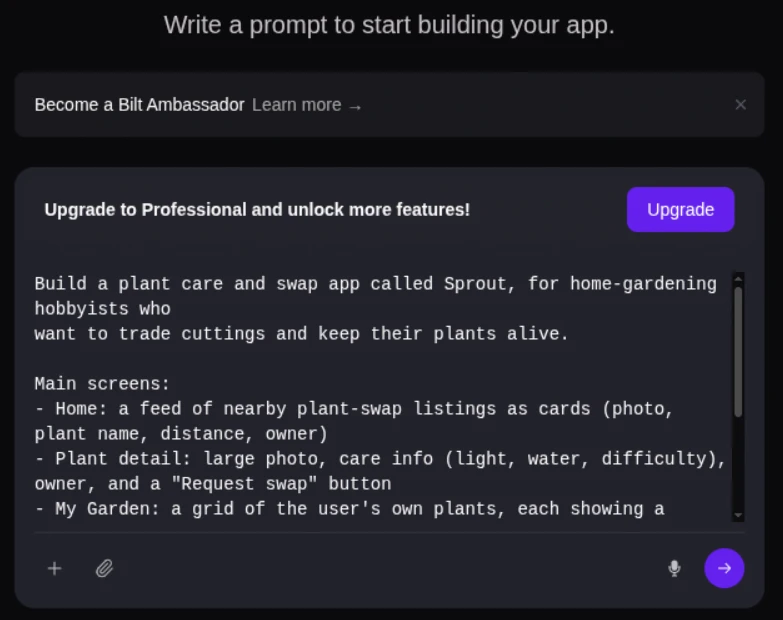
The result is exportable React Native code you own, so the app is not trapped in a proprietary visual project if your team changes later.
Web wrappers can reach many device APIs through plugins, but that adds bridge dependencies and maintenance. Bilt generates a React Native app with mobile behavior built into the project.
Release work stays connected to the build. Bilt automates certificates, provisioning profiles, code signing, and store-ready builds for the App Store and Google Play.
Frequently asked questions
Are there any free app design tools?
Yes. Penpot, Figma, Marvel, Bilt, Webflow, and Adalo offer permanent free entry points, while Sketch and Balsamiq use time-limited trials.
Penpot is the clearest free design workspace because its core features remain available without a subscription. Bilt and Adalo let you build and test free, but publishing terms differ.
Check project, storage, collaboration, export, and publishing limits before choosing. App-store release also requires Apple or Google developer accounts, regardless of the design tool.
Which app design tools work online?
Bilt, Figma, Penpot, Balsamiq Cloud, Marvel, UX Pilot AI, Webflow, and Adalo work in a browser. Sketch uses a native macOS editor, with browser access for review and handoff.
Browser access does not mean the same output. Figma, Penpot, Balsamiq, Marvel, and UX Pilot focus on design or prototypes; Webflow publishes to the web; Bilt and Adalo continue into mobile builds.
A browser preview is useful for reviewing layout and flows. Test touch targets, loading states, and permissions on the devices your audience will actually use.
What is the difference between UI and UX tools?
UX tools map the journey a person takes through an app. UI tools shape the screens, controls, and visual details they use along the way.
- UX tools produce research personas, journey maps, and information architecture that set product strategy.
- UI tools produce high-fidelity mockups, component libraries, and style guides for visual implementation.
The boundary often blurs. Figma can map flows and polish components in one file, while Bilt can apply an approved visual direction as it generates the working app.
Which tools are best for prototyping and mockups?
Different tools fit different prototype stages:
- Balsamiq: rough wireframes that keep feedback on structure.
- Marvel: lightweight clickable demos with recorded user tests.
- Figma: polished interactive prototypes and reusable design systems.
- UX Pilot AI: prompt-generated flows and screens that need refinement.
Bilt belongs after the mockup stage, when the next deliverable is a working native app rather than another prototype.
Are AI app design tools worth using?
AI app design tools are worth using for first-pass layouts, flows, and working builds, provided a person reviews the result before release.
Use screen generators to explore visual directions, then review hierarchy, accessibility, edge cases, and flow. AI builders go further by connecting the screens to app logic and testing.
Human review still matters for complex design systems and visual hierarchy, as Nielsen Norman Group research explains. It also matters for permissions, error states, and real-device behavior.
If your goal is a working mobile app rather than another design file, describe the idea, test the native build, and publish when it is ready. Start building free with Bilt.