Prerequisites
- A working Bilt app you’re ready to publish on Android
- A Google Play developer account in Play Console ($25 one-time registration fee; no annual renewal)
- Access to Google Cloud so you can create a service account and enable the Google Play Android Developer API
- Store listing and policy details for your app: privacy policy, data safety answers, target audience, content rating, and pricing or countries
Step 1: Create or open your Play Console account
If you do not have Play Console access yet:- Go to Play Console
- Create or join a Google Play developer account — a one-time $25 USD registration fee applies (no recurring annual fee for the account itself)
- Pay with an international credit or debit card (Visa, MasterCard, or American Express)
- Complete Google’s account, identity, and organization checks before you try to publish
Step 2: Create the app in Play Console
Create the Play Console app first, then use the same Android package name in Bilt.1
Create the Play app
- Open Play Console
- Click Create app
- Enter the app name, default language, app or game type, and free or paid choice
- Answer the declarations Google shows, then create the app
2
Finish the required Play setup
On the app dashboard, complete the required setup tasks Google shows for your app. This usually
includes app access or sign-in instructions, ads, content rating, target audience, privacy
policy, Data safety, store listing, and pricing or countries.
3
Choose your package name
Pick the Android package name Bilt should build for this Play app, such as
com.yourcompany.appname. Use a stable, lowercase package name because Google Play treats it as
the app’s permanent identifier after upload.Step 3: Connect Google Play to Bilt
Open Settings → Publish → Play Store. The Play Store setup tab has three sections: Package name, Service key file, and Android upload key.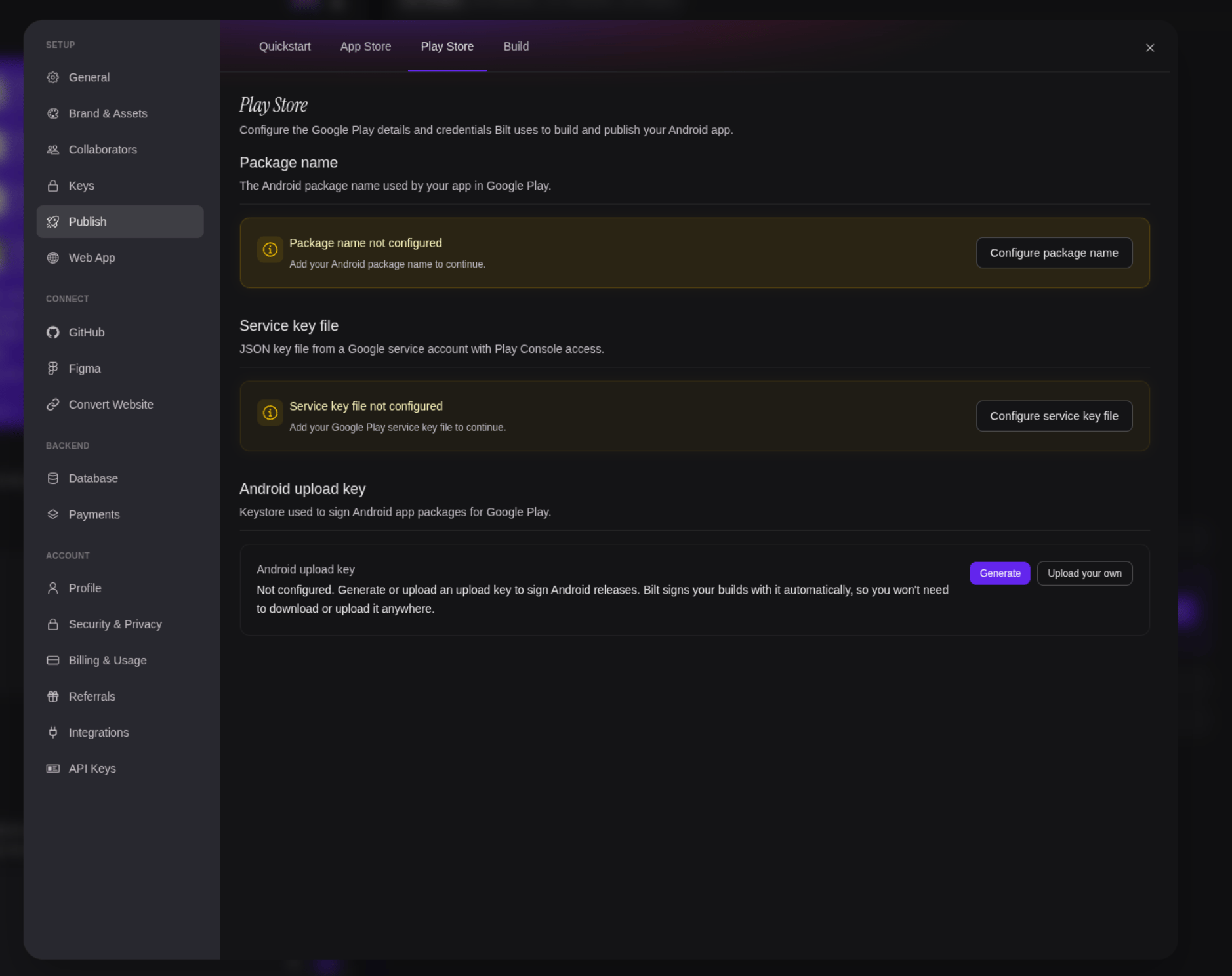
1
Add the package name
In Package name, click Configure package name, enter your Android package name, then click Save.
2
Create a Google service account
In Google Cloud Console, open IAM & Admin → Service Accounts and create a service account. Play app access is granted separately in Play Console; creating this account does not require assigning it a broad Cloud project role. See Google’s API access setup.
3
Download the JSON key
Open the service account, choose Keys, then click Add key → Create new key. Choose JSON and save the downloaded file securely.
4
Enable the Google Play Android Developer API
In the same Google Cloud project, open the Google Play Android Developer API page and click Enable.
5
Invite the service account to Play Console
In Play Console, open Users and permissions and invite the service account email. Grant access to this app and the release permissions required for your testing/production workflow. Avoid granting account-wide administration merely to publish one app.This account is for publishing. Payments use Bilt’s own account and a separate app-level invitation, described in Set up Google Play payments.
6
Upload the service key file in Bilt
Back in Settings → Publish → Play Store, click Configure service key file, upload the JSON file, then click Save service key file.
Step 4: Set up the Android upload key
Open Settings → Publish → Play Store → Android upload key.- Generate — Bilt creates and saves an Android upload key for this project (recommended for new Play apps)
- Upload your own — Upload an existing
.jks,.keystore,.p12, or.pfxupload key and enter the file password, key name, and key password
Step 5: Build and upload your first app bundle
Open Deploy & Share → Release on App Store from the top-right project button, then switch to the Build subtab.- Select Play Store as the build target
- Click Start Play Store build
- Watch progress under Recent builds
- When the build finishes, open the build artifact menu and download the Play Store package
- Open Play Console and select your app
- In the left dashboard, go to Test and release → Internal testing
- Click Create new release in the top right
- Upload the downloaded
app-release.aabfile - Choose a release name
- Click Next in the bottom right, fix any errors, then click Save
Step 6: Let Bilt handle future updates
After the first upload and Play Console setup are accepted, use Settings → Publish → Build for repeat Android releases:- Select Play Store
- Click Start Play Store build
- If Google Play publishing is ready, Bilt sends the package to the internal testing track automatically
- If Google Play publishing is not ready, Bilt still creates a downloadable Play Store package so you can upload it manually
Prepare Google Play payments, if your app sells digital access
Publishing and payments are separate. Payments use Bilt’s account, so you do not need another Cloud project or JSON key. Open Payments → Catalog → Google Play and follow its five-item setup checklist: app details, Bilt access, products, enablement and notifications. Your publishing key keeps its release permissions. Before creating Play products, upload an Android build with the billing permission. Include the nativeexpo-iap dependency and its config plugin, then use the internal-test upload above. Expo Go and mocks cannot test purchases. Use monthly or annual auto-renewing plans, or permanent one-time buy options at quantity one.
Once payments are enabled, Add Product in Bilt creates a draft. Bilt’s email needs the additional app-level Manage store presence permission and, while the app is marked Draft, Edit and delete draft apps. For a permanent one-time purchase, enter an initial Price (USD) greater than zero; Bilt sets that US price when creating the draft. Finish regional pricing and activation in Play Console, then refresh and import in Bilt. You can also create products directly in Play Console without granting Bilt these product-editing permissions.
After enabling payments, import at least one supported purchase option and map it to a stable benefit. Confirm checkout is available, then use a license tester to test purchase, acknowledgement, pending payment, restart/restore, account switching, lifecycle and refund/revocation. Notification status is advisory during setup; native acceptance is required before release. Bilt’s server acknowledges completed purchases after durable benefit delivery, so the app must not finish or consume Google purchases. See Google’s testing guide.
Test-purchase verification is separate from the setup checklist. In Payments → Users, open the test customer’s detail view and confirm the completed purchase grants its benefit and no longer shows Acknowledgement pending.
Play Store resubscriptions after expiry are attributed and acknowledged using Google’s previous-purchase evidence. Explicit Google restore can recover an anonymous predecessor after reinstall; authenticated purchases still require the original app account. Promo codes redeemed outside the app without account evidence stay unbound and are refunded by Google after three days. See purchase ownership and recovery.
Consumables, credit balances, prepaid/installment plans, rentals, preorders, multi-quantity purchases, and offer-only one-time options are outside the initial supported scope. Preparing these settings does not establish that Google payments are enabled in production. Read In-app Payments for catalog and benefit behavior.
Step 7: Move from testing to production
When you are ready to go live:- Complete your store listing, App content declarations, prices, countries, and release notes in Play Console
- Test the app through internal testing, then closed or open testing if needed
- Create or promote a production release
- Review the release, resolve any errors, and submit it for Google review
- Once approved, your app is live on Google Play
Play Store tabs in Bilt
Changing credentials and app identity
The publishing service key file can be replaced without deleting the old file first: open its … → Replace service key menu, upload the replacement JSON and save. Give a new service account release access to the same Play app before replacing its key. Verify a publishing build before revoking the previous key in Google Cloud. Do not edit the JSON’s email or private-key fields by hand. This key is not used for payments. The package name is different: Bilt fixes it once the app is registered for payments, even if registration fails before checkout is enabled. Disabling payments or deleting credentials does not let you change or reset that package. Confirm the exact Play app before connecting payments. An upload key signs your Android releases; it is not the JSON API credential. For an existing app, compare the keystore’s certificate fingerprint with Upload key certificate on Play Console’s app-signing page. If the private keystore is lost, use Google’s upload-key reset procedure for apps enrolled in Play App Signing. Only use the new key for updates after Google accepts it, then save that keystore in Bilt. A reset in Bilt only removes Bilt’s saved copy; it does not reset the key in Google Play. For Bilt’s payments invitation and notification configuration, see In-app Payments.Common issues
Google Play API needs to be enabled
Google Play API needs to be enabled
Enable the Google Play Android Developer
API
in the same Google Cloud project that owns your service account, then start another build.
Service key file is invalid
Service key file is invalid
Upload the JSON key file downloaded from Google Cloud. Bilt expects a Google service account
JSON file, not a Play Console export or a copied email address.
Play Store publishing is skipped
Play Store publishing is skipped
Bilt can still build the Android package, but Google Play did not allow automatic publishing.
Check that the service account has app-level release access in Play Console and that your first
manual app bundle upload or required Play setup is complete.
Package name mismatch
Package name mismatch
The package name in Bilt must match the package Google Play expects for this app. Use a value
like
com.company.appname, keep it lowercase, and do not change it after the first Play upload.Upload key mismatch
Upload key mismatch
Use the private keystore matching Google’s registered upload certificate. If Bilt generated
your key, keep the … → Download upload key backup. A newly generated key will not repair an
existing app’s mismatch until Google accepts an upload-key reset. See
Changing credentials and app identity.
Build fails
Build fails
Check the build logs in the Build tab. Common causes include a missing package name, missing
upload key, invalid service-account access, or an Android build error in the app.
Further reading
- Create and set up your app — Google Play Console app setup
- Google Play Developer API getting started — Service accounts and API access
- Set up internal testing — Internal, closed, and open testing tracks
- Prepare and roll out a release — Release creation and rollout
- Use Play App Signing — Upload keys and Play App Signing
- Publish your app — Feature overview