The published URL is public. Anyone with the URL can use the web app or add it to their home screen.
Before you start
You need:- A working Bilt app
- Workspace-owner access to the project
Collaborators can work on the app, but only the workspace owner can publish, cancel, republish, or unpublish it.
Step 1: Check the current app
Publishing uses the version running in the active preview.- Open the Bilt project
- Click through the important screens
- Ask Bilt to fix anything unfinished or broken
Step 2: Open web publishing
Web publishing lives in two places:
Both show the same status, and either can start a publish. The dialog has a Domains & details link that takes you to the tab.
To use the quick path:
- Return to the project
- Click Deploy & Share
- Choose Publish to web
- The Publish to web dialog opens
Step 3: Start the publish
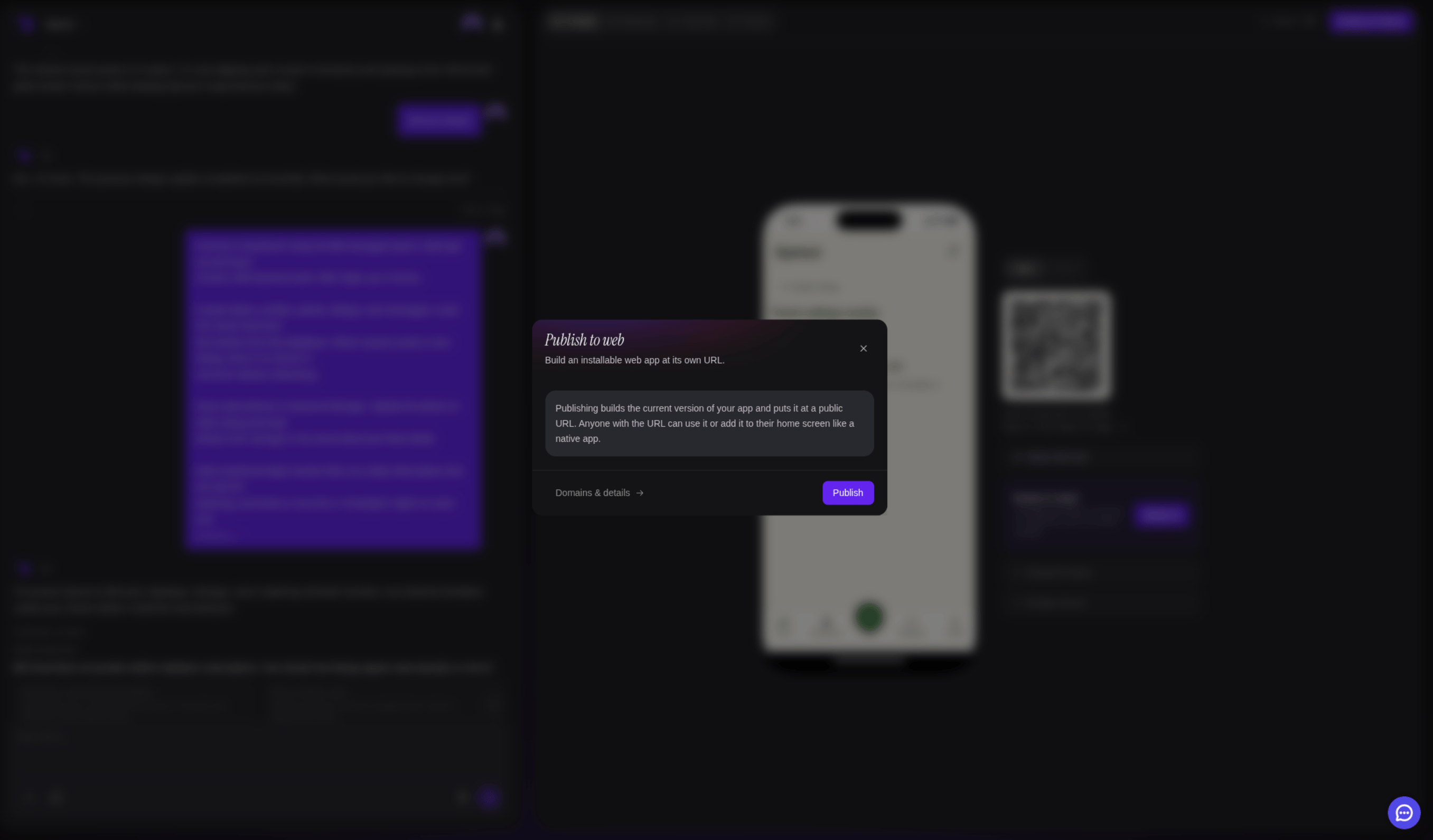
- Read the information in the Publish to web dialog
- Click Publish
If the app uses payments, Settings → Web App shows a warning at the top — in-app purchases don’t work in a PWA.
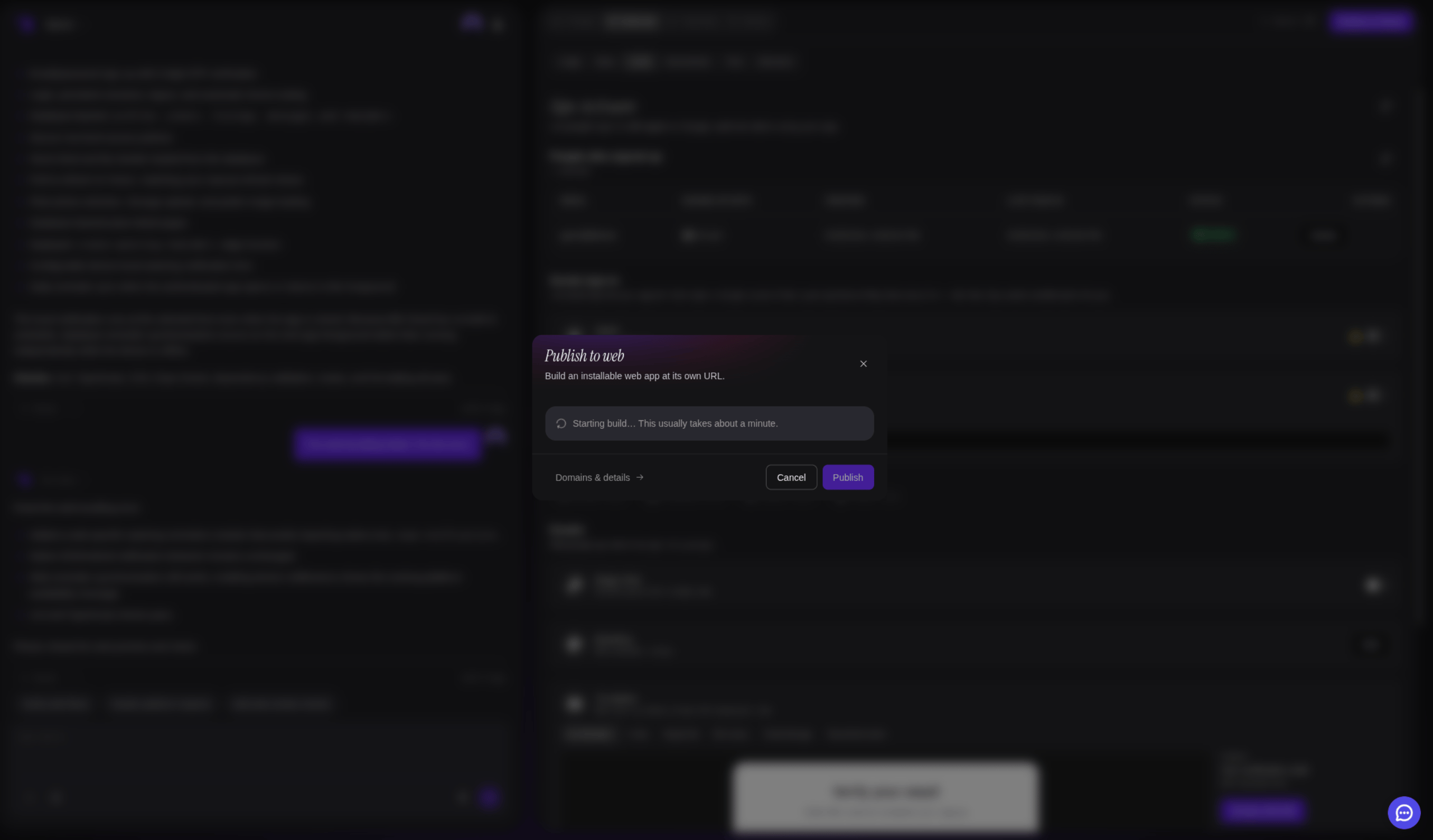
- Starting build
- Building your app
- Uploading
- Ready
- Adds the standard PWA setup if the project does not already have it
- Builds the current app for the web
- Creates the install information, icons, and service worker
- Uploads the app
- Serves it over HTTPS at its own
web.bilt.meaddress
Step 4: Open the PWA
When the status reaches Ready:- Click Open app
- Test the important screens again
- Copy the web address if you want to save or share it
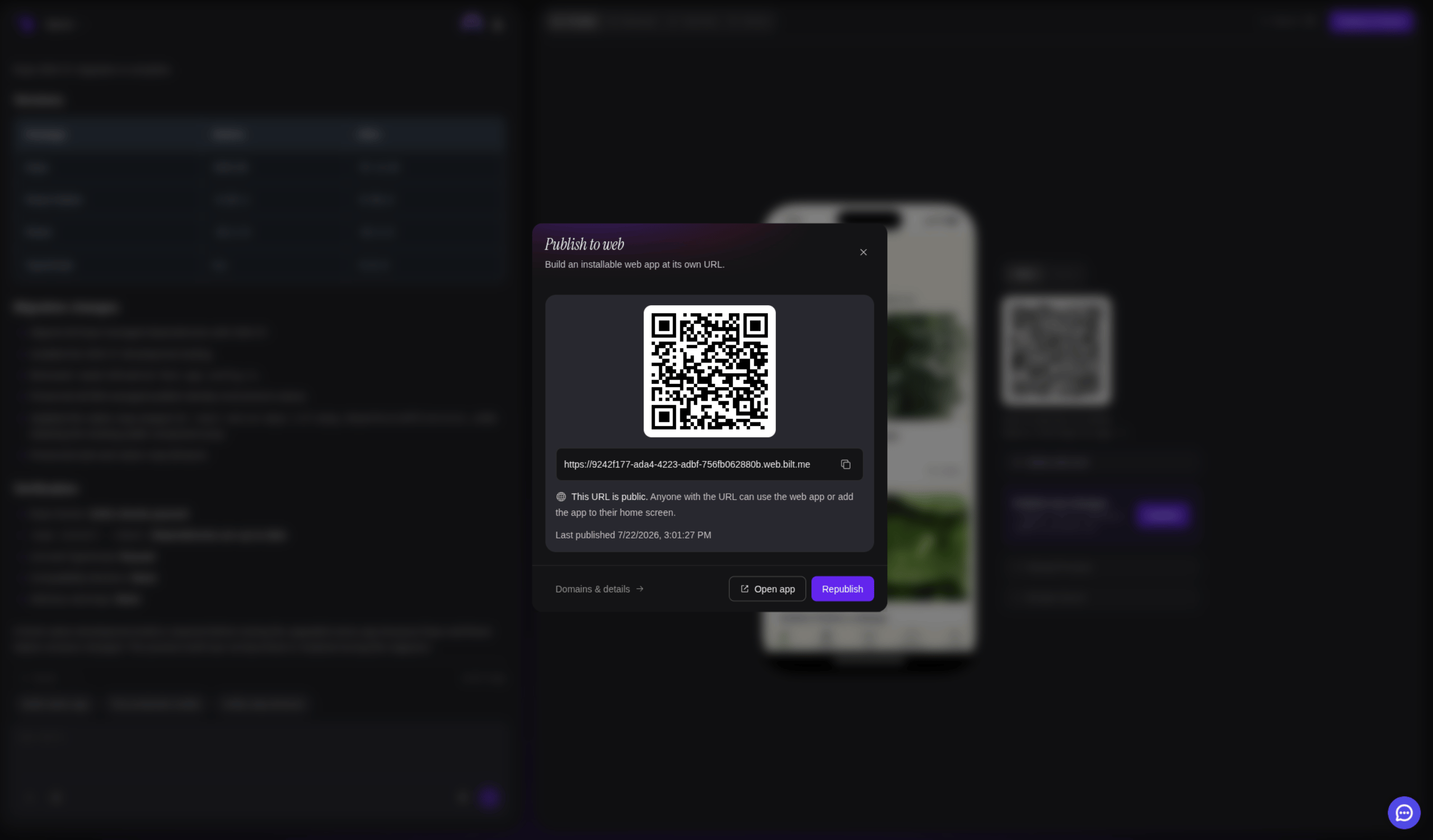
The address stays the same when you republish, so people do not need a new URL after each update.
Share the PWA
Both surfaces show the permanent web address with a copy button, and a QR code to point a phone at. Settings → Web App adds the rest: Add it to your home screen spells out the iPhone and Android steps, and Custom domain lives below it. Anyone with the URL can open the app.Use your own domain
By default the app lives at a longweb.bilt.me address. You can also serve it on a domain you own, like app.yourdomain.com.
You need:
- A published app — the option only appears once the first publish reaches Ready
- Workspace-owner access
- A plan that includes custom domains
- Access to your domain’s DNS settings
Adding a custom domain does not replace the original
web.bilt.me address. Both keep working.Step 1: Add the domain in Bilt
- Open Settings → Web App
- Scroll to Custom domain
- Type the address you want to use, such as
app.yourdomain.com - Click Add
Step 2: Add the two DNS records
Bilt shows two records. Add both at whoever manages your domain’s DNS — your registrar, or a provider like Cloudflare, Route 53, or Namecheap.
Each row has a copy button for the host and the value. Copy them exactly.
If your DNS is managed by Cloudflare, set the
CNAME record to DNS only (grey cloud) rather than proxied. A proxied record can stop the certificate being issued.Step 3: Wait for it to go live
The status updates on its own as your DNS spreads:- Waiting for DNS — the records have not been seen yet
- Issuing certificate — ownership is confirmed, HTTPS is being set up
- Almost live
- Live
Once the status is Live, open your domain in a browser. It serves the same app, over HTTPS, with a certificate that renews automatically.
Use more than one domain
You can add several domains, and different projects can use different subdomains of the same domain —app.yourdomain.com for one app and shop.yourdomain.com for another. Each one is added and verified separately.
How many you can add in total depends on your plan.
Remove a domain
- Open Settings → Web App
- Find the domain under Custom domain
- Click the bin icon next to it
web.bilt.me address is unaffected. You can then delete the two DNS records at your provider.
Add the PWA to an iPhone
- Open the PWA address in Safari
- Tap the Share button
- Scroll down
- Tap Add to Home Screen
- Confirm the name
- Tap Add
Install the PWA on Android
- Open the PWA address in Chrome
- Tap the menu button ⋮
- Tap Install app
- Confirm the installation
Publish an update
- Make the changes in Bilt
- Wait until the preview shows the finished result
- Open Deploy & Share → Publish to web, or Settings → Web App
- Click Republish
- Wait for Ready
Take the PWA offline
- Open Settings → Web App
- Click Unpublish
- Confirm by clicking Unpublish again
Important limitations
- In-app purchases do not work in PWAs.
- PWAs can’t be published to the App Store or Google Play.
- Some device-specific native features may behave differently or be unavailable in a PWA.
Troubleshooting
Bilt says only the owner can publish
Bilt says only the owner can publish
Ask the Bilt workspace owner to publish the app. Collaborator access does not include publishing, cancelling, republishing, or unpublishing.
Bilt says to start a preview first
Bilt says to start a preview first
Return to the project and start or reload the preview. Wait until the app appears, then open the publish dialog and try again.
The publish failed
The publish failed
Read the reason Bilt shows under the status, return to the project, and ask Bilt to fix the build problem. Then click Republish. The previous working version remains online.
Unpublish and Custom domain are missing from the publish dialog
Unpublish and Custom domain are missing from the publish dialog
They live in Settings → Web App, along with the home-screen instructions. The Publish to web dialog is the quick path — click Domains & details in it to jump to the tab.
Install app does not appear on Android
Install app does not appear on Android
Make sure you opened the published HTTPS address in Chrome. Browser and Android versions may show Add to Home screen instead of Install app.
A custom domain is stuck on Waiting for DNS
A custom domain is stuck on Waiting for DNS
Check both records at your DNS provider, and that the host and value match what Bilt shows exactly. If your DNS is on Cloudflare, set the
CNAME to DNS only rather than proxied. Some providers add your domain to the host for you — in that case enter only the part before it.Bilt says custom domains are not included in your plan
Bilt says custom domains are not included in your plan
Custom domains are a paid feature. Upgrade your plan, then add the domain again.
Bilt says the domain is already in use
Bilt says the domain is already in use
That exact address is attached to another project. Remove it there first, or use a different subdomain.
The custom domain shows a security warning
The custom domain shows a security warning
The certificate is not ready yet. Wait until the status reads Live, then reload. If it stays on Waiting for DNS, the
TXT record has not been seen.The custom domain says the app has not been published
The custom domain says the app has not been published
The domain resolves but the project has nothing published — publish it, or check the domain is attached to the project you meant.
Further reading
- Progressive Web App (PWA) — Wikipedia article
- Publish your app — Compare web, App Store, and Google Play publishing
- Get & Share Your App — Preview and device-testing options